

Email the completed Insites report summary to the prospect via Gmail
When Insites finishes a new website analysis, this workflow sends an email through Gmail with the report summary you build from the results, so prospects hear from you while the audit is fresh.
 Insites
 Gmail
Gmail2 steps Setup ~5 min Used on 3.0k sites Free to import
What this workflow does
Agencies use Insites to audit a prospect's website before a sales call. The audit is most useful when it reaches the prospect quickly, but writing each email by hand slows things down. This workflow sends the summary from your Gmail account once the analysis is done.
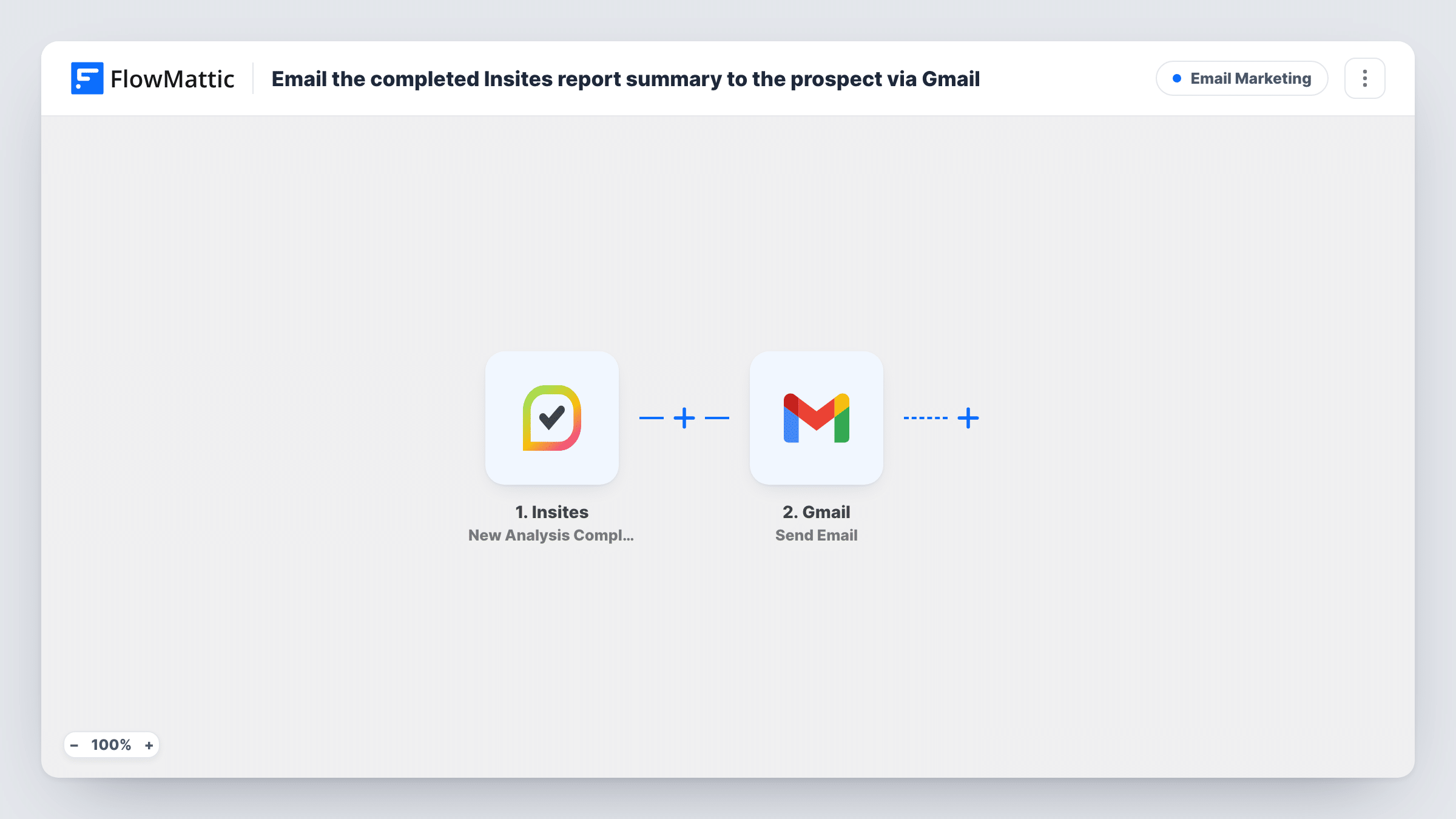
The Insites trigger, New Analysis Completed, fires when a new analysis is completed. FlowMattic receives the analysis data, such as the site that was checked and its results. The Gmail step then sends an email to the recipient you set, with a subject and body you write using those results.
The email needs the prospect's address. Run a test analysis to check whether the event carries a contact email. If it doesn't, the recipient has to come from somewhere else, and an analysis you start yourself may hold only the website. The message is written in the email body; Gmail here doesn't attach the report file. Every completed analysis sends an email, including ones you run for your own checks.
Audit before a discovery call
A sales rep runs an Insites analysis on a prospect's site. The summary goes out from the rep's Gmail before the call, so both sides have the same findings to discuss.
Outbound prospecting at scale
An agency audits a list of local business sites and sends each owner a short summary of issues found, with a link to book a review.
Client health checks
Account managers re-run analyses for existing clients, and the summary email shows each client what changed since the last audit.
How this workflow runs
What happens at each step once the workflow is on, and what you need before you import it.
 Insites New Analysis Completed
Fires when Insites completes a new analysis. The analysis results and the details of the site checked become data you can map into the email.
- Gmail Send Email
Sends an email from your Gmail account to the recipient you map. Write the subject and body using the analysis results, and check that a prospect email is available to send to.
What you need
- FlowMatticCore
- Insites AccountAccount
- Gmail AccountAccount
After importing, map your own data. To keep the template universal, not every step is pre-filled. Open each step in the builder and connect your accounts and fields (channels, lists, sheets, recipients) before you switch the workflow on.
Make it yours
Changes worth making after you import it.
- Add a Filter after the trigger that continues only when the event carries a contact email, so analyses you run for internal checks don't try to send. A test run shows whether that field exists.
- If your audits come from an Insites lead generation form, look at the Lead Generation Details Submitted trigger, which fires when that audit completes, to see if it carries the visitor's details.
- Send the first test email to your own address so you can check the layout and the mapped results before any prospect sees it.
Questions about this workflow
Where does the prospect's email address come from?
From the Insites analysis data, if it includes one. Check a test run. An analysis started from a website address alone may have no contact email, and the Gmail step then has no one to send to.
Is the full Insites report attached to the Gmail message?
No. The Gmail step sends the text you write, built from the analysis fields. Include a link to the report if the event provides one.
Will every Insites analysis send an email?
Yes, as imported. Each completed analysis runs the workflow. Add a Filter if some analyses are for internal use only.
Can I review the Insites email before it goes to the prospect?
Swap the step for Gmail's Create Draft action so each email waits in your drafts, or add a Human in the Loop step and set its timeout action to End Workflow.
More Email Marketing workflows
Other ready-to-import templates from the same category.




Import this workflow into your WordPress site
Download the JSON, import it from the Workflows screen and connect your accounts. Every run stays on your server, with no per-task fees.
30-day money-back guarantee Unlimited workflows and runs Self-hosted