

Email the on-call engineer via Gmail on every new Pulsetic monitor event
Every new Pulsetic monitor event sends an email from your Gmail account to the on-call engineer, with the monitor and event details you map into the message.
 Pulsetic
 Gmail
2 steps Setup ~5 min Used on 2.0k sites Free to import
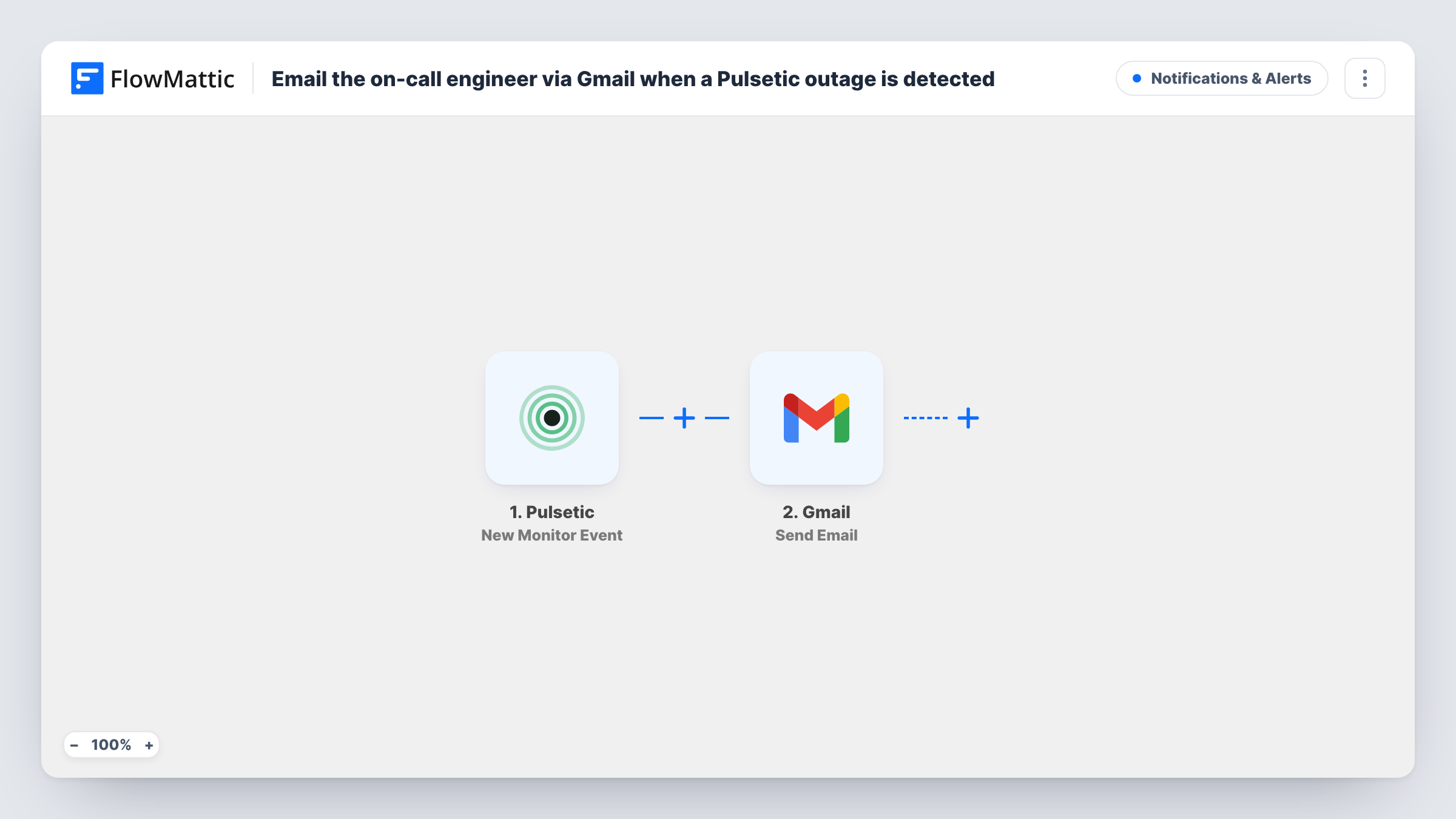
What this workflow does
Uptime alerts are only useful if the person who can fix things sees them. Many small teams keep a rota and want alerts to reach whoever is on call, from a familiar Gmail sender they won't filter out. This workflow emails that person for each event Pulsetic reports.
The Pulsetic New Monitor Event trigger fires when a new monitor event occurs and passes the event data on. That covers every event Pulsetic sends, not only outages, so a site coming back up can produce an email too. Look at a test event to see what Pulsetic includes, such as the monitor name, URL and status.
The Gmail Send Email step then sends the message from the Gmail account you connect. It ships empty. Add the on-call engineer's address, write a subject, and map the Pulsetic details into the body. Putting the monitor name and status in the subject lets the engineer read the alert from the notification alone.
The recipient is a fixed address you type in, so when the rota changes, update it in the step or point it at a shared on-call alias. Task History lists every event and the email Gmail sent for it.
Weekend cover for a small agency
An agency monitoring client sites in Pulsetic sends each event to the developer on call that weekend, from the agency's own Gmail account.
Alias that follows the rota
A SaaS team emails Pulsetic events to an oncall@ group address in Google Workspace and changes the group's members each week.
Down and back-up notices for a store owner
A shop owner gets an email when Pulsetic reports the site down and another when it recovers, so they know when to check orders.
How this workflow runs
What happens at each step once the workflow is on, and what you need before you import it.
 Pulsetic New Monitor Event
Fires when a new monitor event occurs in Pulsetic, which can include downtime and recovery events. The monitor and event details are passed on for the email.
- Gmail Send Email
Emails the event to the on-call engineer from Gmail. The template leaves it empty: add the on-call engineer's address, a subject, and the Pulsetic monitor and status values in the body.
What you need
- FlowMatticCore
- Pulsetic AccountAccount
- Gmail AccountAccount
After importing, map your own data. To keep the template universal, not every step is pre-filled. Open each step in the builder and connect your accounts and fields (channels, lists, sheets, recipients) before you switch the workflow on.
Make it yours
Changes worth making after you import it.
- If you only want emails for outages, put a Filter between the Pulsetic trigger and the Gmail step on the event's status value. Check a test event to find the value to match.
- Send to a group address rather than a person, then change the group's members when the rota changes instead of editing the workflow.
- Put the monitor name and the event status at the start of the subject, so the engineer can tell what happened from the phone's notification.
Questions about this workflow
Does every Pulsetic event send an email, or only outages?
Every event Pulsetic sends as a new monitor event starts a run, which can include recoveries. Add a Filter on the status between the trigger and the Gmail step for outages only.
Who receives the Pulsetic alert email?
The address you enter in the Gmail step. The template leaves it blank, so enter the on-call engineer or a shared on-call address after import.
Which address do the Pulsetic alerts come from?
They are sent from whichever Google account you link to this Gmail step. Use a team account rather than a personal one if several people manage the workflow.
Can I get the Pulsetic alert by text or chat instead?
Yes. Replace or add to the Gmail step with a Slack or Discord step from FlowMattic and map the same Pulsetic details into that message.
More Notifications & Alerts workflows
Other ready-to-import templates from the same category.





Import this workflow into your WordPress site
Download the JSON, import it from the Workflows screen and connect your accounts. Every run stays on your server, with no per-task fees.
30-day money-back guarantee Unlimited workflows and runs Self-hosted