

Email the hiring manager via Gmail when a Viterbit application is hired
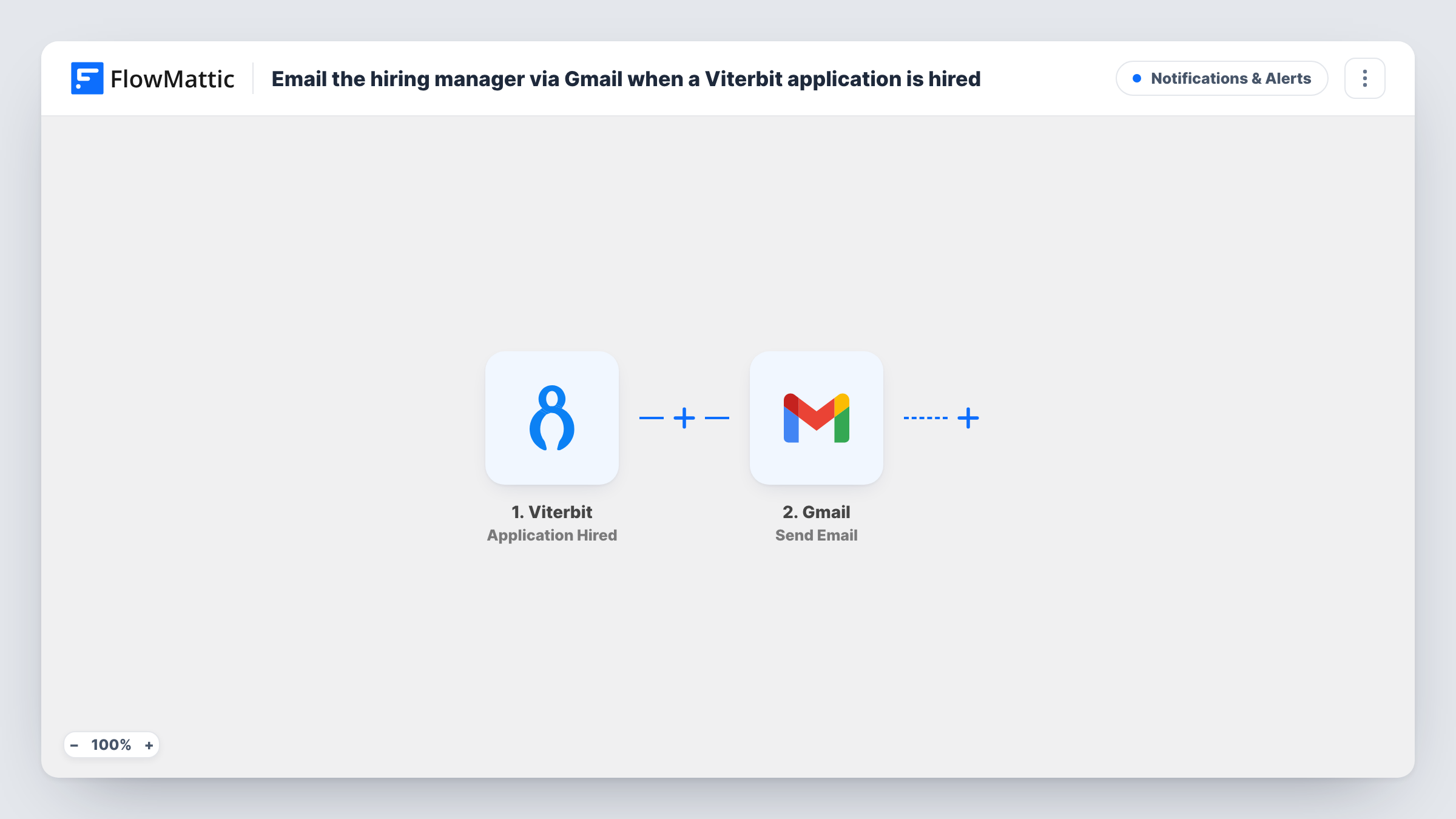
When an application in Viterbit moves to hired, this workflow sends an email from your Gmail account to the hiring manager, so the person who asked for the role hears about the hire without checking the ATS.
 Viterbit
 Gmail
2 steps Setup ~5 min Used on 2.4k sites Free to import
What this workflow does
A hire in Viterbit is the point where recruiting hands over to the team that asked for the role. If the hiring manager only finds out by opening the ATS or waiting for a recruiter's message, equipment, accounts and a start plan can slip. This workflow turns the hired status into an email that goes out from Gmail as soon as Viterbit reports it.
The Viterbit trigger runs when an application is marked as hired. FlowMattic receives the data Viterbit sends for that application and makes it available to map. The Gmail step then sends an email from the Google account you connect. You decide who receives it and write the subject and message, placing Viterbit data such as the candidate or job details wherever it helps.
As imported, every hired application produces one email. If different managers own different roles, you can map an address from the Viterbit data when it is there, or add a Router that sends to the right person per job. Run a test hire first so you can see exactly which values Viterbit passes along.
Start onboarding the day the offer is accepted
A recruiter marks the application hired in Viterbit, and the engineering lead gets an email from Gmail naming the new hire, ready to book a laptop and plan the first week.
Keep a department head in the loop
A head of sales who never logs in to Viterbit still receives a short Gmail message each time one of their open roles is filled.
Copy HR or payroll on every hire
Add a second Gmail step after the first that sends the same hire details to your HR inbox, so contracts and payroll setup start from the same information.
How this workflow runs
What happens at each step once the workflow is on, and what you need before you import it.
 Viterbit Application Hired
Runs when an application in your Viterbit account is marked as hired. The application data Viterbit sends becomes available to map in the Gmail step.
- Gmail Send Email
Emails the hire notice through the Gmail account you connect. Enter the hiring manager's address, write the message, and drop in Viterbit values such as the candidate's name. Check the result with a test run.
What you need
- FlowMatticCore
- Viterbit AccountAccount
- Gmail AccountAccount
After importing, map your own data. To keep the template universal, not every step is pre-filled. Open each step in the builder and connect your accounts and fields (channels, lists, sheets, recipients) before you switch the workflow on.
Make it yours
Changes worth making after you import it.
- If each job has its own hiring manager, add a Router after the trigger with one route per job title, and give each route its own Gmail step addressed to that manager.
- Want a written trail too? Add a Google Sheets step after the email so each hire is also logged as a row with the date and role.
- Before switching the workflow on, move a test application to hired in Viterbit and open Task History to see the fields the trigger captured, then map them into the email.
Questions about this workflow
How does the Gmail step know who the hiring manager is for a Viterbit hire?
As imported, it does not work that out for you. You type the address into the Gmail step, or map one from the Viterbit data if your test run shows a field that holds it.
Does the email go out from my own Gmail address?
Yes. The Send Email action uses the Google account you connect in FlowMattic, so the message comes from that mailbox and appears in its sent folder.
Will applications hired before I import this send emails?
No. The trigger reacts to applications marked hired after the workflow is turned on. Earlier hires are not looked up.
What if the hired status is set on the same application twice in Viterbit?
Each time Viterbit reports a hire event, the workflow runs and sends an email. If your team sometimes toggles the status, expect a second message for that application.
More Notifications & Alerts workflows
Other ready-to-import templates from the same category.




Import this workflow into your WordPress site
Download the JSON, import it from the Workflows screen and connect your accounts. Every run stays on your server, with no per-task fees.
30-day money-back guarantee Unlimited workflows and runs Self-hosted