

Send a Slack alert when a new UpGuard identity breach is detected
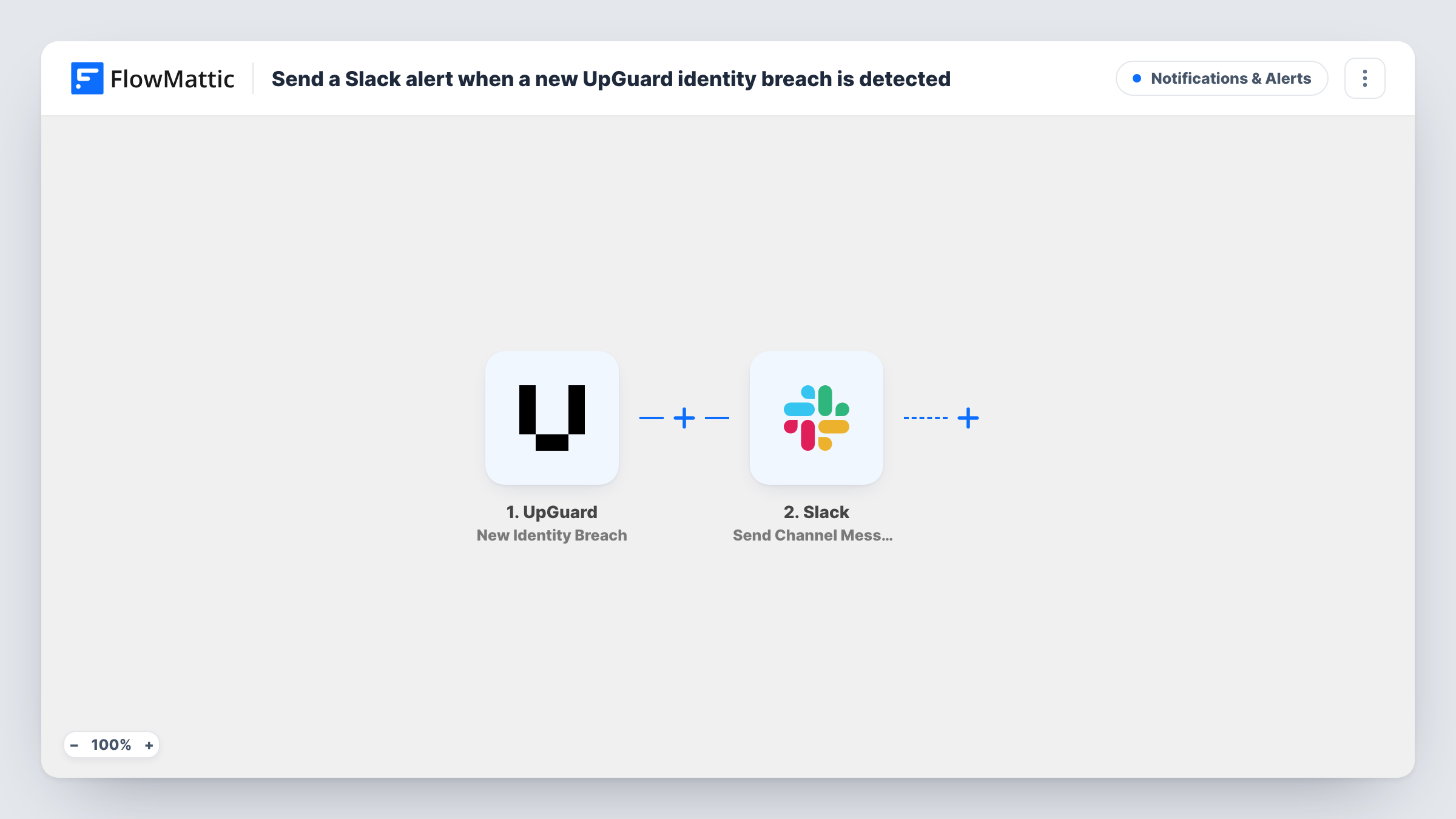
Each time UpGuard detects a new identity breach, FlowMattic posts a message to the Slack channel you choose, so your security team sees it where they already talk.
 UpGuard
 Slack
2 steps Setup ~5 min Used on 2.2k sites Free to import
What this workflow does
Identity breaches put staff accounts at risk, and the sooner the right people know, the sooner passwords can be reset. If the alert only sits in the UpGuard dashboard, it waits until someone logs in. This workflow brings each new breach into Slack.
The UpGuard trigger fires when a new identity breach is detected. FlowMattic passes the breach details to the Slack Send Channel Message action, which posts to the channel you pick. You write the message and fill it with values from UpGuard, such as the breach name and the affected details it reports.
The workflow sends the alert and nothing else. It does not reset passwords or open a ticket. Those steps stay with your team, or you can add them after import. Task History keeps a record of every alert posted.
Security channel for a small IT team
A two-person IT team watches one Slack channel, and each new UpGuard identity breach appears there for whoever is on duty.
Prompting password resets
The alert names the breach, so the team can tell affected staff to change their passwords before attackers try them.
Managed service providers
An MSP posts each client's UpGuard breach alerts into that client's shared Slack channel, keeping the client in the loop.
How this workflow runs
What happens at each step once the workflow is on, and what you need before you import it.
 UpGuard New Identity Breach
Starts a run whenever UpGuard detects a new identity breach. The details UpGuard sends about the breach become available for the Slack message.
- Slack Send Channel Message
Posts the breach alert to the Slack channel you choose. Connect Slack, pick the channel, and build the text from the breach values UpGuard provides.
What you need
- FlowMatticCore
- UpGuard AccountAccount
- Slack AccountAccount
After importing, map your own data. To keep the template universal, not every step is pre-filled. Open each step in the builder and connect your accounts and fields (channels, lists, sheets, recipients) before you switch the workflow on.
Make it yours
Changes worth making after you import it.
- Keep breach alerts out of open channels: switch to Slack's Send Private Channel Message action and post to a private security channel.
- Add a Google Sheets Add New Row step after Slack to build a log of breaches you can review in your next security meeting.
- Make a second copy of this workflow with UpGuard's New Data Leak trigger if you want those events in the same channel.
Questions about this workflow
Can UpGuard breach alerts go to a private Slack channel?
Yes, with a swap. Send Channel Message posts to a channel you select; Slack's Send Private Channel Message action is the one to use for a private channel.
Are breaches UpGuard found before import posted to Slack?
No. Only new identity breaches detected after the workflow is on start a run.
Does the workflow act on the UpGuard breach, for example by resetting passwords?
No. It posts a message only. Any response, such as asking staff to change passwords, is up to your team or to steps you add.
Which UpGuard breach details can the Slack message include?
Whatever the identity breach event provides. After the first breach arrives, its values can be picked in the Slack step.
More Notifications & Alerts workflows
Other ready-to-import templates from the same category.





Import this workflow into your WordPress site
Download the JSON, import it from the Workflows screen and connect your accounts. Every run stays on your server, with no per-task fees.
30-day money-back guarantee Unlimited workflows and runs Self-hosted