

Email the requester via Gmail when a Leave Dates request is approved
When a leave request is approved in Leave Dates, FlowMattic sends the employee who asked for it an email from your Gmail account, written the way you want it.
 Leave Dates
 Gmail
2 steps Setup ~5 min Used on 1.7k sites Free to import
What this workflow does
Once a manager approves time off, the employee wants to know, and HR often wants that confirmation in writing with the dates spelled out. This workflow sends that email from your Gmail account each time Leave Dates records an approval, so nobody has to write it by hand.
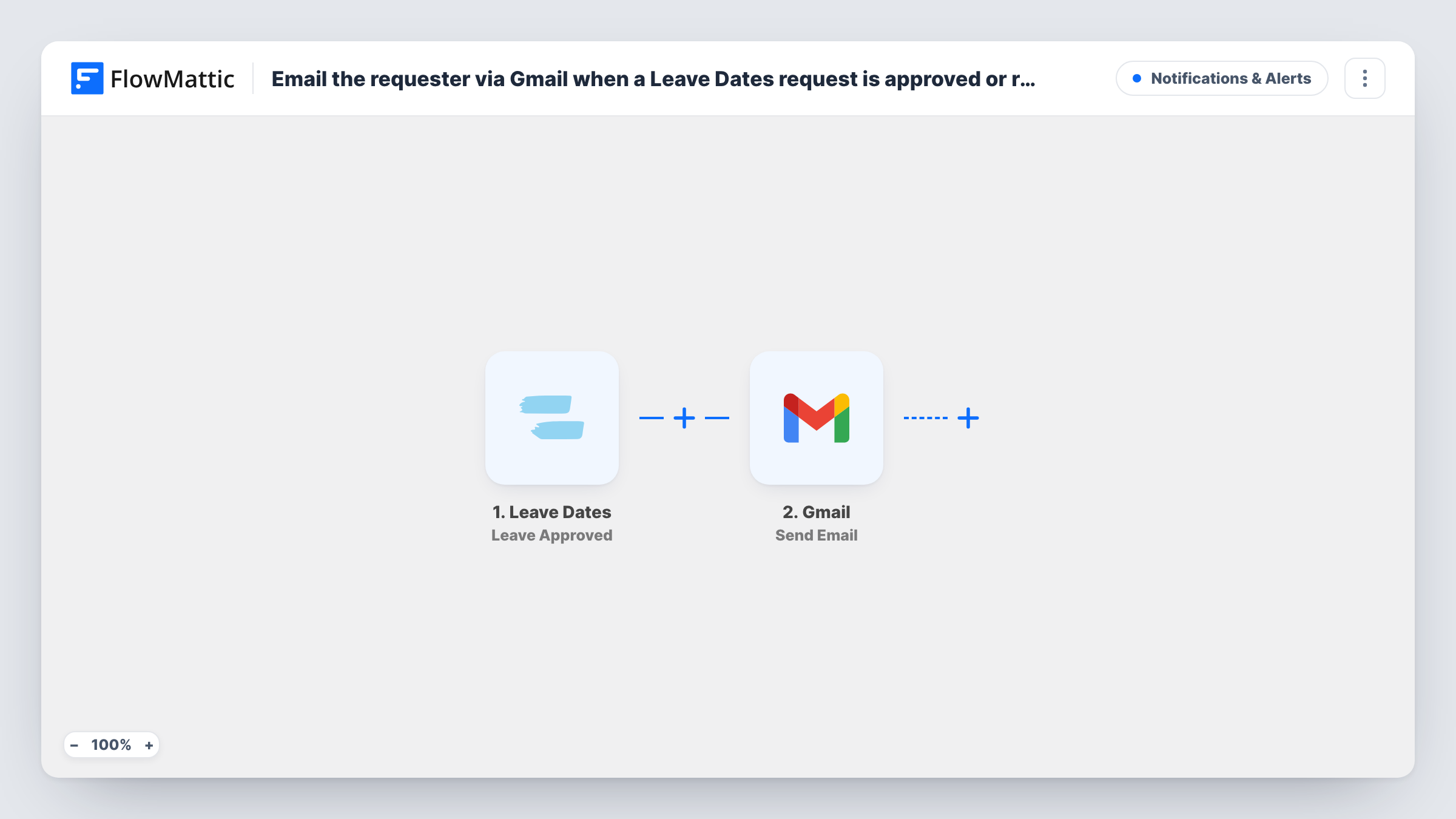
The Leave Dates trigger fires when a leave is approved and passes the request's details on. The Gmail step then sends an email to the recipient you map.
The Gmail step ships unmapped. After import, connect the Gmail account the email should come from, map the requester's email address as the recipient, and write the subject and message, mapping in details such as the leave type and the start and end dates. Check a test approval first to see whether Leave Dates includes the requester's email in the data; you can only send to an address the trigger provides or one you type in.
Every approval sends one email. Requests that are rejected or cancelled don't start this workflow. Approve a test request and look at Task History to see what Gmail returned.
Written confirmation for staff
A retail chain's store staff get an email confirming their approved holiday dates, which they can keep for reference when planning travel.
Approval from a shared HR address
A small company connects its HR Gmail account so every approval email comes from the same mailbox employees already reply to.
Reminders of handover duties
An agency adds a short handover checklist to the approval email, so people on leave remember to update their clients before they go.
How this workflow runs
What happens at each step once the workflow is on, and what you need before you import it.
 Leave Dates Leave Approved
Fires when a leave request is approved in Leave Dates. The request's details, such as the employee, leave type and dates, are passed to the Gmail step. Rejections don't trigger it.
- Gmail Send Email
Writes to the employee through the Gmail account you link. The step ships unmapped: map the requester's email as the recipient, then write a subject and message using the approved leave details.
What you need
- FlowMatticCore
- Leave Dates AccountAccount
- Gmail AccountAccount
After importing, map your own data. To keep the template universal, not every step is pre-filled. Open each step in the builder and connect your accounts and fields (channels, lists, sheets, recipients) before you switch the workflow on.
Make it yours
Changes worth making after you import it.
- Put the approved dates in the subject line, such as the start and end date, so employees can find the email later by searching their inbox.
- Name a contact for questions in the message body, so the employee knows who to ask if the approved dates need to change.
- Build a matching workflow on the Leave Rejected trigger with its own wording, so people hear back either way.
Questions about this workflow
Does the Leave Dates trigger include the requester's email?
Check a test approval in Task History to see the data Leave Dates sends. Map the requester's email as the recipient if it's there; the Gmail step can't send without an address.
Which Gmail account sends the approval email?
The one you connect in the Send Email step. Use a shared HR mailbox if you want replies to go to the team rather than one person.
Do rejected or cancelled Leave Dates requests send an email?
No. This workflow only starts on Leave Approved. FlowMattic's Leave Dates integration has separate Leave Rejected and Leave Canceled triggers for those cases.
Can I change the wording of the leave approval email?
Yes. The template ships with no subject or message, so you write both after import and map in the leave details.
More Notifications & Alerts workflows
Other ready-to-import templates from the same category.




Import this workflow into your WordPress site
Download the JSON, import it from the Workflows screen and connect your accounts. Every run stays on your server, with no per-task fees.
30-day money-back guarantee Unlimited workflows and runs Self-hosted