

Send a Slack alert to finance when an Iyzico subscription order fails
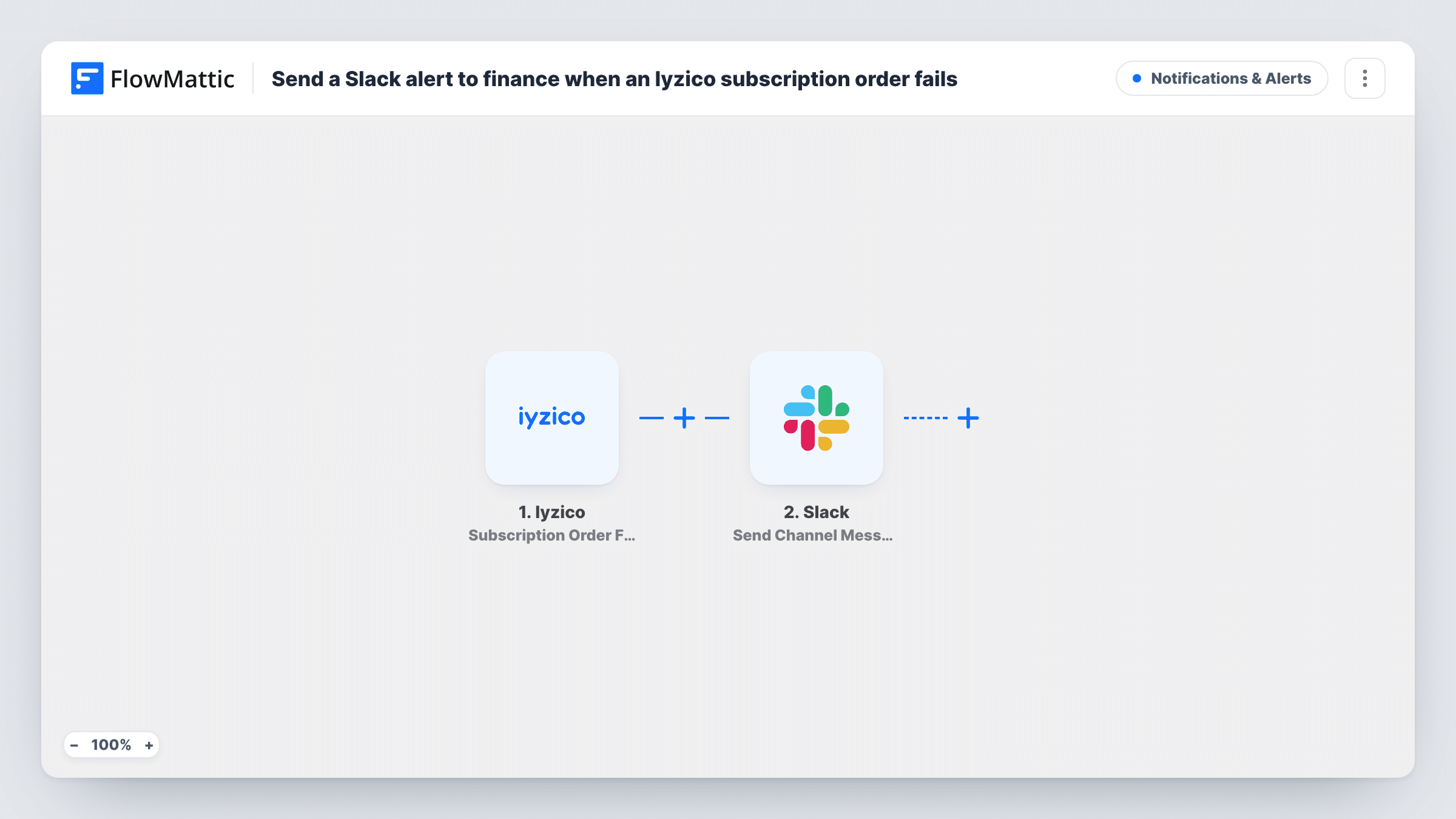
When an Iyzico subscription payment fails, whether the first charge or a renewal, this workflow posts an alert to your finance team’s Slack channel with the details you map from the event.
 Iyzico
 Slack
2 steps Setup ~5 min Used on 765 sites Free to import
What this workflow does
A failed subscription payment is easy to miss when it only shows up in a payment dashboard. Finance may only find out when someone next opens that dashboard. This workflow puts each failure in front of the team in Slack as it happens.
The Iyzico trigger fires when an initial or recurring subscription payment attempt fails. FlowMattic takes the data Iyzico sends with the event and passes it to Slack, where Send Channel Message posts to the channel you pick, such as #finance. You write the alert text once and map values from the event into it.
Every failed attempt posts a message, so a payment that is retried and fails again posts again. What the alert can show depends on what Iyzico includes in the event, such as a subscription or customer reference. Run a test and check Task History before you decide what goes in the message. Choose a public channel for this action; for a private finance channel, use Slack's Send Private Channel Message action.
SaaS billing team
A software company billing through Iyzico gets each failed renewal in #finance, where someone contacts the customer about their card.
Membership or subscription box
When a monthly charge fails, the operations channel hears about it before the next box is packed for that subscriber.
Spotting failed first payments
Because the trigger also covers initial attempts, the team sees sign-ups whose first charge failed and can contact those customers.
How this workflow runs
What happens at each step once the workflow is on, and what you need before you import it.
 Iyzico Subscription Order Failure
Fires when an initial or recurring Iyzico subscription payment attempt fails. The data Iyzico sends with the failure becomes values you can map into the Slack message.
- Slack Send Channel Message
Sends the alert to the Slack channel your finance team watches. Connect Slack, choose the channel, and write the message with Iyzico values mapped in. Run a test to see how it reads.
What you need
- FlowMatticCore
- Iyzico AccountAccount
- Slack AccountAccount
After importing, map your own data. To keep the template universal, not every step is pre-filled. Open each step in the builder and connect your accounts and fields (channels, lists, sheets, recipients) before you switch the workflow on.
Make it yours
Changes worth making after you import it.
- Put the subscription or customer reference at the start of the alert if a test run shows Iyzico sends one, so finance can find the account in Iyzico straight away.
- Add a Google Sheets step after Slack to keep a log of each failure with its date, which helps finance see which subscriptions fail more than once.
- Iyzico in FlowMattic also has a Subscription Order Success trigger. Build a second workflow with it if finance also wants a message for successful charges, which shows when a subscription that failed is later paid.
Questions about this workflow
Does this alert fire for both first and renewal Iyzico payments?
Yes. The Subscription Order Failure trigger covers the failure of an initial or a recurring payment attempt, so both kinds post to Slack.
Will the Slack alert include the customer's name and email?
Only if Iyzico includes them in the failure event. Run a test and look at the data in Task History. If only a reference is there, put that in the message and look the customer up in Iyzico.
Can the Iyzico alert go to a private finance channel?
The imported step posts to public channels only. Slack's separate Send Private Channel Message action is the one that reaches a private finance room, so swap it in.
Does this workflow retry the failed Iyzico payment?
No. It only posts the alert. Any retry or follow-up with the customer happens outside this workflow.
More Notifications & Alerts workflows
Other ready-to-import templates from the same category.




Import this workflow into your WordPress site
Download the JSON, import it from the Workflows screen and connect your accounts. Every run stays on your server, with no per-task fees.
30-day money-back guarantee Unlimited workflows and runs Self-hosted