

Generate AI feedback with relevant AI model in OpenRouter on copy via Gravity Forms and send to Notion
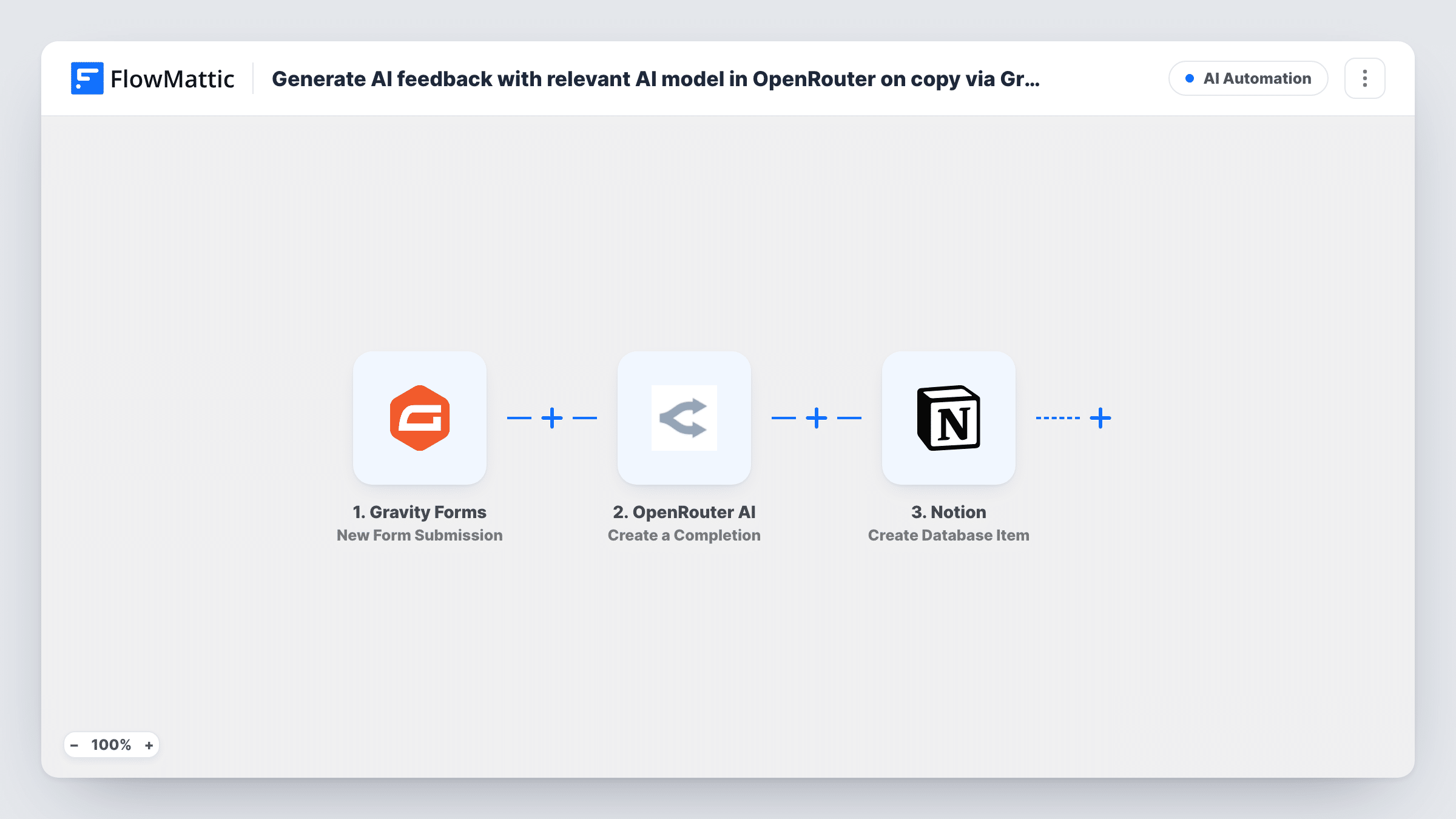
Copy submitted through a Gravity Forms form is sent to the OpenRouter AI model you choose with your feedback prompt, and the model’s reply is saved with the original text as a new item in a Notion database.
 Gravity Forms
 OpenRouter AI
 Notion
3 steps Setup ~5 min Used on 2.6k sites Free to import
What this workflow does
Writers, clients and team members often need a quick second opinion on a headline, an ad or a product description before a human editor looks at it. Collecting drafts through a form keeps them in one place, and asking an AI model for notes first gives the editor something to start from. This workflow connects those pieces.
When someone submits a Gravity Forms form on your WordPress site, the submitted fields are passed to the OpenRouter AI step. Create a Completion sends your prompt, with the submitted copy mapped into it, to the model you pick in OpenRouter, so you can use whichever model suits the kind of copy you review. The reply comes back as text you can map.
The Notion step, Create Database Item, adds an item to the database you choose. Map the original copy, the AI feedback and any other form fields into its properties, and your editors work from that Notion view. Every submission creates one item, whatever the model says.
Content agency intake for client drafts
Clients paste a blog intro into a Gravity Forms form, and the account team finds it in Notion next to the model's notes on tone and clarity.
Ad copy reviews for a marketing team
Team members submit ad variations through one form, and the Notion database lists each version with feedback on length and the call to action.
Writing course assignments
Students submit short exercises, and the instructor opens a Notion database where each piece already carries AI comments to check before grading.
How this workflow runs
What happens at each step once the workflow is on, and what you need before you import it.
 Gravity Forms New Form Submission
Fires when a Gravity Forms form on your site is submitted. The copy and every other field in the entry are passed on for the prompt and the Notion item.
- OpenRouter AI Create a Completion
Sends a prompt to the AI model you select through OpenRouter and returns its reply. Write instructions for the feedback you want and map the submitted copy into the prompt.
- Notion Create Database Item
Creates an item in your chosen Notion database. Map the submitted copy, the model's feedback and fields such as the author's name into the database properties.
What you need
- FlowMatticCore
- Gravity Forms PluginPlugin
- OpenRouter AI AccountAccount
- Notion AccountAccount
After importing, map your own data. To keep the template universal, not every step is pre-filled. Open each step in the builder and connect your accounts and fields (channels, lists, sheets, recipients) before you switch the workflow on.
Make it yours
Changes worth making after you import it.
- Spell out the format in your prompt, for example three bullet points on clarity, tone and length, so every Notion item has feedback in the same shape.
- If one form collects several kinds of copy, put a Router between the Gravity Forms trigger and the OpenRouter step, with a route per copy type, each with its own OpenRouter prompt and Notion step. Use copy-type values that can't both match.
- Add a Status property to the Notion database and set it to a fixed value such as To review, so editors can sort new feedback from items they have finished.
Questions about this workflow
Which AI models can the OpenRouter step use for the feedback?
You pick the model in the Create a Completion step from those available to your OpenRouter account. Swap it later without changing the rest of the workflow.
Does the person who submitted the Gravity Forms entry see the AI feedback?
No. The reply goes only into Notion. Add an email step after OpenRouter if you also want to send the feedback to the writer.
Do I need a Notion database set up before importing?
Yes. Create a database with properties for the copy and the feedback, share it with the Notion connection you use in FlowMattic, then map the fields after import.
Where do I write the feedback prompt for OpenRouter?
In the Create a Completion step. It ships without a prompt, so after import you write your instructions, such as what to look for in the copy, and map the copy field from the Gravity Forms entry into them.
More AI Automation workflows
Other ready-to-import templates from the same category.






Import this workflow into your WordPress site
Download the JSON, import it from the Workflows screen and connect your accounts. Every run stays on your server, with no per-task fees.
30-day money-back guarantee Unlimited workflows and runs Self-hosted