

Import content through CSV file to NewOaks AI when new file received via webhook
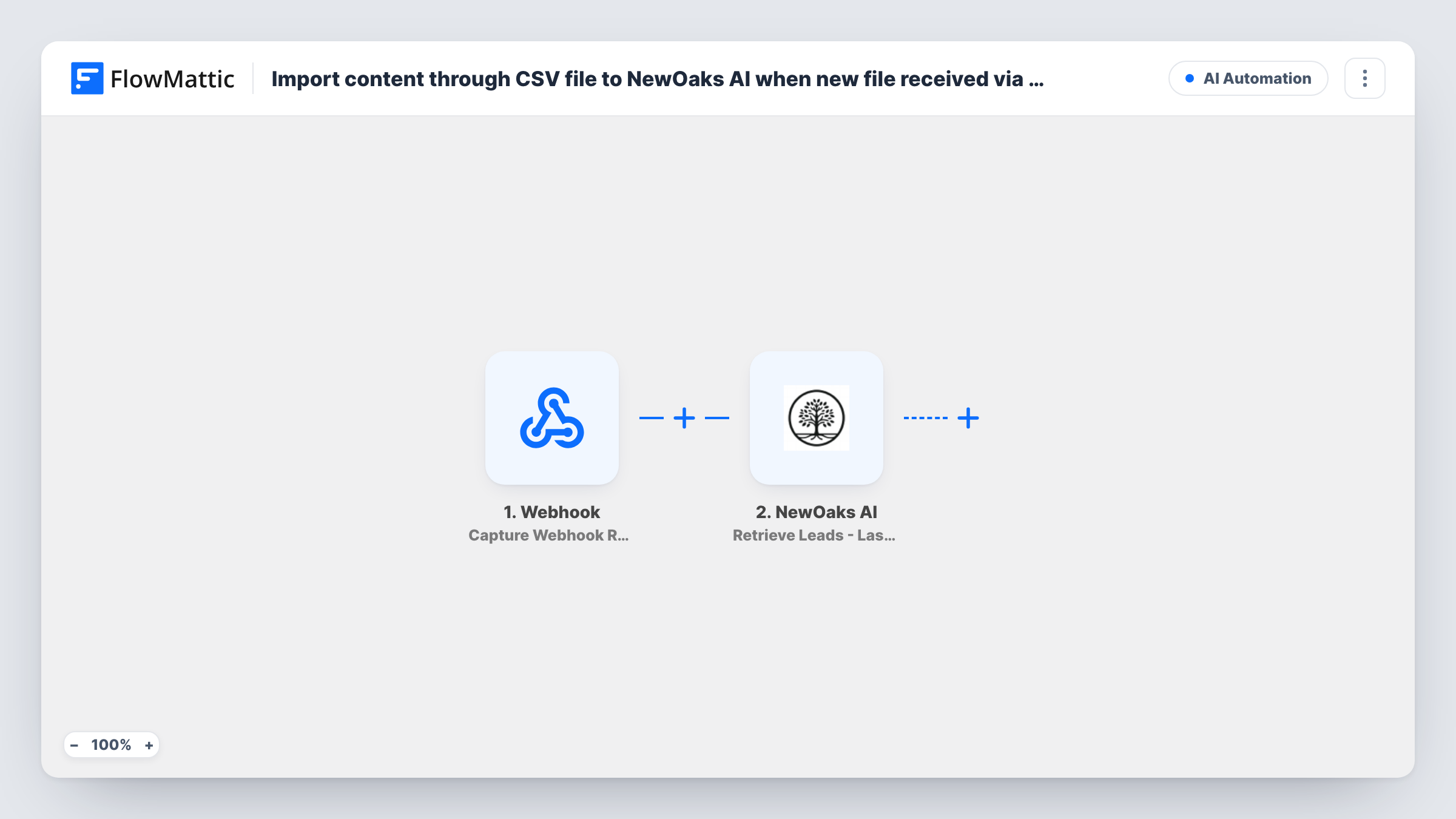
Whenever your webhook URL receives a CSV file link, FlowMattic uploads that CSV to your NewOaks AI chatbot so the bot can answer from the latest content.
 Webhook
 NewOaks AI
2 steps Setup ~5 min Used on 3.1k sites Free to import
What this workflow does
A chatbot is only as good as the content it knows. If your product list, FAQ export or price sheet is produced as a CSV by another system, this workflow passes each new file to NewOaks AI without anyone logging in to upload it by hand.
The trigger is FlowMattic's Webhook. After import, FlowMattic gives you a unique URL; set up the system that produces the CSV, such as a form, a script or another automation tool, to post to it with a link to the file. Each request it receives starts a run.
The NewOaks AI Upload Data to Chatbot step then sends the file to your chatbot. FlowMattic notes that this action takes CSV files only, so the link must point to a CSV. The step ships unmapped: connect your NewOaks account and map the file link from the webhook data into it.
Send one test request before you map anything, so the incoming fields appear in FlowMattic. Then run it again with a real CSV and check Task History to see what NewOaks returned. Unless you turn on the trigger's authentication setting, any request to the URL starts a run, so keep the address private.
Nightly product catalogue refresh
A store exports its product list as a CSV every night and posts the link to the webhook, so the NewOaks chatbot answers questions about current items and prices.
Support FAQs from a help desk export
A support lead exports answered questions as a CSV each week and sends it to the webhook to keep the chatbot's knowledge in line with what agents say.
Event schedules for a venue
A venue's booking system produces a CSV of upcoming shows; posting it to the webhook lets the NewOaks bot tell visitors what's on.
How this workflow runs
What happens at each step once the workflow is on, and what you need before you import it.
 Webhook Capture Webhook Response
Gives you a webhook URL that starts a run for every request it receives. Have your source system post a link to the CSV file, and send a test first so its fields can be mapped.
- NewOaks AI Upload Data to Chatbot
Uploads the CSV to your NewOaks AI chatbot. The step accepts CSV files only and ships unmapped: connect NewOaks and map the file link from the webhook data after import.
What you need
- FlowMatticCore
- NewOaks AI AccountAccount
After importing, map your own data. To keep the template universal, not every step is pre-filled. Open each step in the builder and connect your accounts and fields (channels, lists, sheets, recipients) before you switch the workflow on.
Make it yours
Changes worth making after you import it.
- Turn on Require authentication on incoming requests in the Webhook trigger and give the key to the sending system, so only it can start uploads.
- If the sender sometimes posts other file types, put a Filter between the Webhook trigger and the NewOaks step that continues only when the file link ends in .csv.
- Keep the CSV columns consistent between exports, so the chatbot receives the same structure each time and you can compare uploads in Task History.
Questions about this workflow
Can I send an Excel or PDF file to the NewOaks chatbot this way?
No. FlowMattic's Upload Data to Chatbot action for NewOaks AI accepts CSV files only. Convert other formats to CSV before posting the link to the webhook.
What does the webhook need to receive?
A request that includes a link to the CSV file. You choose the field name on the sending side, then map that field into the NewOaks step after a test request shows it.
Who can trigger an upload to my NewOaks AI bot?
Anyone who sends a request to the webhook URL, unless authentication is on. Enable the trigger's authentication setting and share the key only with your own sending system.
Does each request replace the chatbot's earlier content?
The workflow uploads the file you send each time. How NewOaks combines it with content already in the bot is up to NewOaks, so check your chatbot's data after a test upload.
More AI Automation workflows
Other ready-to-import templates from the same category.




Import this workflow into your WordPress site
Download the JSON, import it from the Workflows screen and connect your accounts. Every run stays on your server, with no per-task fees.
30-day money-back guarantee Unlimited workflows and runs Self-hosted