

Get notified of JetFormBuilder submissions with a Twilio SMS message
Get a Twilio text message on your phone each time someone submits a JetFormBuilder form, with the submission details you choose in the SMS.
 JetFormBuilder
 Twilio
2 steps Setup ~5 min Used on 1.9k sites Free to import
What this workflow does
Some form entries can't wait for you to check email: a booking request, an urgent enquiry, a callback request. A text message reaches you wherever you are. This workflow sends one through Twilio for each JetFormBuilder submission.
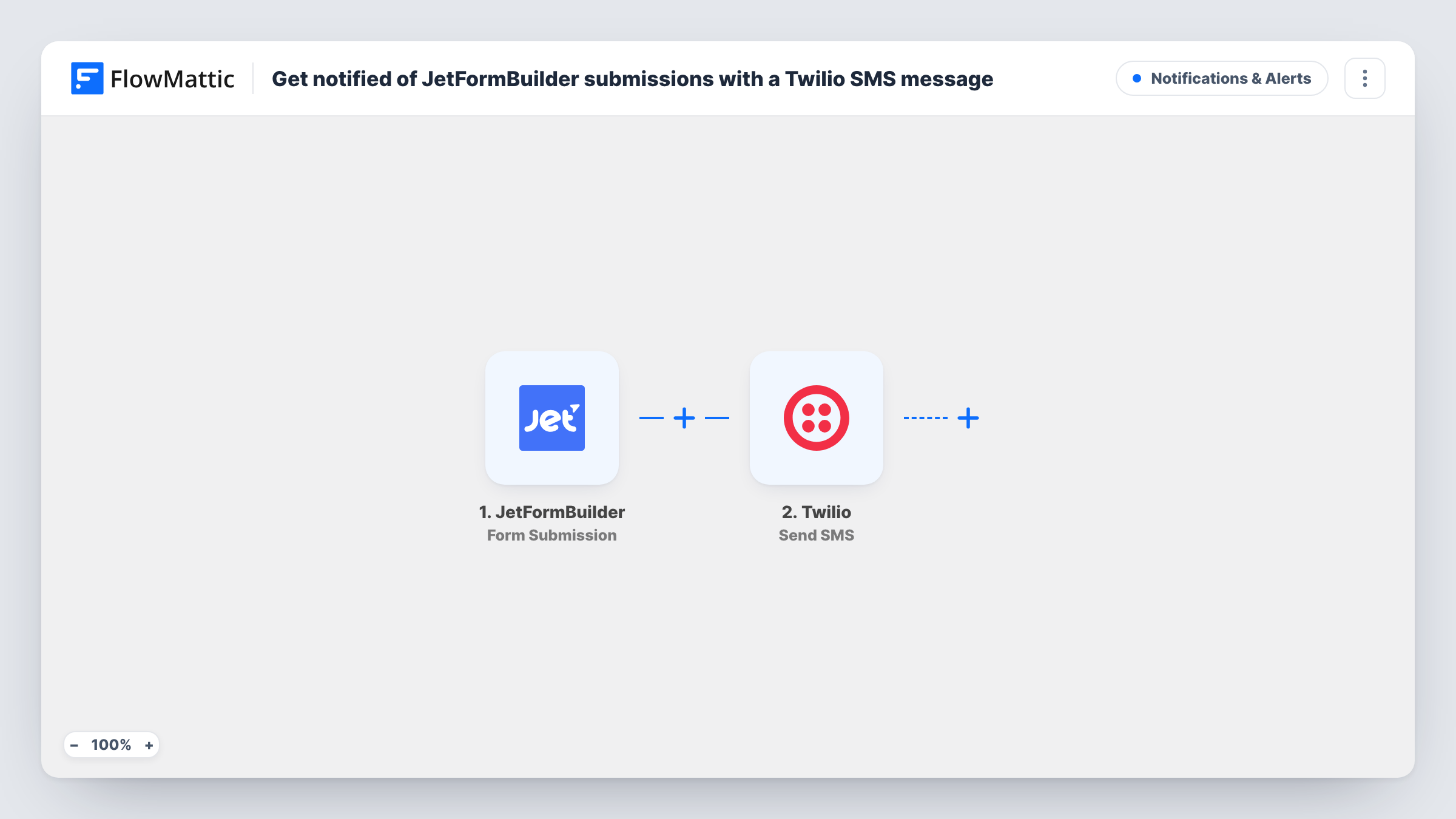
The JetFormBuilder trigger fires when a visitor submits your form. The answers are passed to Twilio, and Send SMS sends a text to the number you set. You write the message and place the form answers in it, such as the visitor's name, phone number and what they asked for.
Keep the text short, since long SMS messages can be split into several parts. Every submission sends one message, so busy forms send many. Task History shows each run and what Twilio returned, which helps if a text doesn't arrive.
Callback requests for a trades business
A plumber's JetFormBuilder form asks for a name and phone number. The SMS lets the owner call back from the van between jobs.
Booking enquiries for a small venue
When someone asks about a date, the manager gets a text with the requested date and contact details.
After-hours support form
Out-of-hours support requests reach the on-call person by SMS instead of sitting in a shared inbox until morning.
How this workflow runs
What happens at each step once the workflow is on, and what you need before you import it.
 JetFormBuilder Form Submission
Fires when a visitor submits your JetFormBuilder form. Every answer is passed to the Twilio step for use in the text.
- Twilio Send SMS
Sends an SMS through your Twilio account to the phone number you set. Write the text and map form answers into it, then send a test submission to check it arrives.
What you need
- FlowMatticCore
- JetFormBuilder AccountAccount
- Twilio AccountAccount
After importing, map your own data. To keep the template universal, not every step is pre-filled. Open each step in the builder and connect your accounts and fields (channels, lists, sheets, recipients) before you switch the workflow on.
Make it yours
Changes worth making after you import it.
- Add a Filter after the trigger so only urgent submissions send a text, for example when a priority field equals High.
- Map a phone field from the form as the recipient instead of your own number if you want to send the visitor a confirmation SMS.
- Send texts to more than one person by adding a second Twilio Send SMS step with a different number.
Questions about this workflow
Do I need a Twilio phone number to send the JetFormBuilder alert?
Yes. Twilio sends SMS from a number on your Twilio account, which you connect when you import the workflow.
Does every JetFormBuilder submission send a text?
Yes, as imported. One submission sends one SMS. Add a Filter if you only want texts for some entries.
Will I still get JetFormBuilder's email notifications?
Yes. The workflow only listens for submissions and leaves your form's own actions as they are.
More Notifications & Alerts workflows
Other ready-to-import templates from the same category.




Import this workflow into your WordPress site
Download the JSON, import it from the Workflows screen and connect your accounts. Every run stays on your server, with no per-task fees.
30-day money-back guarantee Unlimited workflows and runs Self-hosted