

Send a Pushover notification when a Braintree payment fails or is disputed
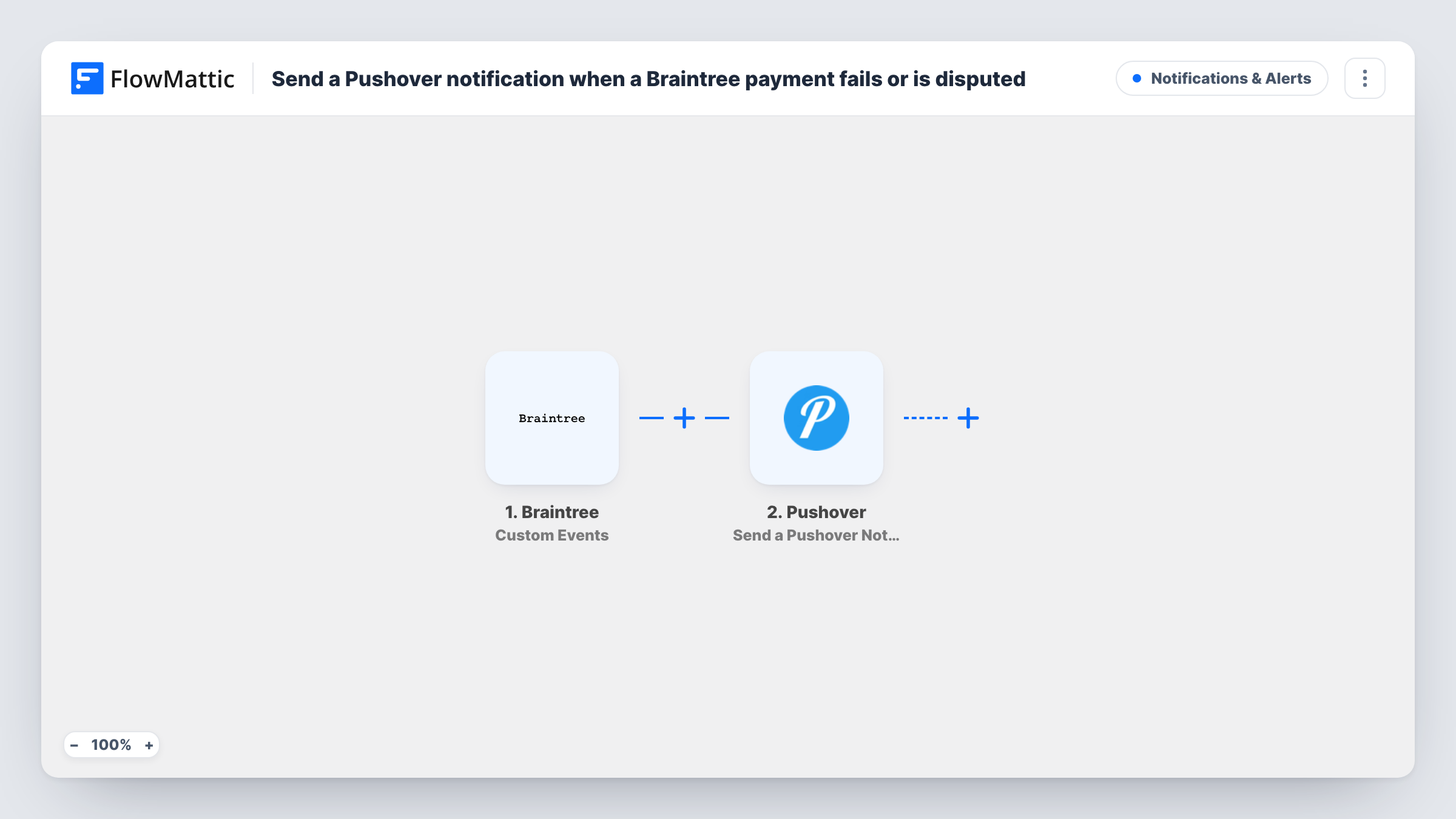
When Braintree reports a failed payment or a dispute, this workflow sends a Pushover notification to your devices, so you hear about payment problems without watching the Braintree dashboard.
 Braintree
 Pushover
2 steps Setup ~5 min Used on 1.4k sites Free to import
What this workflow does
A declined charge or a new dispute often needs a quick reply, but it's easy to miss inside the Braintree control panel. Pushover puts a notification on your phone or desktop instead. This workflow connects the two, so payment problems reach you where you'll see them.
The Braintree trigger, Custom Events, starts a run for whichever Braintree events you pick. For this flow, choose only the events for failed payments and disputes. Any other event you pick would also send a notification. Details carried by each event can then be placed in the alert.
The Pushover step uses Send a Pushover Notification, which sends a notification to your subscribed devices. You write the message and map in details from the event, such as an amount or a transaction ID if Braintree includes them. Task History records each run, which helps you confirm an event reached Pushover.
Founder who handles billing alone
You run a small subscription business and deal with payment issues yourself. A Pushover alert on your phone tells you when a payment fails or a customer opens a dispute.
Responding to disputes on time
A dispute needs your reply by a deadline. A notification when Braintree reports one lets you start gathering evidence the same day.
Support lead watching failed renewals
Your support lead gets a Pushover notification for each failed payment and can contact the customer about updating their card.
How this workflow runs
What happens at each step once the workflow is on, and what you need before you import it.
 Braintree Custom Events
Fires for each Braintree event you choose in the trigger. Select only the failed payment and dispute events. Send a test event after import so you can see which fields Braintree includes.
- Pushover Send a Pushover Notification
Sends a notification to your subscribed Pushover devices. Write the message text and map in details from the Braintree event, such as the event kind and any amount or ID it carries.
What you need
- FlowMatticCore
- Braintree AccountAccount
- Pushover AccountAccount
After importing, map your own data. To keep the template universal, not every step is pre-filled. Open each step in the builder and connect your accounts and fields (channels, lists, sheets, recipients) before you switch the workflow on.
Make it yours
Changes worth making after you import it.
- Put the event kind at the start of the Pushover message, so you can tell a failed payment from a dispute without opening anything.
- If you choose more Braintree events later for other reasons, add a Filter after the trigger that continues only for failure and dispute events.
- To keep a log of payment problems too, add a Google Sheets Add New Row step after Pushover to log each event in a sheet.
Questions about this workflow
Which Braintree events send a Pushover alert?
Only the ones you choose in the Custom Events trigger. Every chosen event starts a run, so leave out events that aren't failures or disputes if you want this workflow to stay focused.
Which devices get the Braintree payment alert?
Those registered to the Pushover account you link in the step. Anyone else who needs the alert must receive it through that account's devices.
Can the Pushover alert include the customer's name?
Only if Braintree sends it with the event. Run a test event and check the captured data. If the name isn't there, map the IDs it does include.
More Notifications & Alerts workflows
Other ready-to-import templates from the same category.




Import this workflow into your WordPress site
Download the JSON, import it from the Workflows screen and connect your accounts. Every run stays on your server, with no per-task fees.
30-day money-back guarantee Unlimited workflows and runs Self-hosted