

When a new conversation is recorded in Tars, send a Slack notification to the support team
Send a Slack channel message to your support team whenever Tars records a new chatbot conversation, so agents see what visitors asked without keeping the Tars dashboard open.
 Tars
 Slack
2 steps Setup ~5 min Used on 549 sites Free to import
What this workflow does
A Tars chatbot answers visitors on your site, but some conversations need a person: a question the bot can't handle, or a lead worth calling. Support teams work in Slack, not in the bot's dashboard. This workflow tells them in Slack each time a conversation is recorded.
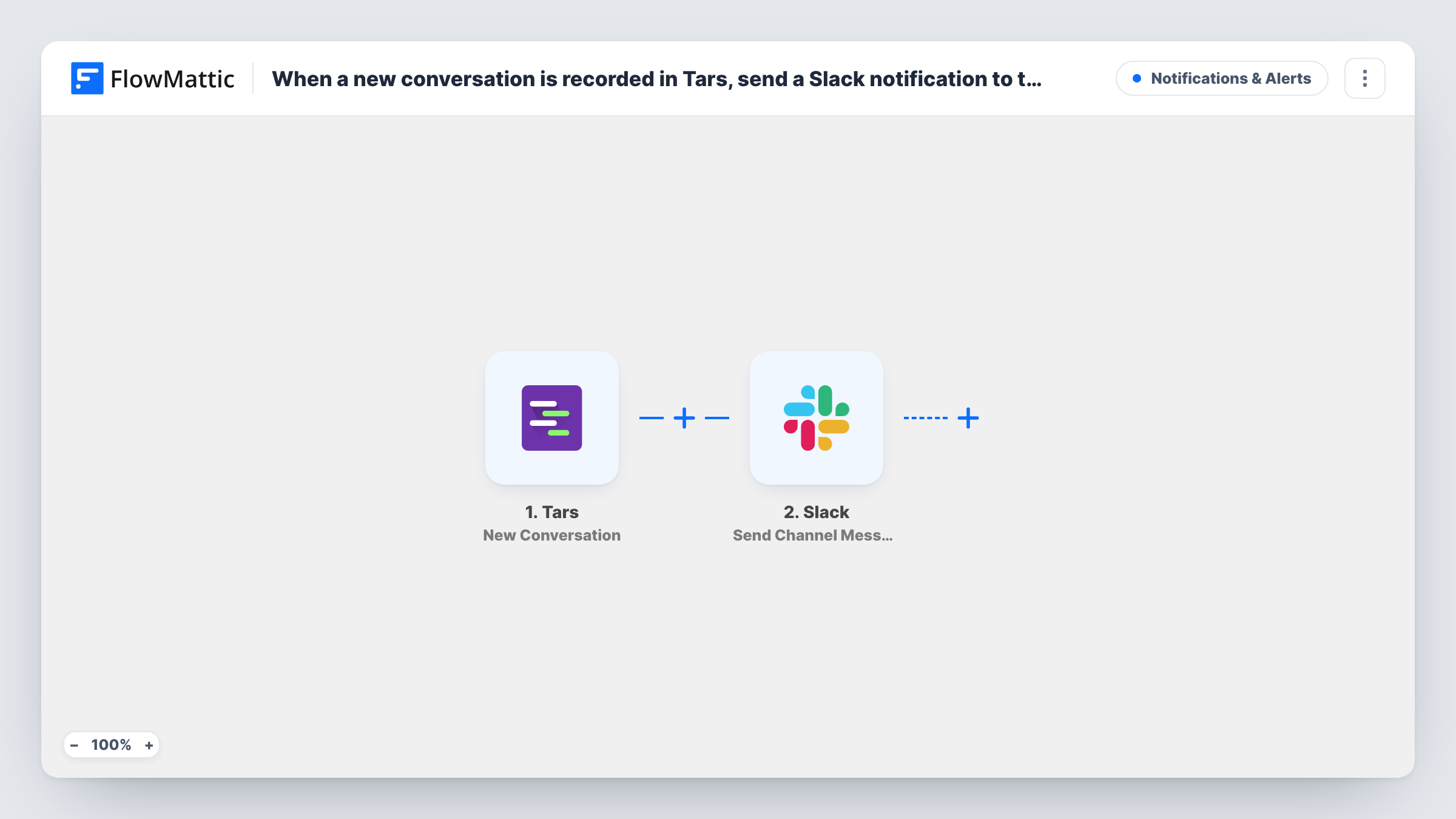
The Tars trigger starts a run whenever your Tars bot logs a fresh conversation. FlowMattic hands the conversation data to Slack, and Send Channel Message posts it in the channel you choose. You write the message and insert values from Tars, such as the visitor's answers.
Every recorded conversation produces a message. The template has no Filter, so short or abandoned chats are announced too. Look in Task History for each run and Slack's response.
Support triage channel
Each Tars conversation lands in #support-bot, and an agent reacts with an emoji when they pick it up so others know it's handled.
Lead qualification bot
A Tars bot asks about budget and timeline. The sales channel sees each finished chat and a rep follows up with the visitor.
Reviewing bot answers
The product team reads the channel to spot questions the bot keeps getting, then adds them to the Tars flow.
How this workflow runs
What happens at each step once the workflow is on, and what you need before you import it.
 Tars New Conversation
Runs each time a visitor's chat with your Tars bot is saved as a new conversation. The conversation data is passed to Slack for the message.
- Slack Send Channel Message
Posts a message to a Slack channel of your choice. Write the text and insert values from the Tars conversation; a test chat shows which ones you can use.
What you need
- FlowMatticCore
- Tars AccountAccount
- Slack AccountAccount
After importing, map your own data. To keep the template universal, not every step is pre-filled. Open each step in the builder and connect your accounts and fields (channels, lists, sheets, recipients) before you switch the workflow on.
Make it yours
Changes worth making after you import it.
- Add a Filter after the trigger that continues only when a key answer is filled in, such as the visitor's email, so empty chats don't reach the channel.
- For a private support channel, use Slack's Send Private Channel Message action in place of Send Channel Message.
- Have a test conversation with your Tars bot after import so FlowMattic captures its fields, then build the message from them.
Questions about this workflow
Does every Tars conversation reach Slack?
Yes. Each recorded conversation starts a run and posts a message. A Filter on one of the chat's answers lets you narrow which chats get posted.
Can my team reply to the Tars visitor from Slack?
No. This template sends the alert to Slack and nothing back to Tars. Your team contacts the visitor through the details the chat collected, such as an email.
What Tars data can the Slack message show?
Whatever the New Conversation event carries for your bot. Run a test chat and review the data FlowMattic received to see the values.
More Notifications & Alerts workflows
Other ready-to-import templates from the same category.




Import this workflow into your WordPress site
Download the JSON, import it from the Workflows screen and connect your accounts. Every run stays on your server, with no per-task fees.
30-day money-back guarantee Unlimited workflows and runs Self-hosted