

Get Pushover notifications when new emails are received
Each email that arrives at your FlowMattic Email Parser address sends a Pushover notification to your subscribed devices, so you hear about it on your phone without opening a mailbox.
 Email Parser by FlowMattic
 Pushover
2 steps Setup ~5 min Used on 330 sites Free to import
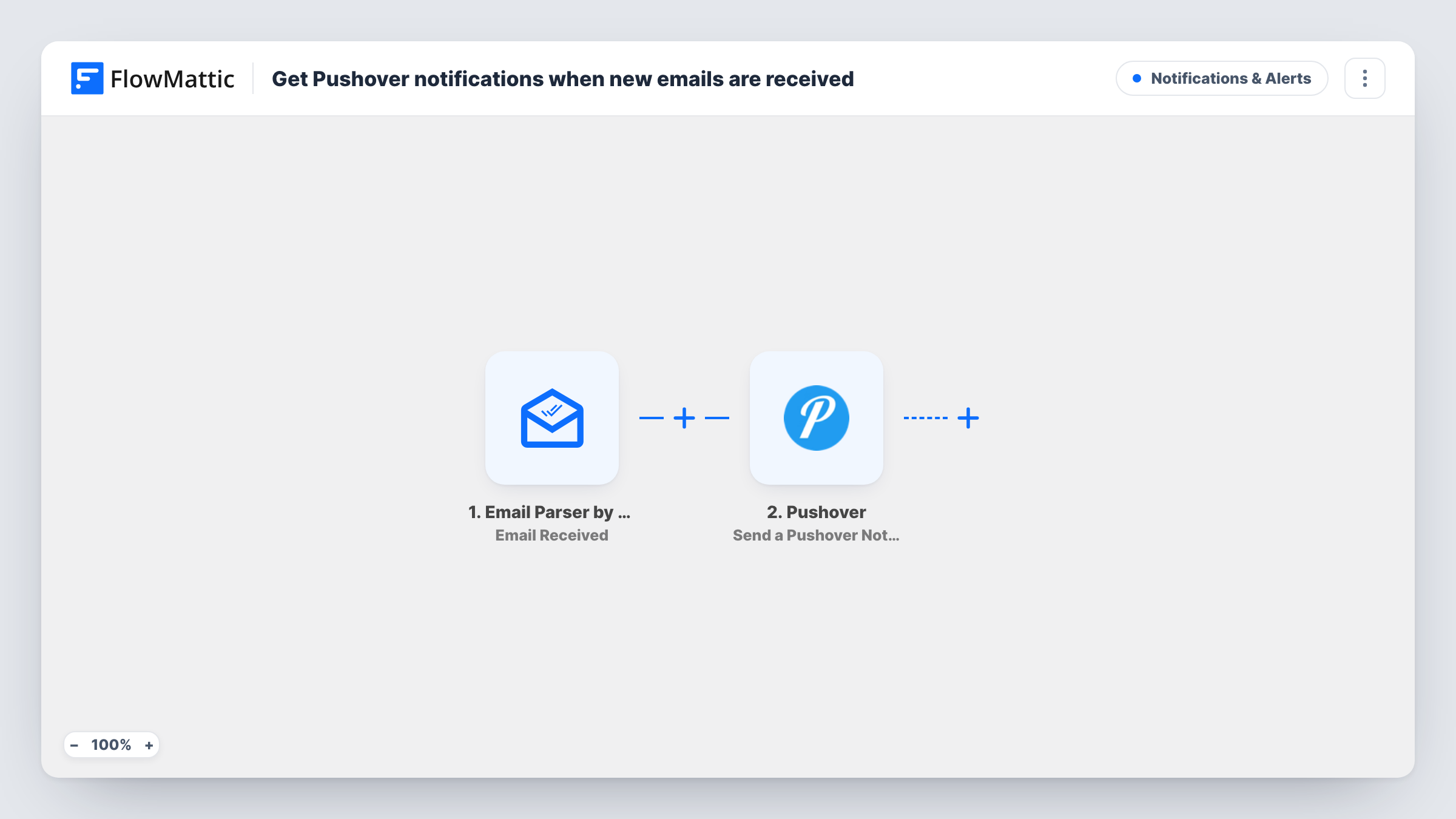
What this workflow does
Some emails matter more than the rest of your inbox: an order alert from a supplier, a message to a shared address, a report from a system that only speaks email. Checking for them by hand means watching your mailbox all day. This workflow pushes a phone notification as soon as such an email reaches FlowMattic.
The trigger is Email Parser by FlowMattic. It gives the workflow its own email address, and the run starts whenever a message lands there. You send mail to that address directly or set up forwarding from the inbox you want to watch. The parsed email, including details such as sender and subject, becomes data you can map.
Next, Pushover generates a notification to your subscribed devices, carrying the email values you mapped into it. Every email that reaches the parser address triggers one notification. Task History lists each run, so you can see which emails arrived and whether Pushover accepted the alert.
Alerts from a monitoring service
A server or uptime tool that can only send email alerts forwards them to the parser address, and you get a Pushover alert on your phone.
A shared contact address
Forward mail sent to a general contact address to the parser, so the person on duty sees each new message on their device.
Supplier order confirmations
Point a forwarding rule for supplier emails at the parser address and get a push notification each time a confirmation comes in.
How this workflow runs
What happens at each step once the workflow is on, and what you need before you import it.
 Email Parser by FlowMattic Email Received
Runs when an email reaches the address that Email Parser by FlowMattic gives this workflow. The parsed message is passed on for mapping into the notification.
- Pushover Send a Pushover Notification
Generates a Pushover alert for the devices subscribed to your account. Connect your Pushover account and map the email values you want to see, such as the sender and subject, into the step.
What you need
- FlowMatticCore
- Pushover AccountAccount
After importing, map your own data. To keep the template universal, not every step is pre-filled. Open each step in the builder and connect your accounts and fields (channels, lists, sheets, recipients) before you switch the workflow on.
Make it yours
Changes worth making after you import it.
- Forward only the emails you care about. Set a forwarding rule in your mail provider that matches certain senders or subjects, rather than forwarding your whole inbox.
- Add a Filter after the trigger, for example on the subject containing a word like Urgent, so only some forwarded emails produce a notification.
- Send yourself a test email to the parser address after import. FlowMattic captures its parsed data, which you then pick from when mapping the Pushover step.
Questions about this workflow
Does Email Parser by FlowMattic read my existing Gmail or Outlook inbox?
No. It watches its own email address. Forward the messages you want to the parser address, and each one starts the workflow.
Where do the Pushover alerts for parsed emails show up?
On the devices subscribed to the Pushover account you connect in the step. You need a Pushover account, and the Pushover app on each device that should get the alerts.
Will every forwarded email trigger a Pushover notification?
Yes, as imported. There is no filter, so each email reaching the parser address sends one notification. Add a Filter if you only want alerts for some.
Can the Pushover notification show the email's content?
You choose what goes into the notification from the parsed email data. Check a test email's captured values to see which parts of the message are available.
More Notifications & Alerts workflows
Other ready-to-import templates from the same category.





Import this workflow into your WordPress site
Download the JSON, import it from the Workflows screen and connect your accounts. Every run stays on your server, with no per-task fees.
30-day money-back guarantee Unlimited workflows and runs Self-hosted