

Send a Slack alert when a new Kustomer conversation is created
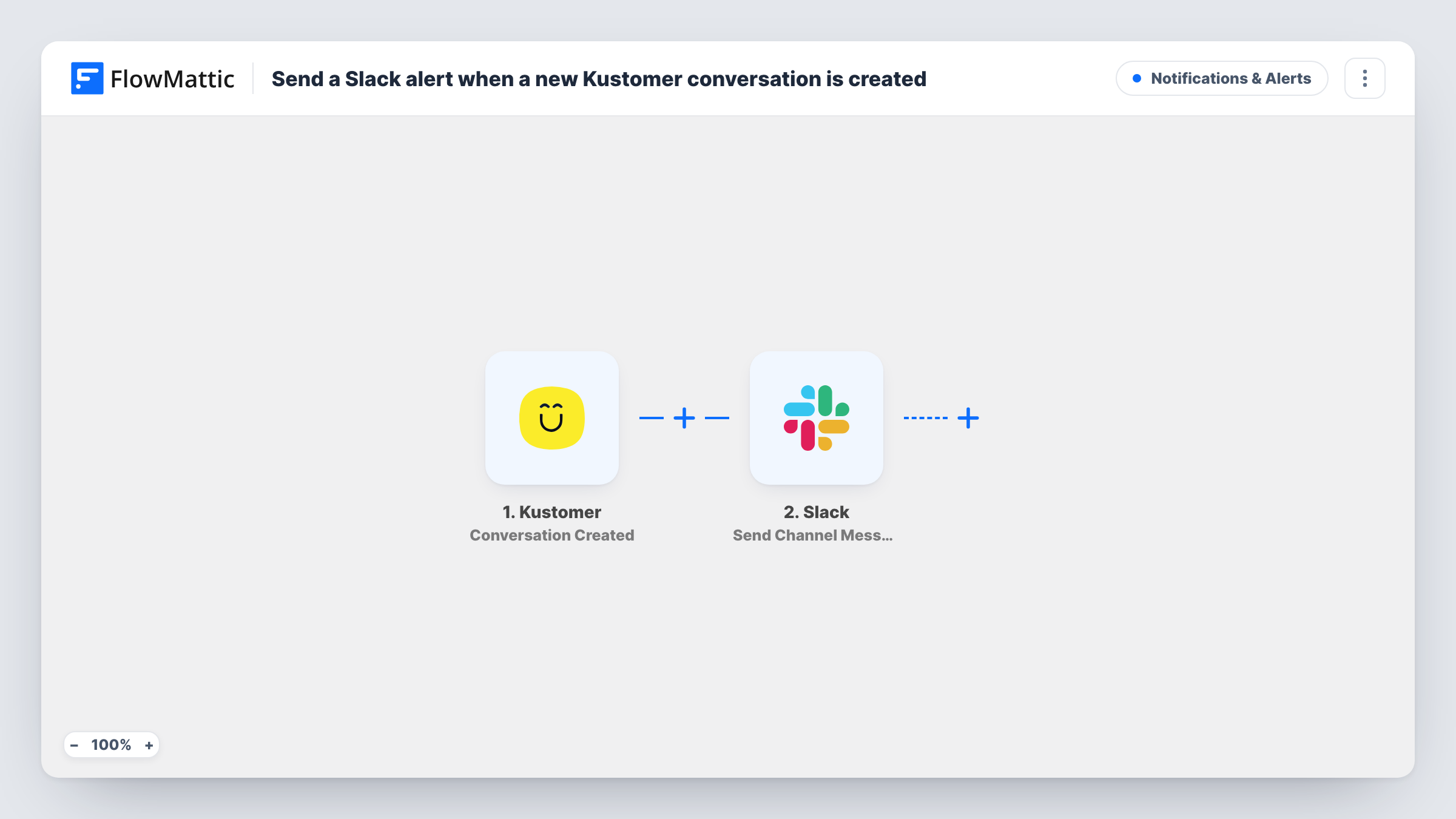
Each time a conversation is created in Kustomer, this workflow posts a message to a Slack channel, so your support team sees new customer conversations without keeping the Kustomer inbox open.
 Kustomer
 Slack
2 steps Setup ~5 min Used on 1.9k sites Free to import
What this workflow does
Support agents rarely sit in the Kustomer inbox all day. They work in Slack, and a new customer conversation can wait unnoticed until someone checks. This workflow brings each new conversation into the channel your team already reads.
The Kustomer trigger fires when a new conversation is created in your Kustomer account. FlowMattic receives the conversation data and hands it to the Slack step, which posts a message to the channel you set. You decide what the message says by mapping conversation fields into it, for example the subject, the channel it came in on, or a link back to Kustomer if the trigger data includes one.
Every new conversation produces one Slack post. Nothing is sorted or held back as imported, so a busy inbox means a busy channel. Run a test after import so FlowMattic captures a real conversation, then check which fields the trigger returns before you write the message. Task History lists each run and what was posted.
A shared #support channel for a small team
Three agents split the queue. Each new Kustomer conversation shows up in #support, and whoever is free replies in the thread to claim it.
Evening and weekend coverage
The on-call agent keeps Slack notifications on their phone. A post in the alerts channel tells them a customer has opened a conversation outside office hours.
Product team visibility during a launch
Point the Slack step at a launch channel for a week so product and engineering see every new conversation that comes in while a release is fresh.
How this workflow runs
What happens at each step once the workflow is on, and what you need before you import it.
 Kustomer Conversation Created
Runs whenever a new conversation is created in Kustomer. The conversation's data is passed on so you can map it into the Slack message.
- Slack Send Channel Message
Posts a message to a Slack channel for each new conversation. Connect your Slack workspace, pick the channel, and map Kustomer fields into the message text.
What you need
- FlowMatticCore
- Kustomer AccountAccount
- Slack AccountAccount
After importing, map your own data. To keep the template universal, not every step is pre-filled. Open each step in the builder and connect your accounts and fields (channels, lists, sheets, recipients) before you switch the workflow on.
Make it yours
Changes worth making after you import it.
- Add a Filter after the Kustomer trigger if you only want some conversations in Slack, for example ones from a particular channel or with a given priority, if the trigger data carries that field.
- Posting to a private Slack channel needs the separate Send Private Channel Message action in place of this one. To alert a single agent instead, use Send Direct Message.
- Use a Router to send conversations to different Slack channels, such as billing and technical, by a field the trigger returns. Give each route conditions that can't both match one conversation.
Questions about this workflow
Does a Kustomer conversation update post to Slack again?
No. The trigger is Conversation Created, so only new conversations start a run. Kustomer has a separate Conversation Updated trigger in FlowMattic if you also want a post on changes.
Can the Slack message include the customer's name or email?
Only if the Kustomer trigger returns those details. Run a test with a real conversation and look at the captured fields before you map them into the message.
Will older Kustomer conversations be posted to Slack?
No. The workflow reacts to conversations created after you turn it on. Existing conversations are not sent to the channel.
Can agents reply to the Kustomer customer from Slack?
No. This flow only posts a notice to Slack, and agents still answer the customer inside Kustomer.
More Notifications & Alerts workflows
Other ready-to-import templates from the same category.



Import this workflow into your WordPress site
Download the JSON, import it from the Workflows screen and connect your accounts. Every run stays on your server, with no per-task fees.
30-day money-back guarantee Unlimited workflows and runs Self-hosted