

Send a Slack notice to operations on each Prodigi order status change
Whenever the status of a Prodigi print order changes, this workflow posts a message to the Slack channel your operations team watches, so status updates reach them without anyone checking the Prodigi dashboard.
 Prodigi
 Slack
2 steps Setup ~5 min Used on 1.6k sites Free to import
What this workflow does
Print-on-demand orders move through several stages at Prodigi, and some of them need a person to act, for example when something goes wrong with it. Checking the dashboard for changes takes time, and it's easy to miss one. This workflow puts every status change in front of your operations team in Slack.
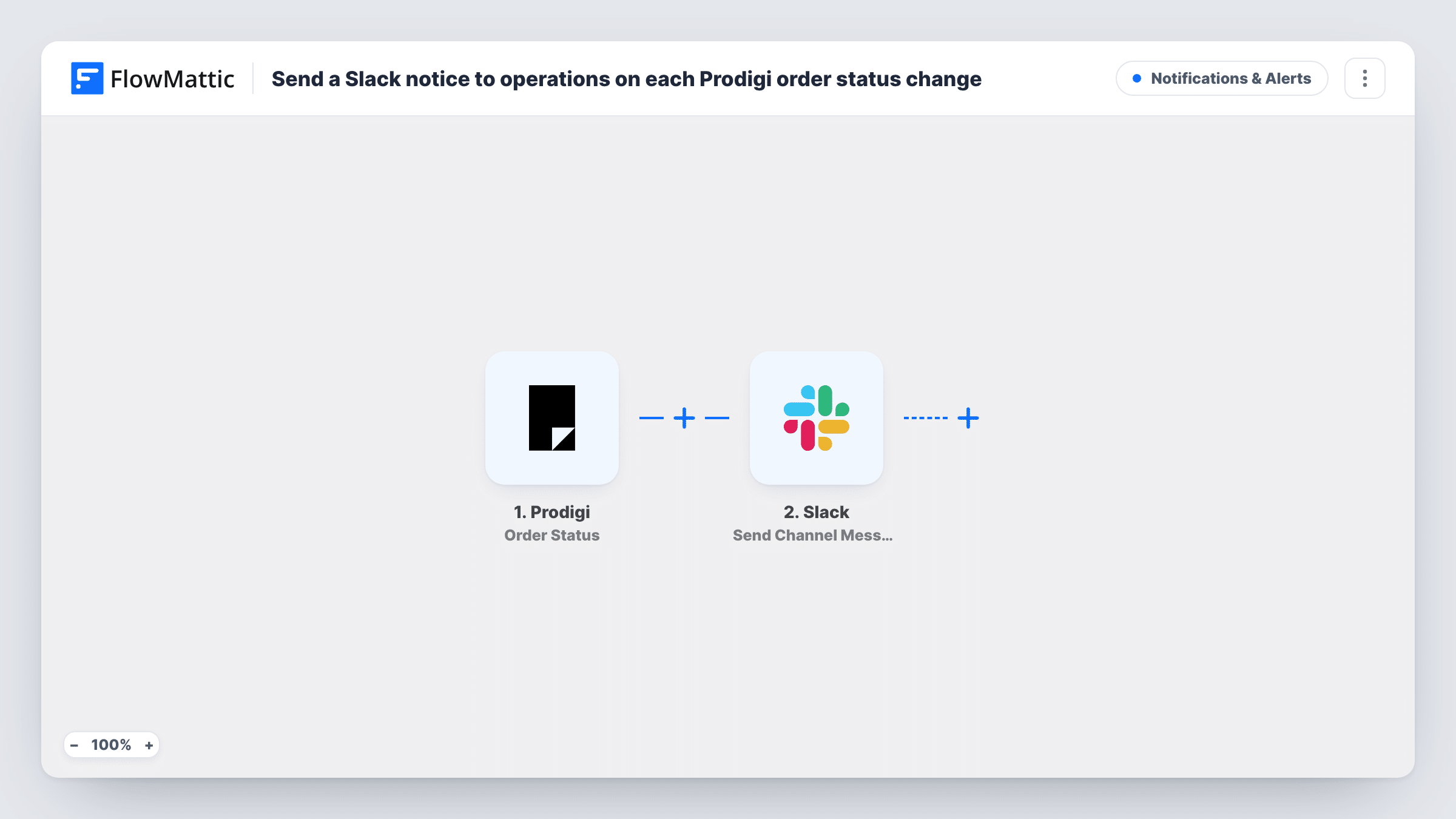
The Prodigi trigger fires each time an order's status changes. FlowMattic then runs the Slack Send Channel Message action, posting a message to the channel you pick. You write the text and fill it with details from the Prodigi event, such as the new status, after a test run shows what Prodigi sends.
As imported, every status change sends a message, whatever the status. If your team only needs some of them, add a Filter after the trigger. Each run is listed in Task History, so you can match a Slack message to the event that caused it.
Spotting orders that need attention
An online print shop's ops channel sees each status change, so an order with a problem gets noticed when the Slack message appears instead of at the next dashboard check.
Answering customer questions
Support staff search the Slack channel for an order reference to see its latest Prodigi status before replying to a customer.
Shared view for a small team
Team members without a Prodigi login follow order progress from the channel they already use for daily work.
How this workflow runs
What happens at each step once the workflow is on, and what you need before you import it.
 Prodigi Order Status
Runs when the status of a Prodigi order changes. The order details from the event, including its new status, are passed on for the Slack message.
- Slack Send Channel Message
Drops a notice into the operations channel in Slack. Write the notice and insert details from the Prodigi event, then connect your Slack workspace and pick the operations channel.
What you need
- FlowMatticCore
- Prodigi AccountAccount
- Slack AccountAccount
After importing, map your own data. To keep the template universal, not every step is pre-filled. Open each step in the builder and connect your accounts and fields (channels, lists, sheets, recipients) before you switch the workflow on.
Make it yours
Changes worth making after you import it.
- Add a Filter after the trigger so only the statuses your team acts on reach Slack. Run a test order first to see the exact status values Prodigi sends.
- Use a Router to send different statuses to different channels, for example problems to the ops channel and completed orders to a quieter log channel.
- If the event includes an order ID, put it at the start of each Slack message so the channel is easy to search later.
- Add a Google Sheets row as a second action to keep a log of every Prodigi status change alongside the Slack notice.
Questions about this workflow
Does every Prodigi status change post to Slack?
Yes, as imported. The trigger fires on each change and there is no Filter. Add one after the trigger to limit the messages to the statuses you care about.
Which Slack channel receives the Prodigi notices?
The one you pick in the Send Channel Message step after connecting your Slack workspace. Any channel your connected account can post to will work.
Can I mention someone in the Slack notice?
You can include a Slack mention in the message text you write. Test it in your workspace to check it notifies the person as you expect.
Does this change anything in Prodigi?
No. The workflow only reads the status event and posts to Slack. Your orders in Prodigi are not touched.
More Notifications & Alerts workflows
Other ready-to-import templates from the same category.




Import this workflow into your WordPress site
Download the JSON, import it from the Workflows screen and connect your accounts. Every run stays on your server, with no per-task fees.
30-day money-back guarantee Unlimited workflows and runs Self-hosted