

Post an Amplitude milestone notification to a Discord channel
When an Amplitude custom monitor you set up for a milestone sends its alert, this workflow posts a message to the Discord channel you choose, so the team sees the news where they already talk.
 Amplitude
 Discord
2 steps Setup ~5 min Used on 3.1k sites Free to import
What this workflow does
Hitting a sign-up target or a usage threshold is worth sharing, but few people check an analytics dashboard every day. Posting the moment in Discord puts it in front of your team or community without anyone watching the numbers.
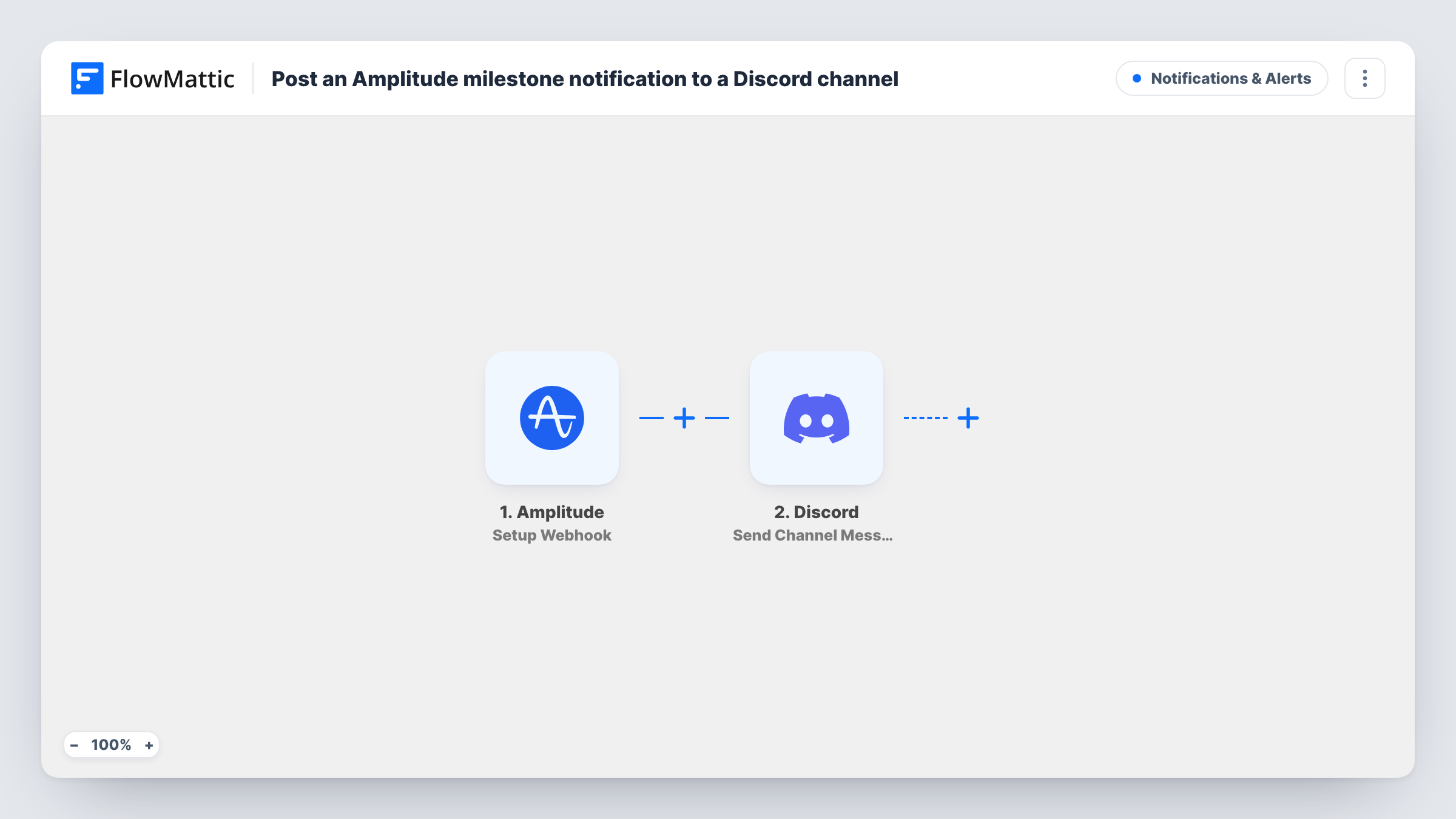
Here is what drives a run. The Amplitude trigger, Setup Webhook, fires for custom monitors. You define the milestone as a monitor in Amplitude and point its webhook at the URL FlowMattic gives you. Each time that monitor sends an alert, the workflow starts and the alert payload becomes available to map. FlowMattic itself does not decide what counts as a milestone; the monitor settings in Amplitude do.
The second step posts to a Discord channel you pick. Write the message text and drop in values from the alert where they help. As imported there is no Filter, so any monitor posting to this webhook produces a Discord message. Task History keeps a record of each run and the data Amplitude delivered.
Celebrate a sign-up target with the team
A monitor watching weekly sign-ups alerts when the goal is reached, and a message lands in the team's general Discord channel for everyone to see.
Keep a community in the loop
A product with a public Discord server shares milestones like a new usage record in its announcements channel, written in your own words.
A wins channel for a startup
Point several milestone monitors at the same webhook so one Discord channel collects every product win as it happens.
How this workflow runs
What happens at each step once the workflow is on, and what you need before you import it.
 Amplitude Setup Webhook
Fires whenever an Amplitude custom monitor posts its alert to the FlowMattic webhook URL. Set up the milestone as that monitor in Amplitude; its payload values are passed on for mapping.
- Discord Send Channel Message
Sends the milestone note to one Discord channel of your choice. Write the text and add values from the Amplitude alert, then connect your Discord account on import.
What you need
- FlowMatticCore
- Amplitude AccountAccount
- Discord AccountAccount
After importing, map your own data. To keep the template universal, not every step is pre-filled. Open each step in the builder and connect your accounts and fields (channels, lists, sheets, recipients) before you switch the workflow on.
Make it yours
Changes worth making after you import it.
- Point warning-type monitors at a different workflow's webhook, so drops or anomalies don't appear in a celebration channel next to milestones.
- If several monitors share this webhook, add a Filter after the trigger that continues only for alerts whose payload identifies a milestone monitor.
- Fire a test alert from Amplitude after import so FlowMattic captures a payload, then build the Discord message from its values before you activate the workflow.
Questions about this workflow
How does Amplitude know when a milestone is reached?
You set it up as a custom monitor in Amplitude. The workflow runs whenever that monitor sends its webhook; FlowMattic does not measure your metrics itself.
Will every Amplitude event post to Discord?
No. Only custom monitor alerts sent to the webhook start a run. Individual tracked events such as clicks are not sent by this trigger.
Can the Amplitude alert go to a Discord thread or direct message instead?
As imported, the step posts to one channel. Check the Discord actions in FlowMattic if you want a different destination, and swap the step after import.
Does a monitor that fires twice post twice in Discord?
Yes. Each alert that reaches the webhook is a separate run, so each one sends its own Discord message.
More Notifications & Alerts workflows
Other ready-to-import templates from the same category.




Import this workflow into your WordPress site
Download the JSON, import it from the Workflows screen and connect your accounts. Every run stays on your server, with no per-task fees.
30-day money-back guarantee Unlimited workflows and runs Self-hosted