

Send a Slack alert when a new KnowledgeOwl article is published
Post a Slack channel message whenever an article is published in your KnowledgeOwl knowledge base, so support and success teams know new help content is live and can share it with customers.
 Knowledgeowl
 Slack
2 steps Setup ~5 min Used on 3.0k sites Free to import
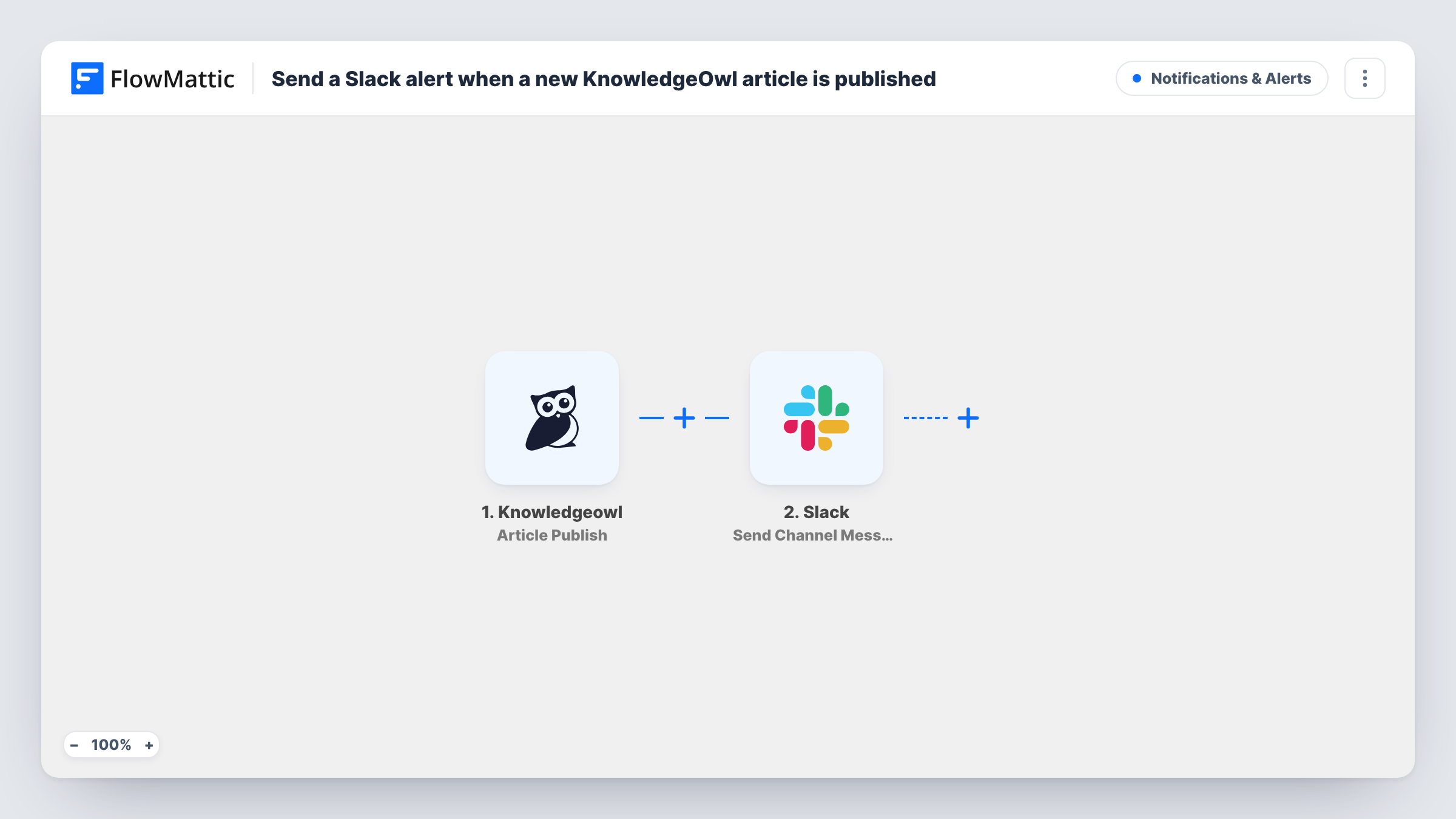
What this workflow does
A help article only helps if the people answering customers know it exists. Writers publish in KnowledgeOwl, but support agents spend their day in Slack and a ticket queue. This workflow tells them in Slack when an article goes live.
The KnowledgeOwl trigger fires when an article is published. FlowMattic passes the article's details to Slack, where Send Channel Message posts in the channel you choose. You write the message and add article values, such as its title or link if the event carries them.
Every publish event produces a post. The template has no Filter, so all categories and authors are announced. Each publish and Slack's reply to it are kept in Task History.
Support team updates
Agents see each newly published KnowledgeOwl article in #support, so they can link it in replies the same day.
Release documentation
When the docs team publishes the article for a new feature, the product channel gets the post and can share it in release notes.
Customer success enablement
Account managers follow a channel of new articles to find content worth sending to their customers.
How this workflow runs
What happens at each step once the workflow is on, and what you need before you import it.
 Knowledgeowl Article Publish
Fires when an article is published in your KnowledgeOwl knowledge base. The article's details are passed to the Slack message.
- Slack Send Channel Message
Posts in the Slack channel you set. Write the alert text and insert the article's title or link, if KnowledgeOwl includes them; publish a test article to see the values.
What you need
- FlowMatticCore
- Knowledgeowl AccountAccount
- Slack AccountAccount
After importing, map your own data. To keep the template universal, not every step is pre-filled. Open each step in the builder and connect your accounts and fields (channels, lists, sheets, recipients) before you switch the workflow on.
Make it yours
Changes worth making after you import it.
- Add a Filter after the trigger on a category value, if KnowledgeOwl sends one, so only articles from the sections your team cares about are announced.
- For a private team channel, use Slack's Send Private Channel Message action instead of Send Channel Message.
- KnowledgeOwl also has an Article Updated trigger. Build a separate workflow on it if your team should hear about edits too.
Questions about this workflow
Will republishing an existing KnowledgeOwl article post again?
The trigger fires when an article is published. If an article goes back through publishing, expect another post; test it once and check Task History.
Can the Slack alert link to the KnowledgeOwl article?
Yes, if the Article Publish event carries the URL. Publish a test article after import and check the data FlowMattic received.
Are drafts or edits announced in Slack?
No. This workflow uses the Article Publish trigger. KnowledgeOwl's Article Created and Article Updated triggers are separate.
More Notifications & Alerts workflows
Other ready-to-import templates from the same category.




Import this workflow into your WordPress site
Download the JSON, import it from the Workflows screen and connect your accounts. Every run stays on your server, with no per-task fees.
30-day money-back guarantee Unlimited workflows and runs Self-hosted