

Send a Slack alert to your team for each successful Payhip sale
Each successful Payhip transaction posts a message to a Slack channel of your choice, so your team sees every sale of your digital products as it happens.
 Payhip
 Slack
2 steps Setup ~5 min Used on 3.5k sites Free to import
What this workflow does
Payhip records each sale in your own seller account, where the rest of your team may never look. If others help with support, marketing or fulfilment, a message in a shared Slack channel keeps them aware of what sold and when. Here, FlowMattic writes that Slack post whenever a sale goes through.
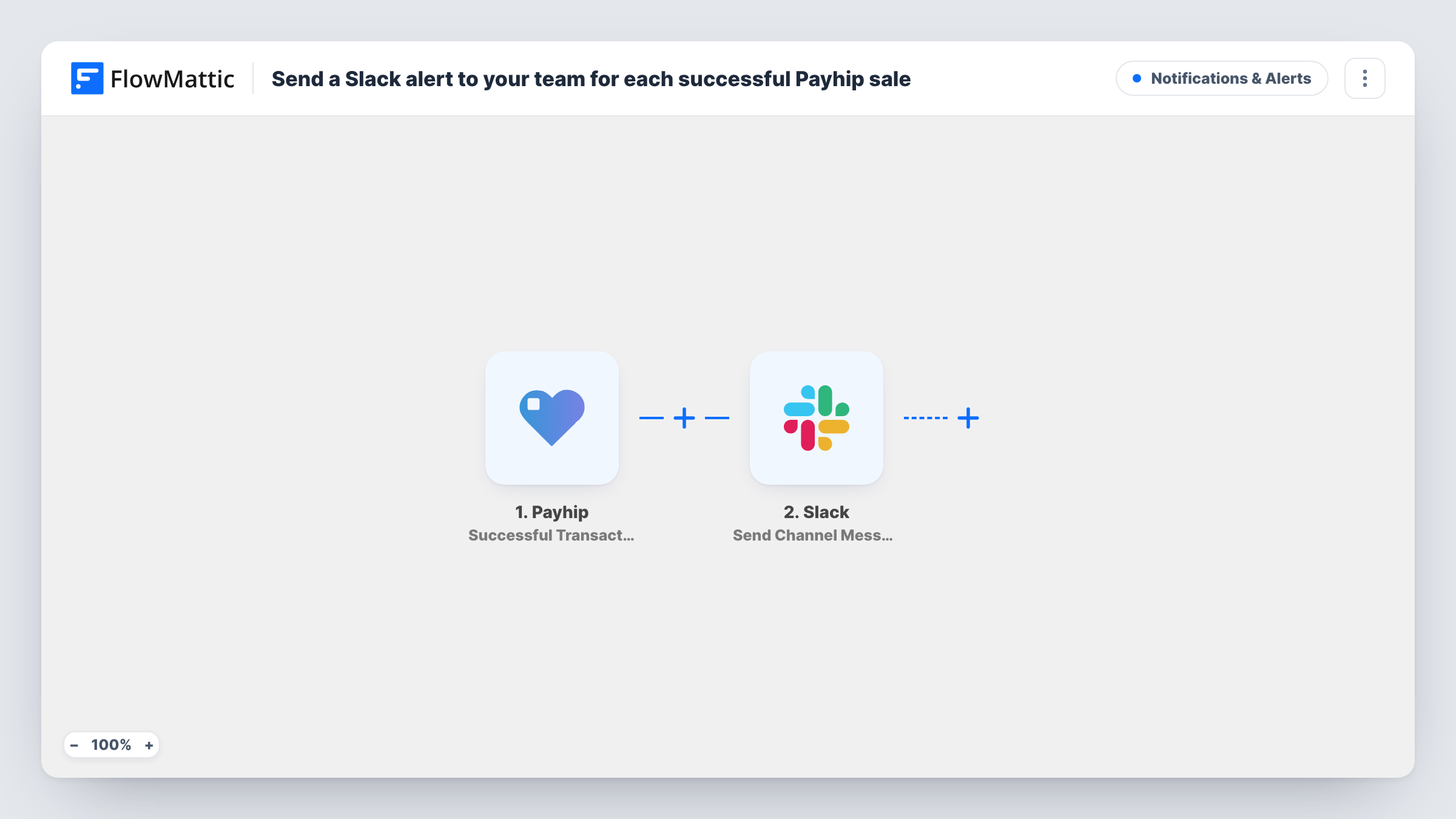
The Payhip trigger fires when a successful transaction is made in your store. FlowMattic passes the transaction data to Slack, where the Send Channel Message action posts to the channel you pick. You write the message and insert values from the sale into it, picked from the data the trigger provides.
Each successful sale produces one message. Only completed transactions fire the trigger, so failed checkouts never reach the channel. The step posts to a regular channel; for a private one, switch to Slack's Send Private Channel Message action.
A sales feed for a course creator
A creator selling online courses on Payhip keeps a #sales channel where every purchase appears, so a co-founder sees launch-day sales without opening the dashboard.
Support team awareness
When an ebook buyer emails with a download question, the support person can find their purchase in the Slack channel and reply quickly.
Tracking a promotion in real time
During a discount campaign, the marketing team watches sales appear in Slack and can tell when the offer starts to work.
How this workflow runs
What happens at each step once the workflow is on, and what you need before you import it.
 Payhip Successful Transaction
Starts a run for every Payhip purchase that completes successfully. The transaction details are passed on to the Slack step for use in the message.
- Slack Send Channel Message
Sends your message into the Slack channel picked in the step. Write the text, insert the Payhip sale values you want the team to see, then connect your Slack workspace on import.
What you need
- FlowMatticCore
- Payhip AccountAccount
- Slack AccountAccount
After importing, map your own data. To keep the template universal, not every step is pre-filled. Open each step in the builder and connect your accounts and fields (channels, lists, sheets, recipients) before you switch the workflow on.
Make it yours
Changes worth making after you import it.
- Keep buyer details out of the message if many people read the channel, and include only what the team needs to know about the sale.
- To notify one person instead of a channel, swap the step for Slack's Send Direct Message action.
- Add a Filter after the trigger on a product value from the sale data if you only want some of your Payhip products to post.
Questions about this workflow
Can the Payhip sale go to a private Slack channel?
Not with this action. Send Channel Message posts to regular channels. Replace it with Slack's Send Private Channel Message action to post to a private one.
What Payhip details can I put in the Slack message?
Any value the Successful Transaction trigger provides. Make a test purchase or wait for a real sale after import to see the data, then insert the values you want into the message text.
Do refunds or failed payments post to Slack?
No. The trigger fires on successful transactions only, so nothing is posted for other events.
More Notifications & Alerts workflows
Other ready-to-import templates from the same category.




Import this workflow into your WordPress site
Download the JSON, import it from the Workflows screen and connect your accounts. Every run stays on your server, with no per-task fees.
30-day money-back guarantee Unlimited workflows and runs Self-hosted