

Get Slack notifications for new Mailchimp subscribers
Each time a new subscriber is added in Mailchimp, this workflow posts a message to a Slack channel, so your team sees who joined the list without opening Mailchimp.
 Mailchimp
 Slack
2 steps Setup ~5 min Used on 1.6k sites Free to import
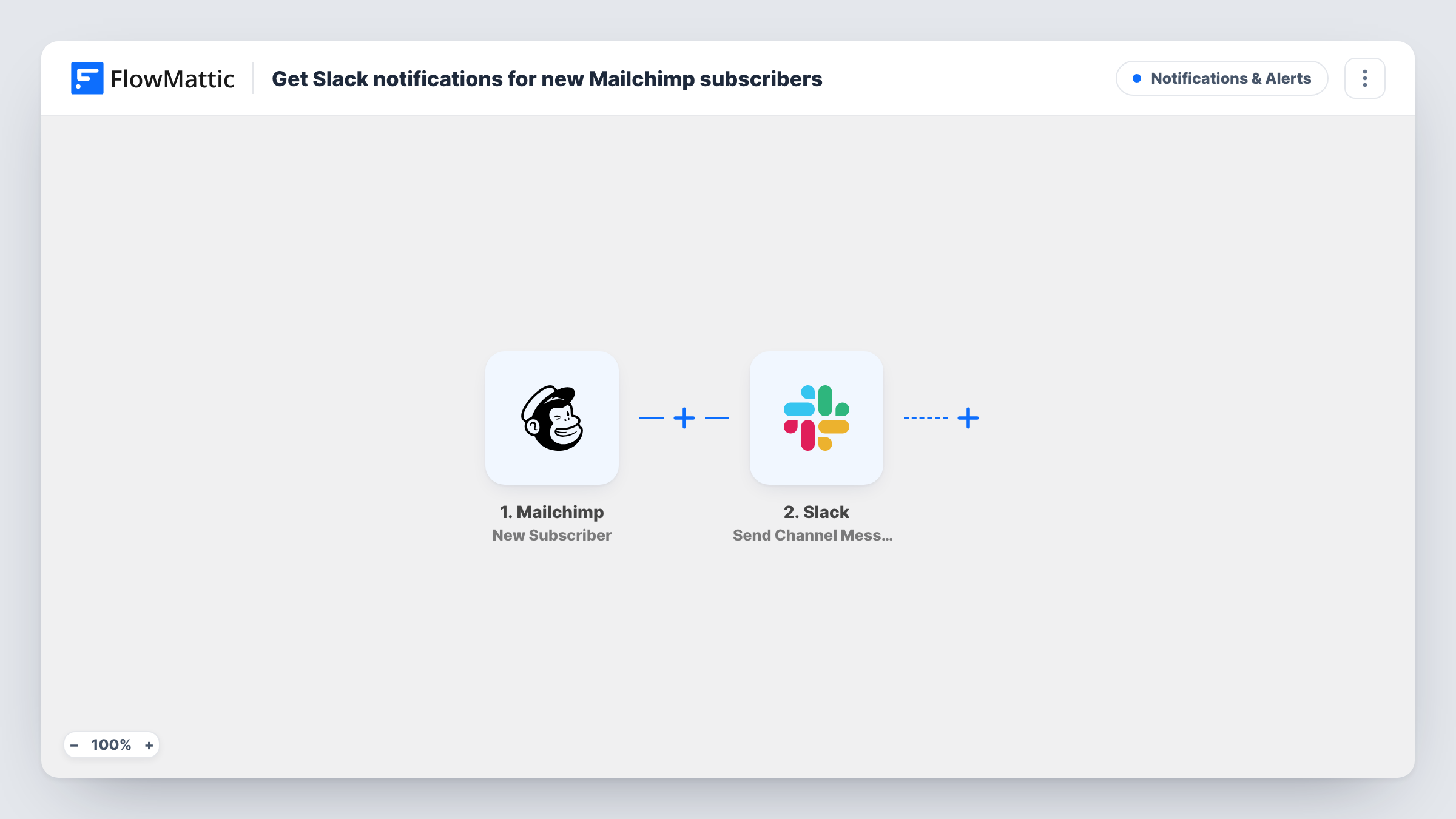
What this workflow does
A growing email list is good news that nobody sees unless they log in to Mailchimp and look. A message in Slack puts each sign-up in front of the people who care, whether that is the founder, the marketing team or a sales rep waiting for leads.
The Mailchimp trigger fires when a new subscriber is added to the audience you connect. FlowMattic passes the subscriber's details to Slack, and the Send Channel Message action posts them to the channel you pick, in the wording you write with mapped fields.
The workflow only reads from Mailchimp and posts to Slack. It doesn't change the subscriber or your list. Each new subscriber produces one message, so a large import into Mailchimp can mean many messages in a short time.
List growth feed for a small team
Post each new Mailchimp subscriber to a #signups channel so everyone sees the list grow during a launch or a giveaway.
Quick lead heads-up for sales
A B2B newsletter brings in prospects. Sales watches the Slack channel for company email addresses and reaches out while interest is fresh.
Spot fake sign-ups early
A burst of odd addresses in the channel shows a bot hitting your sign-up form, so you can add protection before the list fills with junk.
How this workflow runs
What happens at each step once the workflow is on, and what you need before you import it.
 Mailchimp New Subscriber
Runs when a new subscriber is added to your connected Mailchimp audience. The subscriber's details are passed on to the Slack step for mapping.
- Slack Send Channel Message
Posts a message to the Slack channel you choose, built from the Mailchimp subscriber details you map in. Use a public channel and connect your Slack workspace on import.
What you need
- FlowMatticCore
- Mailchimp AccountAccount
- Slack AccountAccount
After importing, map your own data. To keep the template universal, not every step is pre-filled. Open each step in the builder and connect your accounts and fields (channels, lists, sheets, recipients) before you switch the workflow on.
Make it yours
Changes worth making after you import it.
- If sales only wants business addresses, add a Filter after the trigger with a rule that the subscriber's email doesn't contain gmail.com, and add more rules for other free-mail domains.
- Want the note to go to one person instead of a channel? Replace the step with Slack's Send Direct Message action.
- Subscribe a test address in Mailchimp after import so FlowMattic captures the subscriber fields, then write your Slack message with them.
Questions about this workflow
Will a bulk import into Mailchimp flood my Slack channel?
It can. Each new subscriber added starts a run and posts one message. Turn the workflow off before a large import, or add a Filter to narrow who is posted.
Can the Mailchimp alert go to a private Slack channel?
This step is meant for public channels. Swap in Slack's Send Private Channel Message action and choose the private channel there.
Does the workflow change anything in Mailchimp?
No. Mailchimp is only read here, to get the person who joined. The subscriber and your Mailchimp audience stay exactly as they were.
More Notifications & Alerts workflows
Other ready-to-import templates from the same category.





Import this workflow into your WordPress site
Download the JSON, import it from the Workflows screen and connect your accounts. Every run stays on your server, with no per-task fees.
30-day money-back guarantee Unlimited workflows and runs Self-hosted