

Log Checkly alerts to a Google Sheets incident log
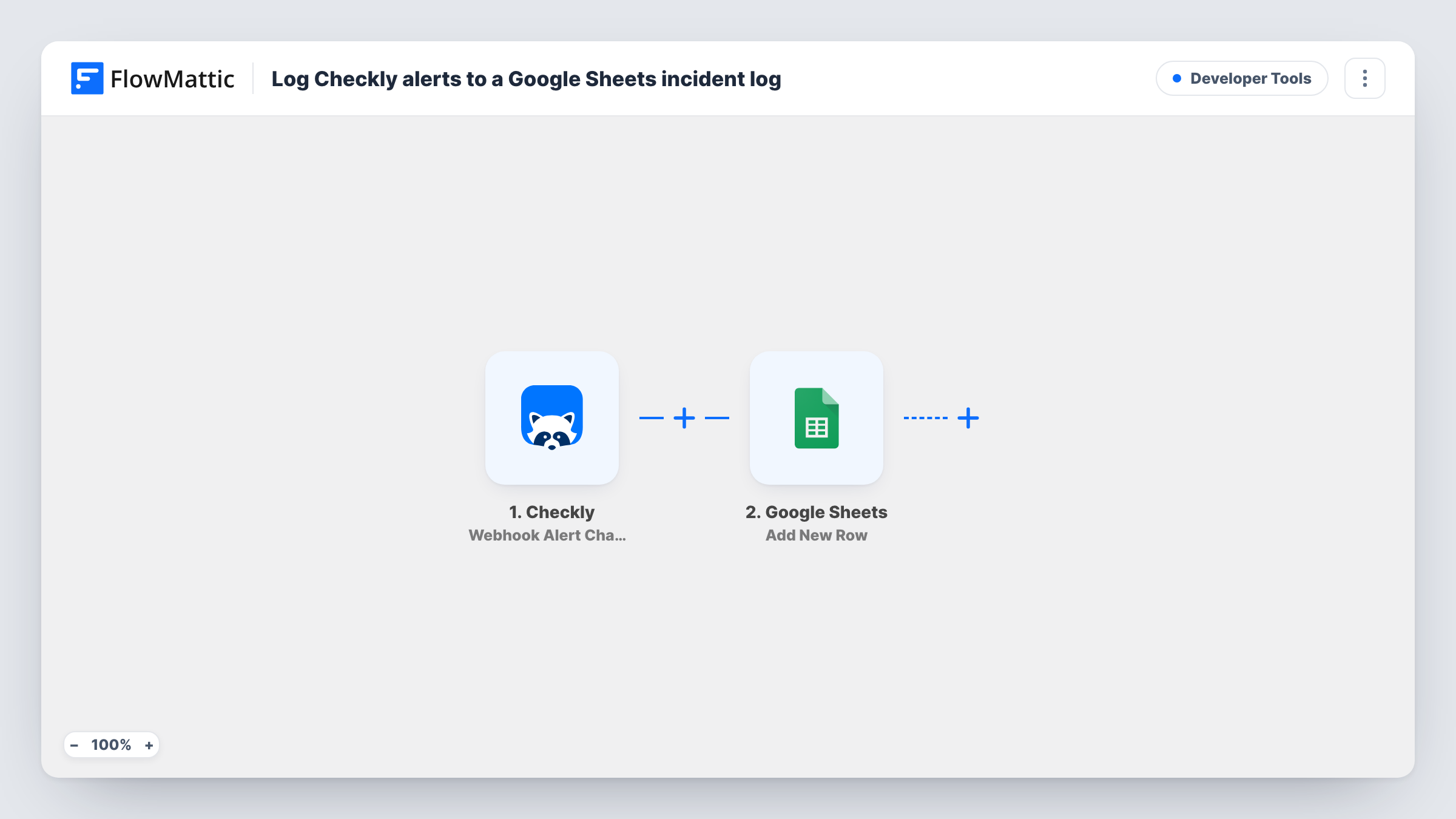
Each alert Checkly sends to its webhook alert channel, whether a check failed, recovered or slowed down, is added as a new row in a Google Sheets incident log.
 Checkly
 Google Sheets
2 steps Setup ~5 min Used on 2.5k sites Free to import
What this workflow does
Checkly tells you when a check fails, but the alert history is spread across inboxes and chat threads. When you write a postmortem or a monthly uptime report, you want every event in one table you can sort and count. This workflow builds that table in Google Sheets.
The Checkly trigger works through a webhook alert channel. It fires when a check fails, recovers or experiences a performance degradation, and the alert's details become fields you can map. The Google Sheets step then adds a new row with those details in the columns you choose.
All three kinds of alert are logged, so the sheet shows the recovery as well as the failure. That makes it possible to work out how long an incident lasted. After import, add FlowMattic's URL as a webhook alert channel in Checkly, trigger a test alert and map the columns. Task History shows each alert received.
Monthly uptime reporting
Count the failure rows per check at the end of each month and share the sheet with a client or manager who doesn't use Checkly.
Postmortem timelines
Failure and recovery rows sit next to each other, giving you the start and end of an incident to quote in the write-up.
Spotting slow endpoints
Degradation alerts build up in the log, so you can see which API checks slow down most often and plan work on them.
How this workflow runs
What happens at each step once the workflow is on, and what you need before you import it.
 Checkly Webhook Alert Channel
Runs when Checkly sends an alert to its webhook alert channel: a check failed, recovered or had a performance degradation. The alert details are passed on for mapping.
- Google Sheets Add New Row
Appends a row to your incident log spreadsheet. Map the Checkly alert details, such as the check name and alert type if Checkly sends them, to your columns.
What you need
- FlowMatticCore
- Checkly AccountAccount
- Google Sheets AccountAccount
After importing, map your own data. To keep the template universal, not every step is pre-filled. Open each step in the builder and connect your accounts and fields (channels, lists, sheets, recipients) before you switch the workflow on.
Make it yours
Changes worth making after you import it.
- Keep the alert type in its own column, so you can filter the log to failures, recoveries or degradations.
- Want failures only? Add a Filter after the trigger on the alert type field. A test alert shows the exact values Checkly sends.
- Add a Slack step after Google Sheets if the on-call person should get a message as well as a log entry.
Questions about this workflow
Are Checkly recoveries logged too?
Yes. The trigger fires for failures, recoveries and performance degradations, and the template has no Filter, so each one becomes a row.
How do I connect Checkly to this Google Sheets log?
Create a webhook alert channel in Checkly with the URL FlowMattic gives you, and subscribe your checks to it. Then send a test alert to capture the fields.
Can I log alerts from several Checkly checks in one sheet?
Yes. Every check subscribed to the alert channel sends its alerts to the same workflow. Map the check name to a column to tell them apart.
Will past Checkly alerts be added to the sheet?
No. Only alerts sent after the channel is set up and the workflow is on are logged.
More Developer Tools workflows
Other ready-to-import templates from the same category.








Import this workflow into your WordPress site
Download the JSON, import it from the Workflows screen and connect your accounts. Every run stays on your server, with no per-task fees.
30-day money-back guarantee Unlimited workflows and runs Self-hosted