

When a form submission received in Elementor Pro form, search for the domain in Tomba
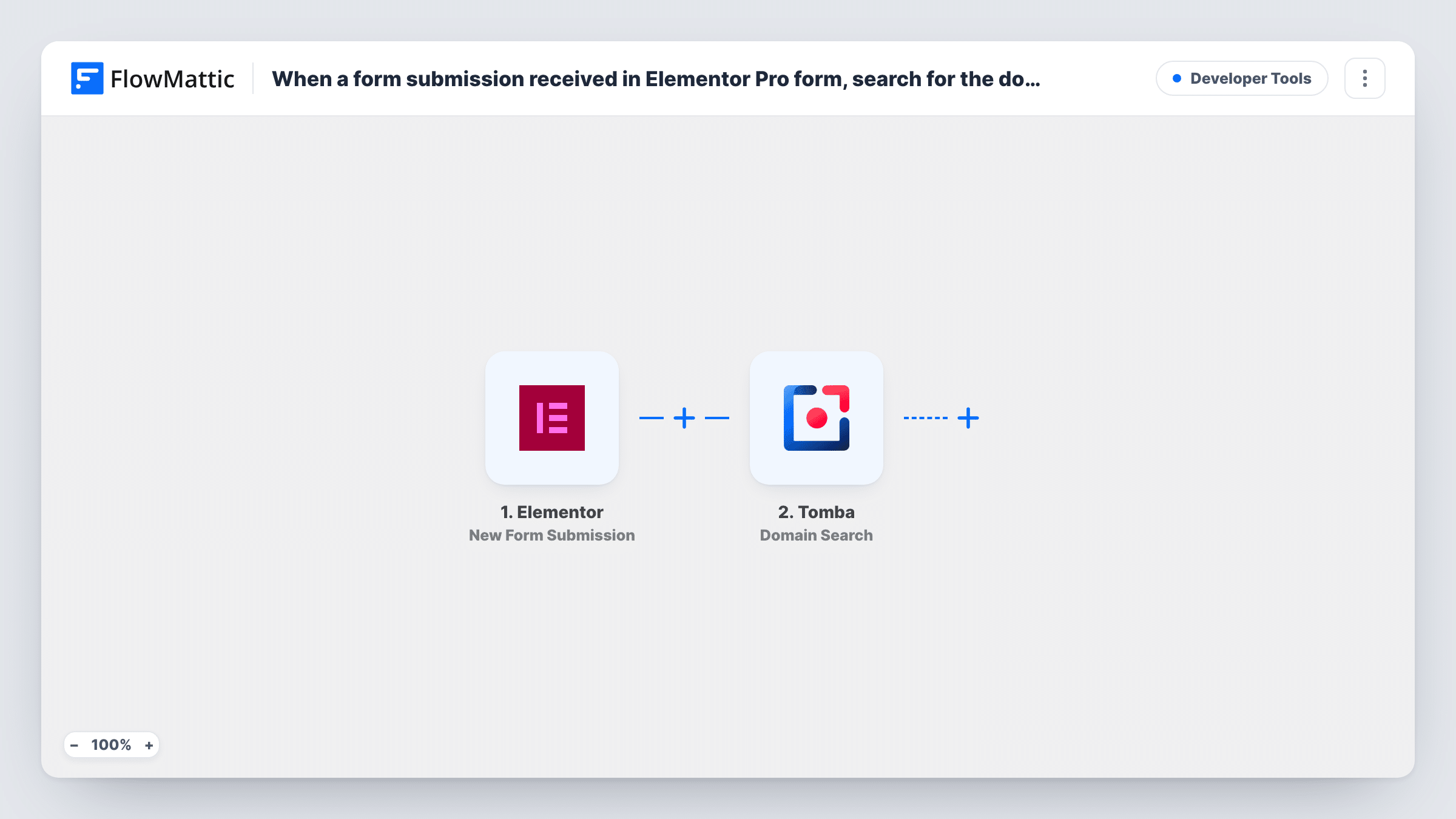
Each Elementor Pro form submission sends a company domain to Tomba’s Domain Search, so you can look up a lead’s company the moment they fill in your form and use the result in steps you add.
 Elementor
 Tomba
2 steps Setup ~5 min Used on 2.0k sites Free to import
What this workflow does
A lead form usually tells you who someone is, but not much about where they work. Tomba can look up a company domain and return what it finds for it. This workflow runs that lookup for each Elementor Pro form submission, giving you a starting point for building lead enrichment.
The Elementor trigger fires when a visitor submits a form built with Elementor Pro, and the form's fields reach FlowMattic. The Tomba step then runs Domain Search, which searches for the domain name you give it. You map a form field holding the domain, such as a company website field.
As imported, the workflow stops after the search. Tomba's results are available to later steps, but nothing stores or sends them yet, so add a step that does, such as a Google Sheets row or a CRM update. If your form only asks for an email address, you'll need to pull the domain out of it first, as the tips explain. Every submission runs a search.
B2B demo requests
Your Elementor demo form asks for a company website. Tomba searches that domain, and after you add a sheet step, sales sees what Tomba found next to each request.
Partner applications
Agencies applying to your partner program enter their site address. A Domain Search on it gives you company details to review before you reply.
Free-trial sign-ups with work emails
Split the domain from each work email, search it in Tomba, and keep the results with the sign-up to see which companies are trying your product.
How this workflow runs
What happens at each step once the workflow is on, and what you need before you import it.
 Elementor New Form Submission
Runs when someone sends a form built with Elementor Pro on your site. Each field, including any website or email field, is passed to Tomba for mapping.
- Tomba Domain Search
Searches Tomba for the domain you map from the form, for example the visitor's company website. The results become data that any step you add afterwards can use.
What you need
- FlowMatticCore
- Elementor PluginPlugin
- Tomba AccountAccount
After importing, map your own data. To keep the template universal, not every step is pre-filled. Open each step in the builder and connect your accounts and fields (channels, lists, sheets, recipients) before you switch the workflow on.
Make it yours
Changes worth making after you import it.
- Only collecting email addresses? Add a Text Formatter Split Text step before Tomba that splits the email on the @ sign and returns the second part, then map that domain into Domain Search.
- Add a Google Sheets step after Tomba and map the form answers next to Tomba's results, so the lookup is saved somewhere your team can read.
- Add a Filter before Tomba that skips free email domains such as gmail.com, so personal addresses aren't looked up.
- Send a test submission with a real company domain, then look at the Tomba step in Task History to see which result fields you can map.
Questions about this workflow
Where do the Tomba results go?
Nowhere yet. The template ends at Domain Search, so the results only show in Task History until you add a step that saves or sends them.
Does the Elementor form need a website field for Tomba?
Domain Search needs a domain. Either add a website field to the form or extract the domain from the email with a Text Formatter step before Tomba.
Can I use this Tomba lookup without Elementor Pro?
No. The form widget is part of Elementor Pro, so Elementor Pro must be active on the WordPress site where FlowMattic runs.
Will the visitor see anything from the Tomba lookup?
No. The search happens in FlowMattic after the form is sent. The visitor sees your form's normal success message.
More Developer Tools workflows
Other ready-to-import templates from the same category.







Import this workflow into your WordPress site
Download the JSON, import it from the Workflows screen and connect your accounts. Every run stays on your server, with no per-task fees.
30-day money-back guarantee Unlimited workflows and runs Self-hosted