

Log each GrooveSell product purchase in a Google Sheets spreadsheet
Every product purchase in GrooveSell adds a new row to a Google Sheets spreadsheet with the sale details you map, building a running sales log you can sort, total and share.
 GrooveSell
 Google Sheets
2 steps Setup ~5 min Used on 1.4k sites Free to import
What this workflow does
Sellers using GrooveSell often want their sales in a spreadsheet: to total revenue by product, share figures with a partner, or keep a record for the bookkeeper. Exporting reports by hand each time gives you a snapshot that is out of date by the next sale. This workflow writes each purchase to a sheet as it happens.
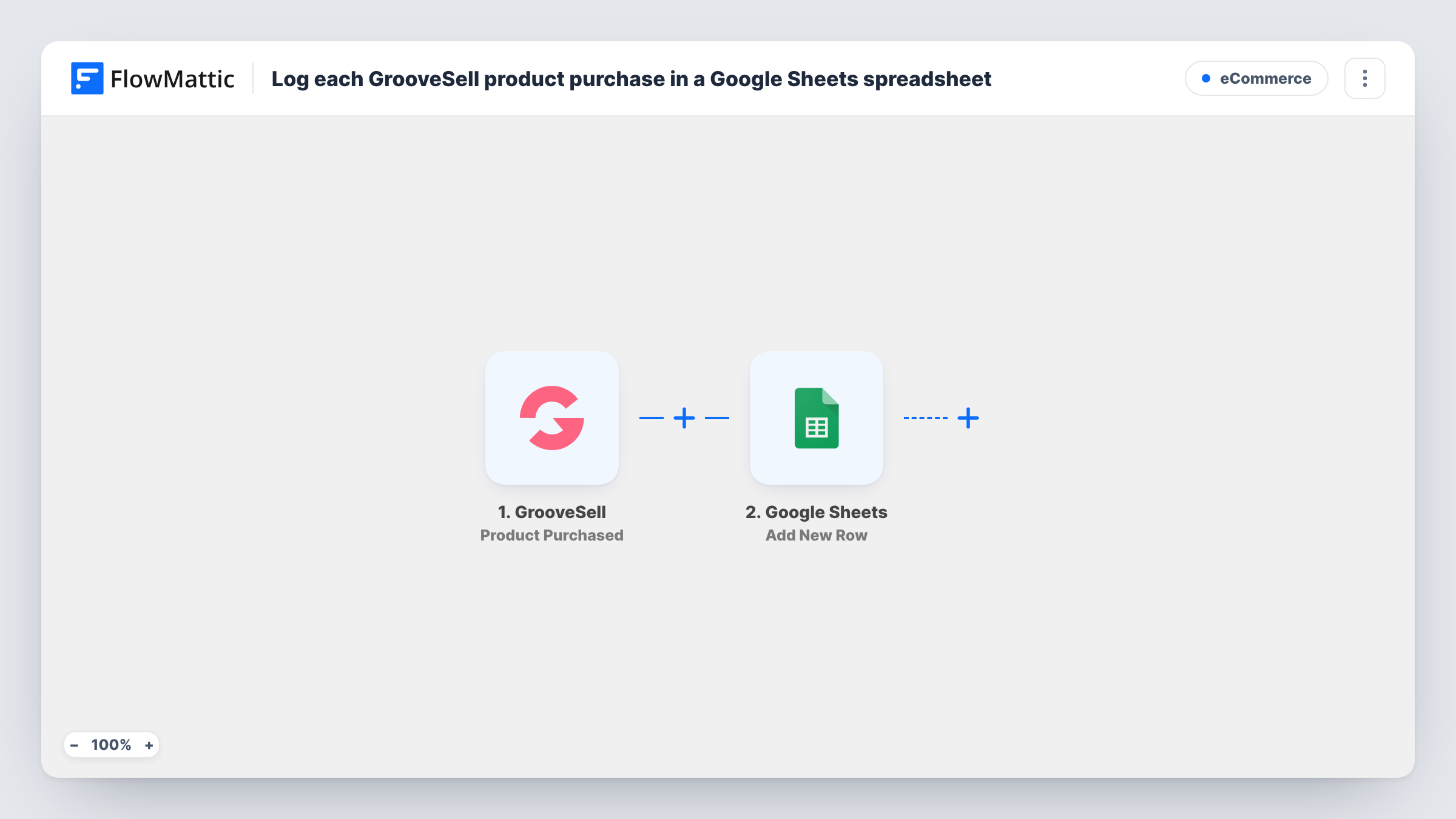
The GrooveSell trigger runs on Product Purchased and passes the purchase details to FlowMattic. The next step adds a row to Google Sheets in the spreadsheet you connect.
The row is not mapped in the template. After import, make or wait for a test purchase, look at the fields GrooveSell sent, and map the ones you want, such as product, buyer and amount, to your sheet's columns. Each purchase adds one row, and nothing is ever edited or deleted in the sheet, so refunds and cancellations do not show unless you record them separately. Task History lists every run.
Product launch tracking
During a launch, the sheet fills with each sale as it happens, and a simple sum column shows the running total by product.
Sharing sales with a joint venture partner
A partner who has no GrooveSell login can view a shared Google Sheet with every purchase of the product you sell together.
Records for your bookkeeper
Your accountant works from the spreadsheet each month instead of asking you for exports from GrooveSell.
How this workflow runs
What happens at each step once the workflow is on, and what you need before you import it.
 GrooveSell Product Purchased
Runs when a product is purchased through GrooveSell. The purchase details become available to map into the spreadsheet row.
- Google Sheets Add New Row
Writes the purchase to a new row in your Google Sheets spreadsheet. No columns are mapped in the template, so after a test purchase map the GrooveSell fields to the columns you want.
What you need
- FlowMatticCore
- GrooveSell AccountAccount
- Google Sheets AccountAccount
After importing, map your own data. To keep the template universal, not every step is pre-filled. Open each step in the builder and connect your accounts and fields (channels, lists, sheets, recipients) before you switch the workflow on.
Make it yours
Changes worth making after you import it.
- Set up your column headings in the sheet before mapping, so each GrooveSell field has an obvious place to go.
- Add a Filter after the trigger to log only one product, for example when the product name equals the item you are tracking.
- Use a Router to send purchases of different products to different sheets, with one distinct product name as each route's condition.
Questions about this workflow
Which GrooveSell purchase details are saved in Google Sheets?
The ones you map after import. The Add New Row step ships with no columns mapped, so a test purchase helps you see what is available.
Are GrooveSell refunds removed from the Google Sheet?
No. This workflow only reacts to purchases and only adds rows. Refunds need recording separately, for example through another workflow if GrooveSell sends a refund event.
Will older GrooveSell sales appear in the sheet?
No. Only purchases made after you turn the workflow on reach the trigger. Earlier sales would need adding to the sheet by hand.
Can several products log to the same Google Sheet?
Yes. As imported there is no condition, so every product purchase lands in the one sheet. Map a product column to tell them apart.
More E-Commerce workflows
Other ready-to-import templates from the same category.







Import this workflow into your WordPress site
Download the JSON, import it from the Workflows screen and connect your accounts. Every run stays on your server, with no per-task fees.
30-day money-back guarantee Unlimited workflows and runs Self-hosted