

Create a Zoho Campaigns campaign for each new WooCommerce product and log it in Google Sheets
Each new WooCommerce product gets its own email campaign created in Zoho Campaigns, and a row in Google Sheets records the product and campaign so you can track every launch.
 WooCommerce
 Zoho Campaigns
 Google Sheets
3 steps Setup ~5 min Used on 1.7k sites Free to import
What this workflow does
Shops that announce every new product by email end up building the same campaign shell again and again. This workflow starts that work for you: as soon as a product is created in WooCommerce, a matching campaign appears in Zoho Campaigns, and a spreadsheet keeps a list of what was launched.
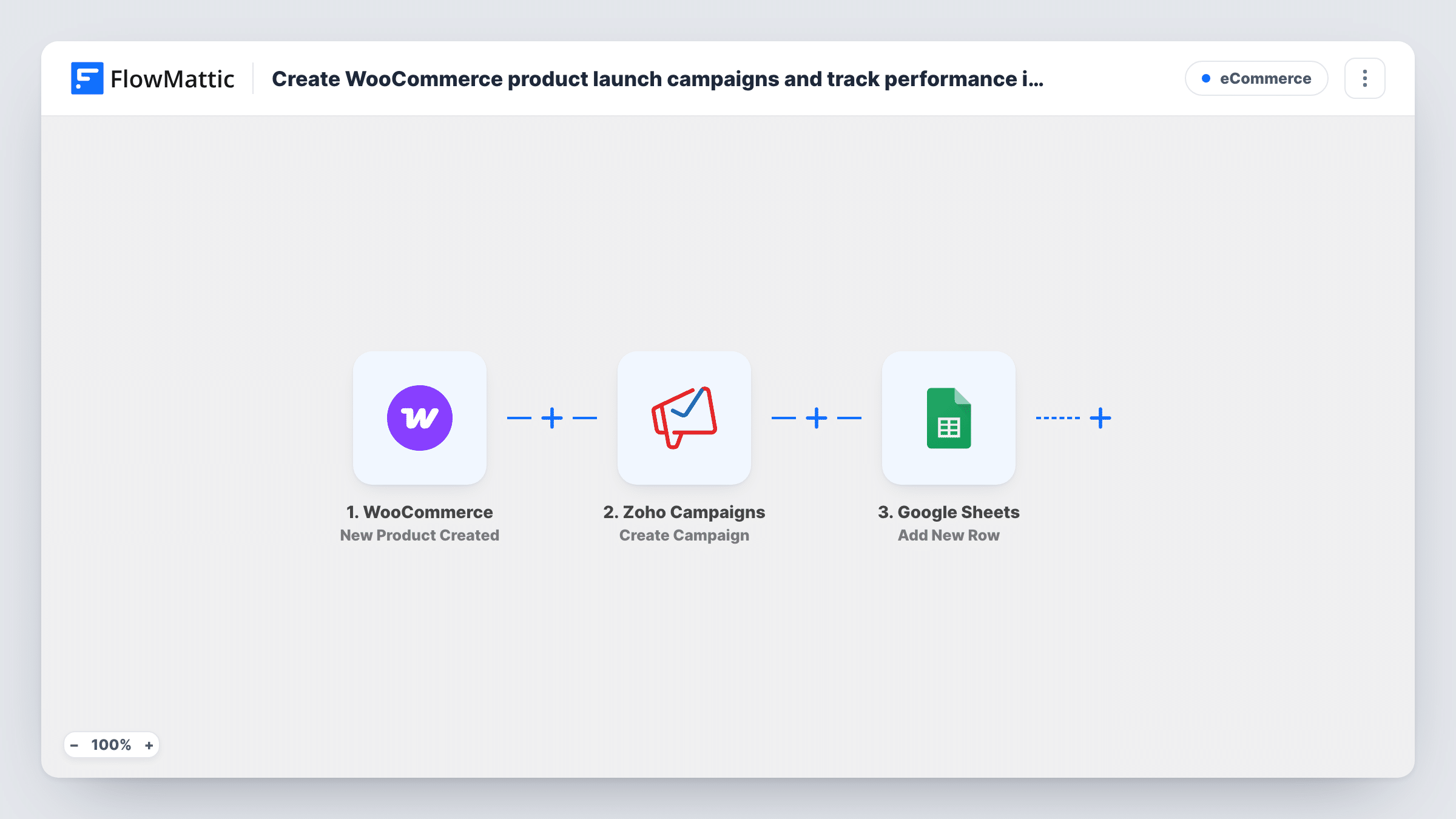
The WooCommerce trigger fires when a new product is created, passing its name, price, description, link and other product data to FlowMattic.
The Zoho Campaigns Create Campaign step then makes a new email campaign. It only creates the campaign and doesn't send it: FlowMattic has a separate Send Campaign action for that. The step ships unmapped, so after import you connect Zoho, then map product details into the campaign settings the step shows, such as using the product name in the campaign name or subject. Finally, the Google Sheets step adds a row with the data you map, for example the product name, the date and the campaign details Zoho returned.
Every new product runs all three steps. Review each campaign in Zoho before it goes out, and use Task History to see what Zoho returned for a run.
Launch email ready for review
A clothing shop adds a new jacket in WooCommerce, and the marketing lead opens Zoho Campaigns to find a campaign already named after it, ready for images and copy.
Launch log for the team
A store manager keeps a Google Sheet of every product added and the Zoho campaign created for it, so the team can see at a glance which launches still need an email sent.
Seasonal catalogue drops
A gift shop adds a batch of holiday products, and each one gets its own Zoho campaign draft and its own row in the sheet for planning the send order.
How this workflow runs
What happens at each step once the workflow is on, and what you need before you import it.
 WooCommerce New Product Created
Starts a run for each product you add to your WooCommerce catalogue. The product's name, price, description and link are passed on for the Zoho campaign and the sheet.
- Zoho Campaigns Create Campaign
Creates a new email campaign in Zoho Campaigns without sending it. The step ships unmapped: connect Zoho and map the WooCommerce product details into the campaign settings shown.
- Google Sheets Add New Row
Adds a row to your Google Sheet for each new product. Choose the spreadsheet and sheet, then map the product name, date and the campaign details Zoho Campaigns returned into your columns.
What you need
- FlowMatticCore
- WooCommerce PluginPlugin
- Zoho Campaigns AccountAccount
- Google Sheets AccountAccount
After importing, map your own data. To keep the template universal, not every step is pre-filled. Open each step in the builder and connect your accounts and fields (channels, lists, sheets, recipients) before you switch the workflow on.
Make it yours
Changes worth making after you import it.
- If draft or private products shouldn't get a campaign, put a Filter between the WooCommerce trigger and the Zoho Campaigns step that checks the product status. Products it stops get no sheet row either.
- Add a Status column to the sheet that you fill in by hand when a campaign is sent, so the log shows which launches are still waiting.
- To send each campaign automatically, add Zoho's Send Campaign action after the Zoho Campaigns step and map the campaign it created. Check a test run first.
Questions about this workflow
Does this workflow email my Zoho Campaigns list about the new product?
No. Create Campaign only builds the campaign. You review and send it in Zoho, or add the Send Campaign action as a later step if every product launch should go out straight away.
Which product details reach the Zoho campaign?
The ones you map. The WooCommerce trigger supplies the product data, and after import you choose which values fill the campaign settings the Create Campaign step offers.
Do products I edit in WooCommerce create new campaigns?
The trigger is for new products, not for edits. Add a few products in a test and check Task History to confirm when it runs on your store, for example whether drafts start a run.
More E-Commerce workflows
Other ready-to-import templates from the same category.




Import this workflow into your WordPress site
Download the JSON, import it from the Workflows screen and connect your accounts. Every run stays on your server, with no per-task fees.
30-day money-back guarantee Unlimited workflows and runs Self-hosted