

Send a Twilio SMS to customers on each ClickPost shipment update
Every time ClickPost reports an update on a shipment, Twilio sends a text message to the customer’s phone with the details you choose, so buyers hear about their delivery as it moves.
 ClickPost
 Twilio
2 steps Setup ~5 min Used on 2.7k sites Free to import
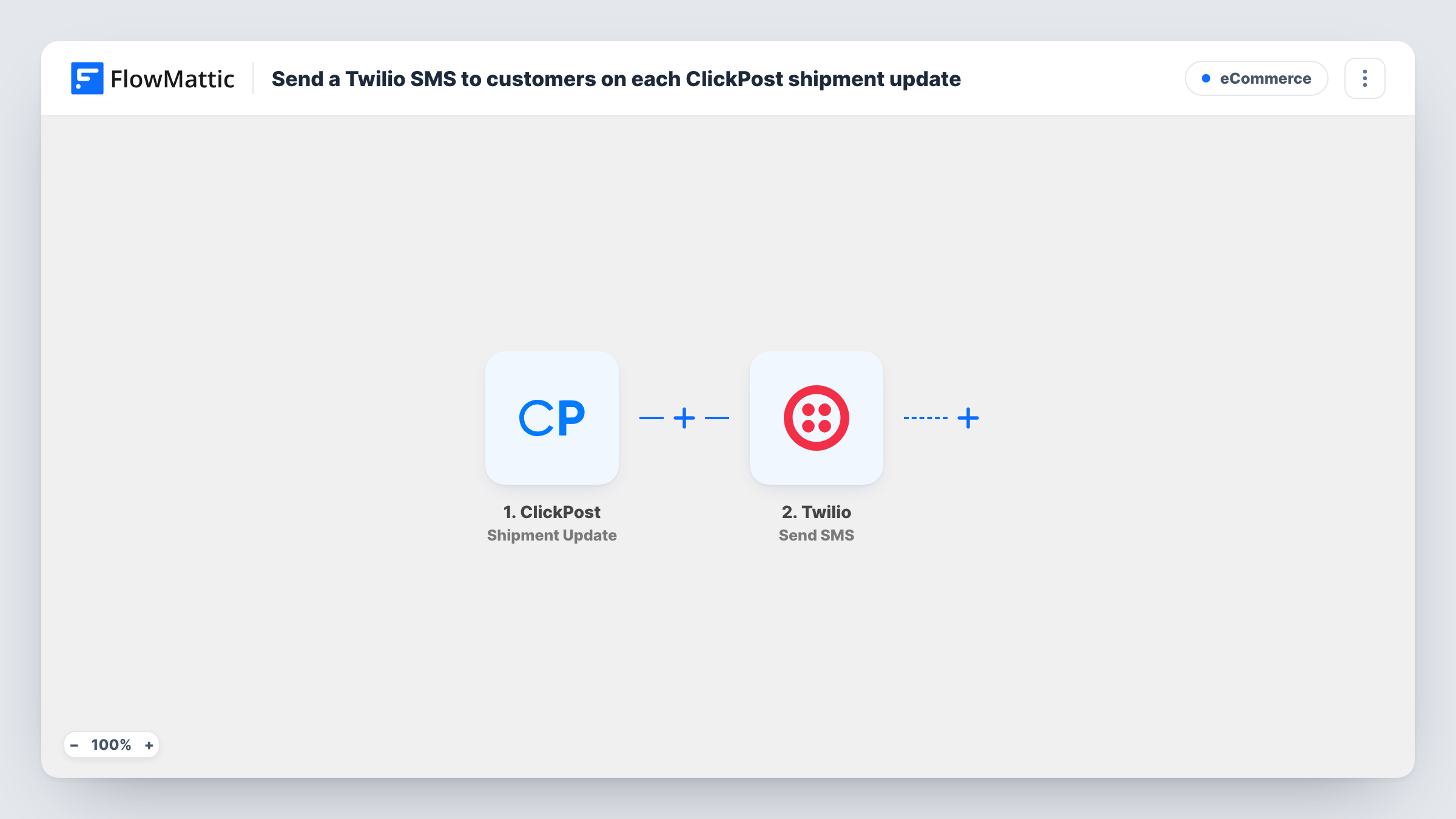
What this workflow does
Customers want to know where their parcel is, and many would rather get a text than check a tracking page. ClickPost already tracks your shipments across carriers. This workflow turns its updates into SMS messages sent through your Twilio account.
The ClickPost trigger fires when a shipment gets updated. FlowMattic passes the update to Twilio, whose Send SMS action texts the number you map. That is usually the customer's phone, if ClickPost includes it in the update, so check a test event to see what the data holds. You write the message after import, for example with the order reference and the new status.
There is no Filter, so every shipment update sends a text, including minor scans in transit. If that is too many messages, add a Filter on the status, as the tips describe. Task History records each SMS sent and Twilio's reply.
Out-for-delivery alerts
A store adds a Filter for the out-for-delivery status, so customers get a text on the day their parcel arrives and can be home for it.
Delivery exception notices
When ClickPost reports a failed delivery attempt, the customer gets an SMS and knows to arrange a new slot with the carrier.
Cash-on-delivery orders
Buyers paying on delivery receive a text as the parcel moves, so they can have the payment ready.
How this workflow runs
What happens at each step once the workflow is on, and what you need before you import it.
 ClickPost Shipment Update
Runs when ClickPost reports an update on one of your shipments. The update's data is passed on for the text message, so a test event shows which details you can use.
- Twilio Send SMS
Texts the buyer from your Twilio number. Map the customer's phone number as the recipient and write the message with shipment details such as the status and order reference.
What you need
- FlowMatticCore
- ClickPost AccountAccount
- Twilio AccountAccount
After importing, map your own data. To keep the template universal, not every step is pre-filled. Open each step in the builder and connect your accounts and fields (channels, lists, sheets, recipients) before you switch the workflow on.
Make it yours
Changes worth making after you import it.
- Add a Filter after the trigger that continues only for the statuses customers care about, such as shipped, out for delivery and delivered, so they don't get a text for every scan.
- Start the message with your store name, so customers know who is texting before they read the rest.
- Make sure phone numbers reach ClickPost with a country code. Twilio needs the full international number to deliver.
Questions about this workflow
Will a customer get a text for every ClickPost scan?
Yes, as imported. Each shipment update starts a run. Add a Filter on the status to limit texts to the steps you choose.
Which ClickPost field holds the buyer's phone number?
That depends on the shipment data ClickPost sends, and it may not include a phone at all. Check a test event in FlowMattic, then map that field as the Twilio recipient.
Do I need my own Twilio number for these delivery texts?
Yes. The SMS is sent from your Twilio account, so you need a number there that can message your customers' countries.
Does this replace ClickPost's own customer notifications?
No. It adds a Twilio text. If ClickPost also notifies customers, turn one of them off so buyers aren't messaged twice.
More E-Commerce workflows
Other ready-to-import templates from the same category.







Import this workflow into your WordPress site
Download the JSON, import it from the Workflows screen and connect your accounts. Every run stays on your server, with no per-task fees.
30-day money-back guarantee Unlimited workflows and runs Self-hosted