

Log each saved Cockpit content item in a Google Sheets spreadsheet
Each time a content item is saved in Cockpit, FlowMattic adds a row to Google Sheets, building a log of content saves that editors and managers can read without opening the CMS.
 Cockpit
 Google Sheets
2 steps Setup ~5 min Used on 1.1k sites Free to import
What this workflow does
Cockpit is a headless CMS, so the people who need to know what changed, such as editors, clients or a content manager, often don't work in it. A spreadsheet log of saves gives them a simple history they can sort and share. Here, each Cockpit save becomes a line in that history.
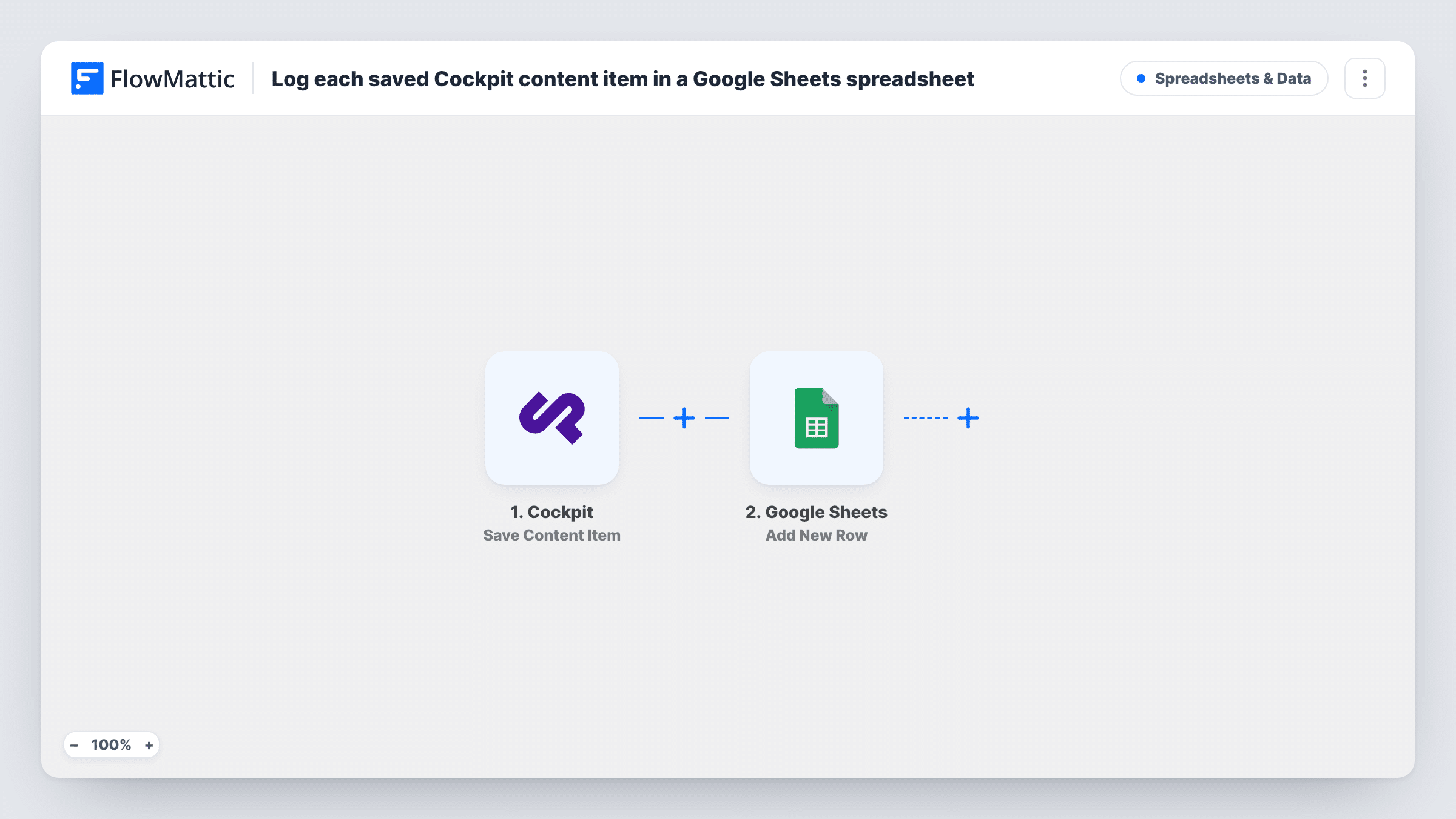
The Cockpit trigger, Save Content Item, fires when a content item is saved inside Cockpit. FlowMattic passes the item's data to Google Sheets, and the Add New Row action adds it to the spreadsheet you choose. Map the item's fields to your columns after a test save shows what Cockpit sends.
A save is a save. Creating an item and editing an existing one both fire the trigger, so one item can produce many rows over time. That makes the sheet a change log rather than a list with one row per item.
Editorial history for a content team
Every save of an article in Cockpit lands in the sheet, so the managing editor can see what was worked on each day.
Client reporting for an agency
An agency shares the sheet with a client to show which content items were updated during the month.
Product catalogue edits
When product entries in Cockpit are changed, the sheet keeps a record of each save that the team can review before a launch.
How this workflow runs
What happens at each step once the workflow is on, and what you need before you import it.
 Cockpit Save Content Item
Fires when a content item is saved in Cockpit, whether it is new or edited. The item's data is passed on for the Google Sheets step.
- Google Sheets Add New Row
Appends a row for each Cockpit save to the spreadsheet you pick. Connect your Google account and map the item's fields to your columns.
What you need
- FlowMatticCore
- Cockpit AccountAccount
- Google Sheets AccountAccount
After importing, map your own data. To keep the template universal, not every step is pre-filled. Open each step in the builder and connect your accounts and fields (channels, lists, sheets, recipients) before you switch the workflow on.
Make it yours
Changes worth making after you import it.
- Add a column for the time of the save, using a date field from the trigger or FlowMattic's Date/Time Formatter, so the sheet reads in order.
- Add a Filter after the trigger if only one collection should be logged, using a field from a test save that names it.
- Build a second workflow on Cockpit's Save Pages Page trigger to log page saves to another tab.
Questions about this workflow
Does editing a Cockpit item add a new row or update the old one?
It adds a new row. The trigger fires on every save, and Add New Row never changes existing rows.
Are Cockpit pages logged too?
Not by this workflow. It uses Save Content Item. Cockpit's Save Pages Page trigger covers pages in a separate workflow.
Can I log only certain fields from the Cockpit item?
Yes. Map only the fields you want to columns in the Google Sheets step. Fields you don't map are left out of the row.
Will older Cockpit content be added to the sheet?
No. Only saves made after the workflow is turned on create rows.
More Spreadsheets & Data workflows
Other ready-to-import templates from the same category.




Import this workflow into your WordPress site
Download the JSON, import it from the Workflows screen and connect your accounts. Every run stays on your server, with no per-task fees.
30-day money-back guarantee Unlimited workflows and runs Self-hosted