

Log every airfocus status update in a Google Sheets roadmap tracker
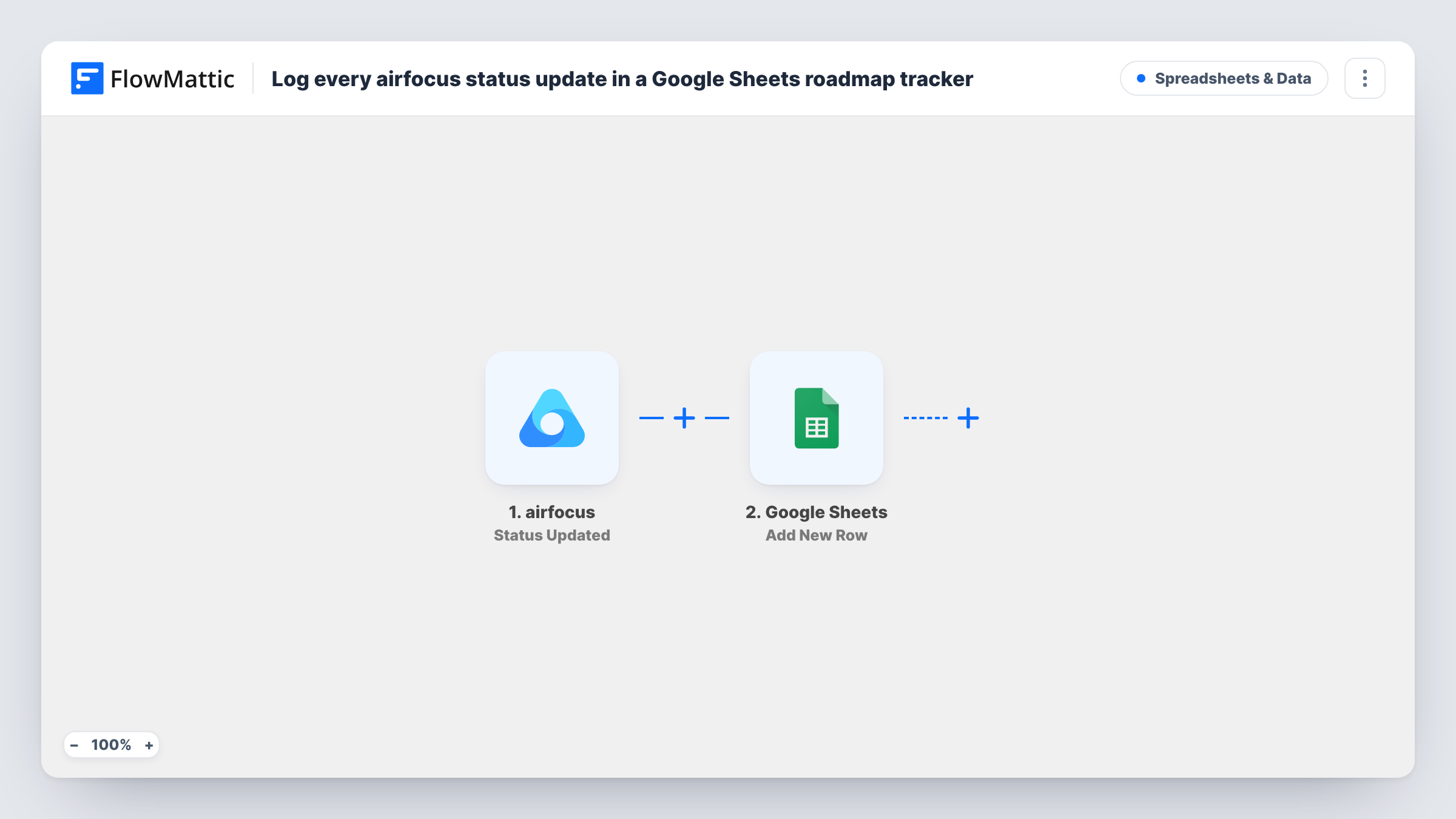
Every time an item’s status changes in airfocus, this workflow adds a row to a Google Sheets spreadsheet, building a running log of how roadmap items move that anyone with the sheet can read.
 airfocus
 Google Sheets
2 steps Setup ~5 min Used on 1.2k sites Free to import
What this workflow does
airfocus shows where each roadmap item stands today, but stakeholders often ask when something changed and how long it sat in each stage. A spreadsheet log answers that, and it can be shared with people who don't use airfocus. This workflow writes one row for each status change.
The airfocus trigger, Status Updated, fires when the status of an item is updated. FlowMattic receives the item data airfocus sends for that change. The Google Sheets step, Add New Row, then appends a row to the spreadsheet and sheet you choose, with the values you map into its columns.
Rows are added, never overwritten, so an item that changes status four times gets four rows. That is what turns the sheet into a history rather than a snapshot. After import, change one item's status to capture the data airfocus sends, then map the item name, new status and any other values you want. Each status change then shows up as its own run in Task History.
Roadmap history for quarterly reviews
Before a quarterly review, filter the sheet by item to show when each feature moved from planned to in progress to done.
Updates for stakeholders outside airfocus
Sales and support leads read the shared spreadsheet to see which roadmap items changed status this week, without needing an airfocus seat.
Measuring time spent in each stage
Add a date column, then use spreadsheet formulas to work out how many days items spend in each status between changes.
How this workflow runs
What happens at each step once the workflow is on, and what you need before you import it.
 airfocus Status Updated
Fires when the status of an item in airfocus is updated. Connect your airfocus account. The item details airfocus sends for the change become available to map into Google Sheets.
- Google Sheets Add New Row
Appends a row to the spreadsheet you pick for every status change. Create column headings such as item, status and date first, then map the airfocus values into them and connect your Google account.
What you need
- FlowMatticCore
- airfocus AccountAccount
- Google Sheets AccountAccount
After importing, map your own data. To keep the template universal, not every step is pre-filled. Open each step in the builder and connect your accounts and fields (channels, lists, sheets, recipients) before you switch the workflow on.
Make it yours
Changes worth making after you import it.
- Add a Filter after the trigger if only some statuses matter, for example continue only when the new status is Done, to keep a log of shipped items.
- Map a date or time value from the airfocus data, if the test run shows one, into its own column so you can sort the log and calculate how long items spend in each status.
- Add a Slack step after Google Sheets to post the same change to a product channel, so the team hears about it while the sheet keeps the record.
Questions about this workflow
Does the airfocus log update an existing row for the item?
No. Add New Row appends a fresh row for every status change. The sheet keeps each change as its own entry, which is what makes it a history.
Are earlier airfocus status changes added to the sheet?
No. Only changes made after you turn the workflow on are logged. The sheet starts empty and grows from there.
Can people without airfocus access read the tracker?
Yes. It is a normal Google Sheets spreadsheet, so you share it with whoever needs it using Google's sharing settings.
Does it change anything in airfocus?
No. The workflow only reads the status change from airfocus and writes to Google Sheets.
More Spreadsheets & Data workflows
Other ready-to-import templates from the same category.



Import this workflow into your WordPress site
Download the JSON, import it from the Workflows screen and connect your accounts. Every run stays on your server, with no per-task fees.
30-day money-back guarantee Unlimited workflows and runs Self-hosted