

Log every completed CircleCI job in a Google Sheets spreadsheet
Each time a CircleCI job reaches a final state, this workflow adds a row about it to a Google Sheets spreadsheet, giving you a running log of jobs you can sort, chart and share outside CircleCI.
 Circleci
 Google Sheets
2 steps Setup ~5 min Used on 2.6k sites Free to import
What this workflow does
CircleCI shows recent jobs in its own interface, but questions like how often a test job fails, or how long a deploy takes over a month, are easier to answer in a spreadsheet. Exporting that history by hand is tedious. This workflow writes a line for every finished job as it happens.
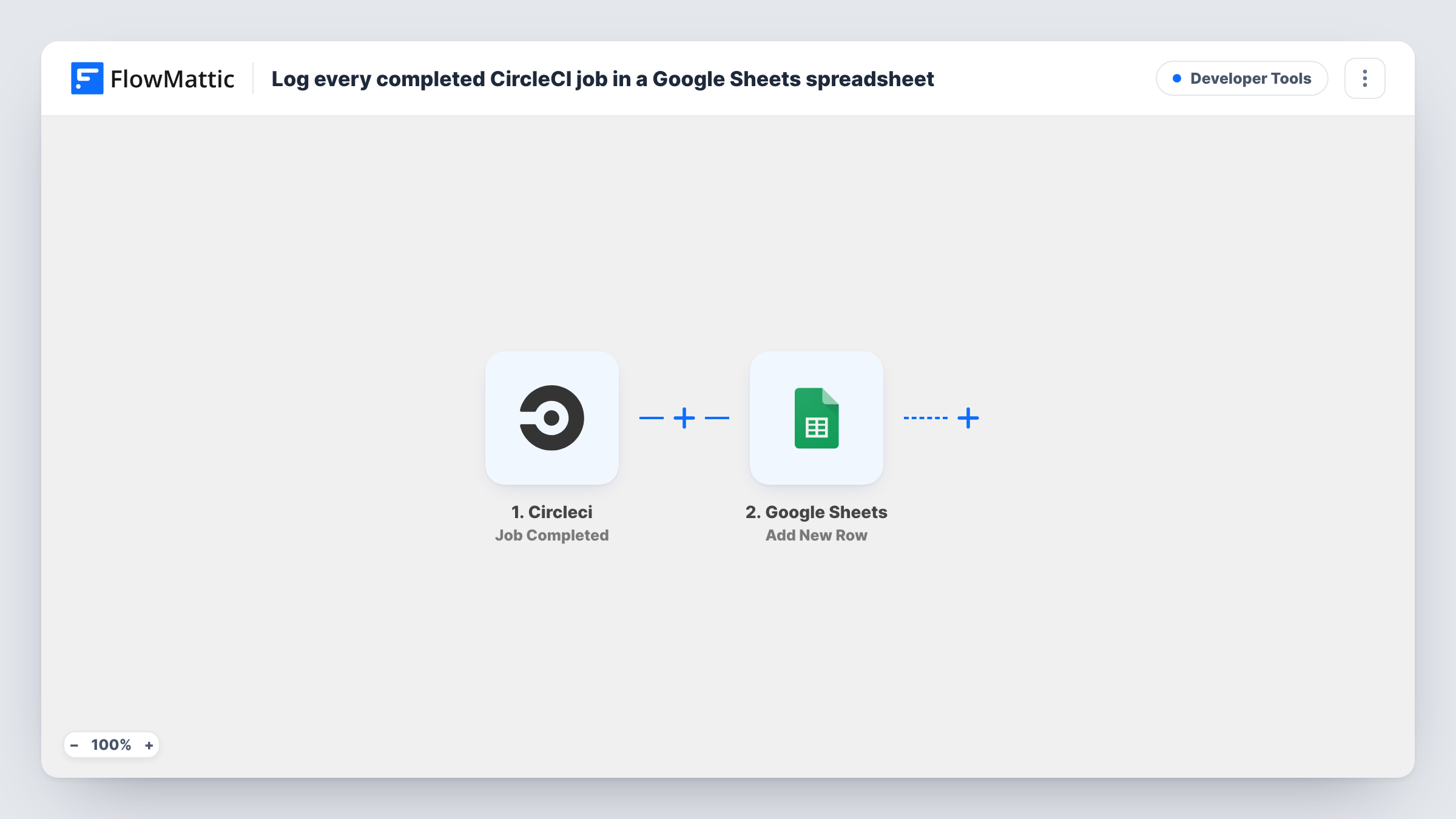
The CircleCI trigger, Job Completed, fires when a job has reached a terminal state. That covers every way a job can end, so passed and failed jobs alike start a run. The job data CircleCI sends goes to Google Sheets, where Add New Row writes it to the spreadsheet and tab you pick, using the columns you map.
Every job that finishes adds a row, so a busy project fills the sheet quickly. If you only care about some jobs or some outcomes, add a Filter after the trigger, as described in the tips.
Spotting a flaky test job
Sort the sheet by job name and status to see which test job ends in failure most often over the past few weeks.
Sharing build history with managers
A project lead without CircleCI access reads the shared spreadsheet to see what ran and how each job ended.
Checking deploy jobs after a release
Filter the log to your deploy job and confirm a row exists for each release you shipped.
How this workflow runs
What happens at each step once the workflow is on, and what you need before you import it.
 Circleci Job Completed
Fires when a CircleCI job reaches a terminal state, whether it passed or failed. The job details CircleCI sends are passed to the sheet step for mapping.
- Google Sheets Add New Row
Logs the finished CircleCI job as one new line in the Google Sheets tab you select. Connect your Google account and map job details, such as name and status, to columns.
What you need
- FlowMatticCore
- CircleCI AccountAccount
- Google Sheets AccountAccount
After importing, map your own data. To keep the template universal, not every step is pre-filled. Open each step in the builder and connect your accounts and fields (channels, lists, sheets, recipients) before you switch the workflow on.
Make it yours
Changes worth making after you import it.
- Add a Filter after the trigger that continues only when the job status equals the failure value CircleCI sends, if you want a sheet of failed jobs only.
- If several CircleCI projects send jobs here and the data includes the project name, map it into its own column so you can sort the log by project.
- Let one job finish after import, then look at the captured CircleCI data before mapping, so you can see which fields it sends.
Questions about this workflow
Are cancelled or failed CircleCI jobs logged too?
Yes. Job Completed fires when a job reaches any terminal state, so every outcome gets a row unless you add a Filter on the status.
Does this log CircleCI workflows or individual jobs?
Individual jobs. A CircleCI workflow with several jobs adds one row per job. FlowMattic has a separate Workflow Completed trigger if you want one row per workflow.
Will CircleCI jobs that ran before I import this appear in the sheet?
No. Only jobs that finish after the workflow is turned on start a run, so older history stays in CircleCI.
More Developer Tools workflows
Other ready-to-import templates from the same category.






Import this workflow into your WordPress site
Download the JSON, import it from the Workflows screen and connect your accounts. Every run stays on your server, with no per-task fees.
30-day money-back guarantee Unlimited workflows and runs Self-hosted