

When a post of any post type is imported in WP All Import, send the post data to an outgoing webhook
As WP All Import imports each post, of any post type, FlowMattic sends that post’s data as JSON to a webhook URL you choose, so another site, a script or a service can act on the import too.
 WP All Import
 Webhook Outgoing
2 steps Setup ~5 min Used on 383 sites Free to import
What this workflow does
When a bulk import fills your WordPress site with products, listings or articles, other systems often need the same records: a second site, a search index, a reporting database or a custom script. Rather than exporting again, this workflow forwards each imported post to that system while the import runs.
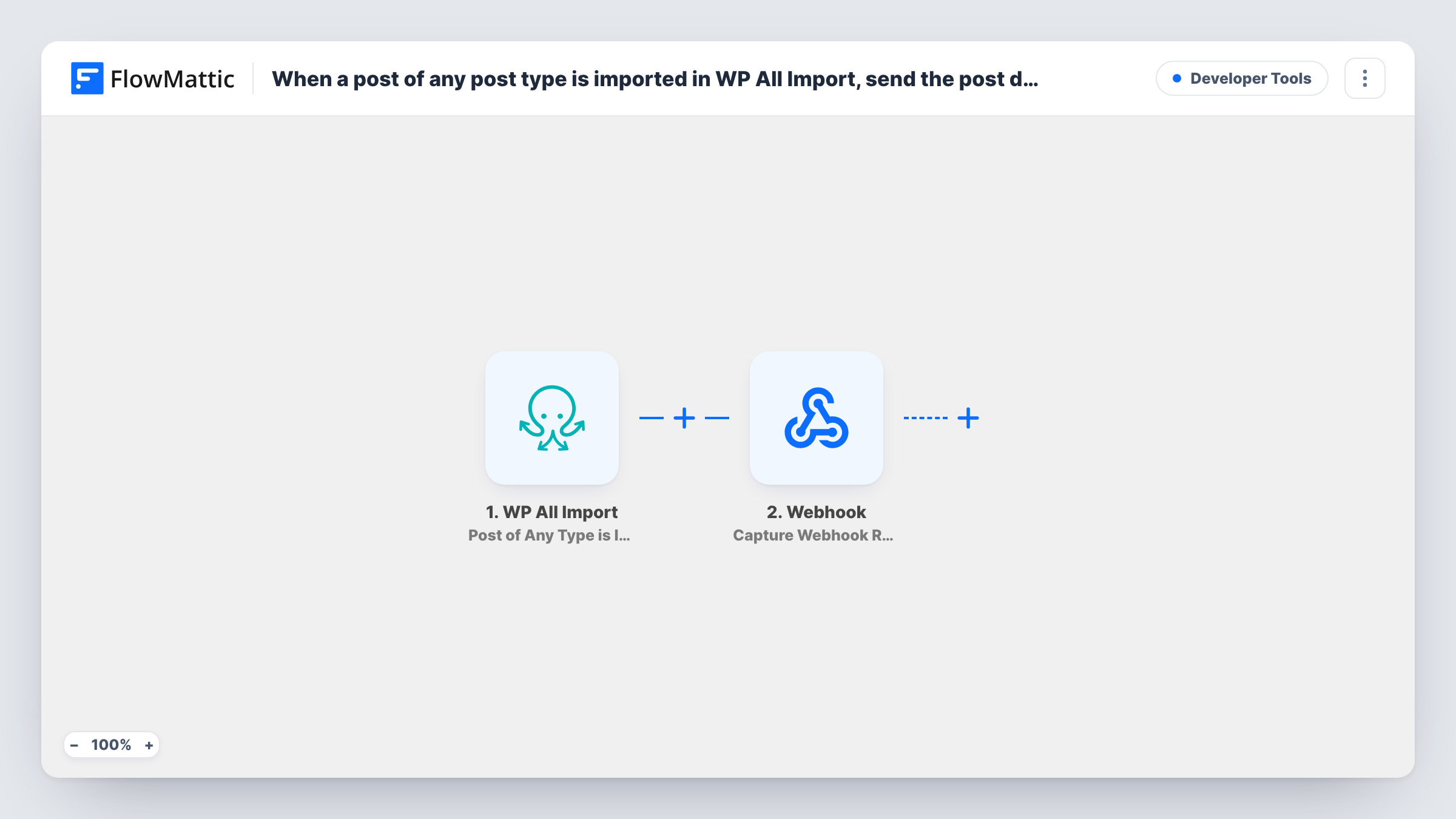
The WP All Import trigger fires when a post of any post type is imported. Posts, pages, products and custom post types all count, so every record in the import file that WP All Import saves as a post starts a run. The post's data is passed on; run a small test import to see which fields arrive.
The Webhook Outgoing step sends that data to a URL with the POST method, in JSON format. It ships empty: after import you enter the receiving URL and map the post fields you want to send, each under the key the other system expects.
A large import file means a large number of requests, one per imported post, sent while the import runs. Make sure the receiving end can take that volume, and test with a short file first. Task History shows each request and the response it got.
Copy imported products to a second site
A store imports its supplier feed with WP All Import and posts each product to a receiving endpoint on its wholesale site, so both catalogues get the same items.
Feed a search service
A job board imports listings nightly and sends each one to an external search index's webhook, keeping site search in step with the import.
Log imports for an audit
An agency sends every imported post's ID, title and type to its own logging service, so it can show a client exactly what each import added.
How this workflow runs
What happens at each step once the workflow is on, and what you need before you import it.
 WP All Import Post of Any Type is Imported
Fires each time WP All Import imports a post, whatever its post type. The imported post's data becomes available to map into the outgoing request; a small test import shows the exact fields.
- Webhook Outgoing Submit Data to Webhook
Sends the post data to the URL you enter as a JSON POST request. The template sets nothing, so add the receiving URL and map each post field under the key your endpoint reads.
What you need
- FlowMatticCore
- WP All Import PluginPlugin
After importing, map your own data. To keep the template universal, not every step is pre-filled. Open each step in the builder and connect your accounts and fields (channels, lists, sheets, recipients) before you switch the workflow on.
Make it yours
Changes worth making after you import it.
- To forward only one post type, such as products, put a Filter between the WP All Import trigger and the webhook step that checks the post type field, if your test import shows it.
- Include the post ID in the request, so the receiving system can recognise a post it has seen before when you run the same import again.
- Try the workflow with a three-row import file before a full run, and confirm in Task History that your endpoint accepted each request.
Questions about this workflow
Does every post in a WP All Import run send a webhook request?
Yes. The trigger fires for each post of any type that the import brings in, so each one produces its own POST request to your URL.
Which post fields go into the outgoing JSON?
The ones you map in the Submit Data to Webhook step. It ships empty, so pick fields such as the title, content and post ID and name the keys yourself.
Can the webhook send images that WP All Import brings in?
This workflow starts on imported posts. WP All Import also has an Image Imported trigger in FlowMattic, which you could use in a separate workflow for images.
More Developer Tools workflows
Other ready-to-import templates from the same category.





Import this workflow into your WordPress site
Download the JSON, import it from the Workflows screen and connect your accounts. Every run stays on your server, with no per-task fees.
30-day money-back guarantee Unlimited workflows and runs Self-hosted