

Update WordPress post meta everytime new alert is received in TradingView
Each TradingView alert that reaches FlowMattic writes a new value to a post meta key on your WordPress site, so a page or theme that reads that meta always shows the latest signal, price or status from your alert.
 Tradingview
 WordPress
2 steps Setup ~5 min Used on 624 sites Free to import
What this workflow does
Showing live market signals on a WordPress page usually means editing the page by hand each time an alert fires. If your theme, a shortcode or a custom field block already reads a post meta value, there is a simpler route. This workflow updates that value from TradingView directly.
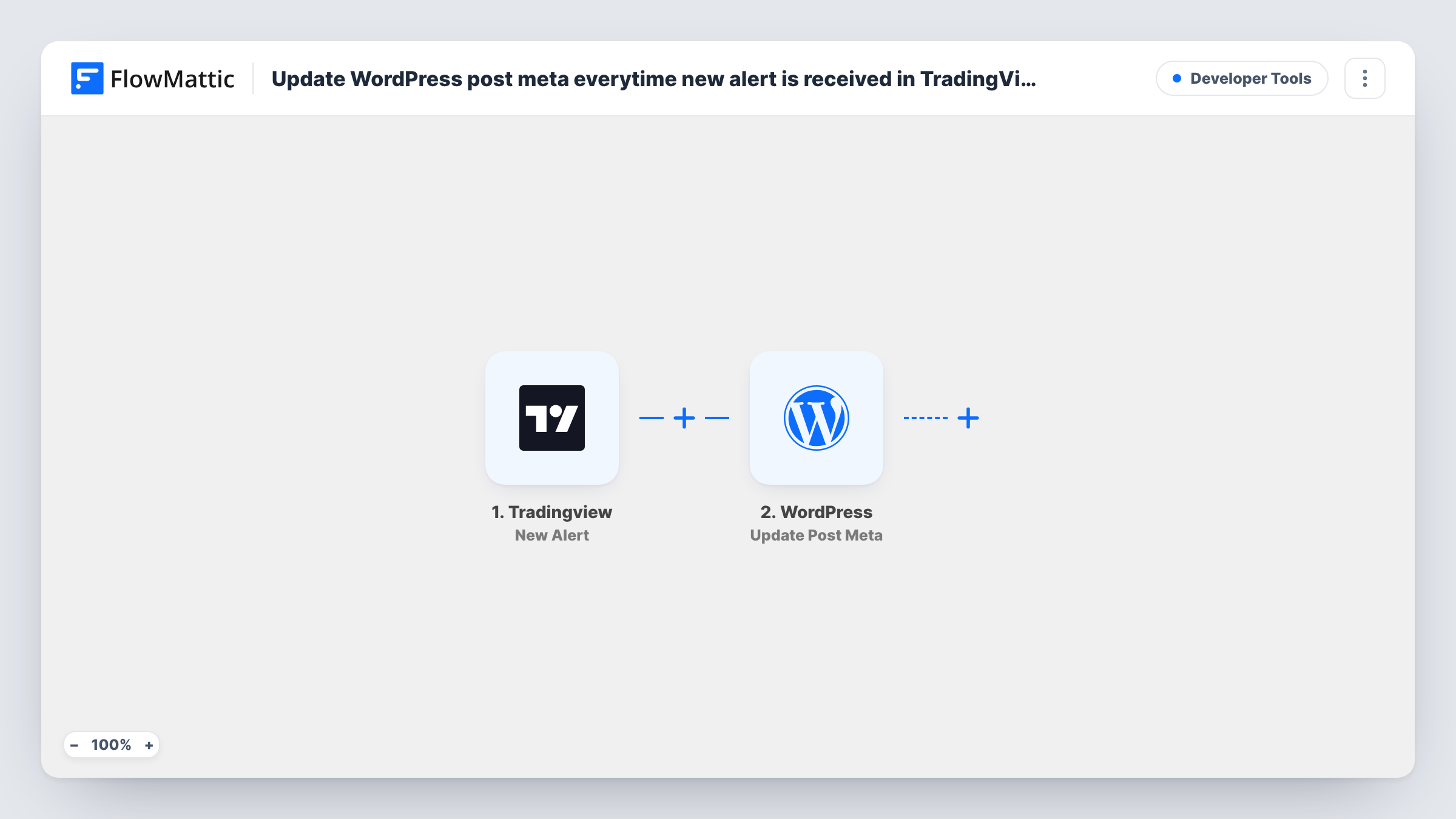
The TradingView trigger gives you a webhook address to add to an alert. When the alert's condition is met, TradingView sends the alert message to FlowMattic, and any JSON keys you put in that message become separate fields. The WordPress step then runs Update Post Meta, which sets a specific meta key on a post to a new value.
The step has to know which post to change. Either enter the ID of one fixed post, such as a signals page, or include the post ID in the alert message and map it. Each alert overwrites the previous value, so the meta always holds the most recent one. Test with a post you know before relying on it, and check Task History for each run.
A live signal box on a members page
A trading community shows the current signal for each market in a box on a members page. Each TradingView alert updates the meta value the box reads.
Per-ticker pages with the last alert
Each ticker has its own post. Put the post ID in that ticker's alert message, and every alert refreshes the meta on the matching post.
Status flags for a custom theme
A developer's theme shows a bullish or bearish badge based on a meta key. Alerts from TradingView switch the badge without anyone logging in.
How this workflow runs
What happens at each step once the workflow is on, and what you need before you import it.
 Tradingview New Alert
Receives the alert message TradingView sends to this workflow's webhook address when the alert fires. JSON keys in the message, such as a post ID or a price, become fields you can map.
- WordPress Update Post Meta
Updates a specific post meta key on a WordPress post with a new value. Set the post, either a fixed ID or one mapped from the alert, then the meta key and the alert value it should hold.
What you need
- FlowMatticCore
- TradingView AccountAccount
After importing, map your own data. To keep the template universal, not every step is pre-filled. Open each step in the builder and connect your accounts and fields (channels, lists, sheets, recipients) before you switch the workflow on.
Make it yours
Changes worth making after you import it.
- Write the alert message as JSON with the post ID, the value and the time of the alert, so each arrives as its own field you can map into the WordPress step.
- Store the alert time in a second meta key with another Update Post Meta step, so your page can show when the value last changed.
- Add a Filter after the trigger that continues only when the post ID field is not empty, so a badly written alert message doesn't run the update.
Questions about this workflow
Which WordPress post does the TradingView alert update?
The one you set in the step: a fixed post ID typed in, or an ID you include in the alert message and map. Test with a post you know before connecting live alerts.
Does each TradingView alert keep a history in post meta?
No. Update Post Meta sets the key to the new value, replacing the old one. If you need a history, add a Google Sheets step that adds a row for each alert.
Will the new value show on my page automatically?
Only if something on the page reads that meta key, such as your theme, a shortcode or a custom field block. The workflow changes the stored value; it does not edit the page layout.
More Developer Tools workflows
Other ready-to-import templates from the same category.






Import this workflow into your WordPress site
Download the JSON, import it from the Workflows screen and connect your accounts. Every run stays on your server, with no per-task fees.
30-day money-back guarantee Unlimited workflows and runs Self-hosted