

Automatically create new user and assign a membership level for new webhook response
Post member details to a FlowMattic webhook and a WordPress user is created and added to the Restrict Content Pro membership level you choose, so outside checkouts, CRMs or apps can give people access on your site.
 Webhook
 WordPress
 Restrict Content Pro
3 steps Setup ~5 min Used on 3.3k sites Free to import
What this workflow does
Some memberships are sold or approved outside WordPress: on a hosted checkout, in a CRM, through a partner. Those people still need a login and the right access level in Restrict Content Pro. This workflow gives you one URL that does both when it receives their details.
The Webhook trigger gives you a unique endpoint. The sending app decides what to post, such as the email, a username, the name and the level the person should get. Send one test request after import so FlowMattic captures the fields.
The WordPress New User step creates the account from that data. Map the email and username, plus names if sent, and choose the role and password options. If the email already belongs to an account, FlowMattic returns that user's ID instead of creating another one. The Restrict Content Pro step then adds the user to a membership level. Map the user ID from the New User step and pick the level. All steps ship unmapped.
Leave authentication off and anyone with the URL could create members, so turn on the trigger's "Require authentication on incoming requests" setting and give the sender the key. Task History shows each request and both results.
Members from a hosted checkout
A publisher whose subscriptions are sold on an external checkout posts each buyer to the webhook, and they get a login with the paid level.
Partner-provided access
A training company whose corporate partner sends a list of staff through its own system gives each person a site account and the partner level.
CRM-approved members
A professional association approves applicants in its CRM, which calls the webhook so the new member can log in to the members area.
How this workflow runs
What happens at each step once the workflow is on, and what you need before you import it.
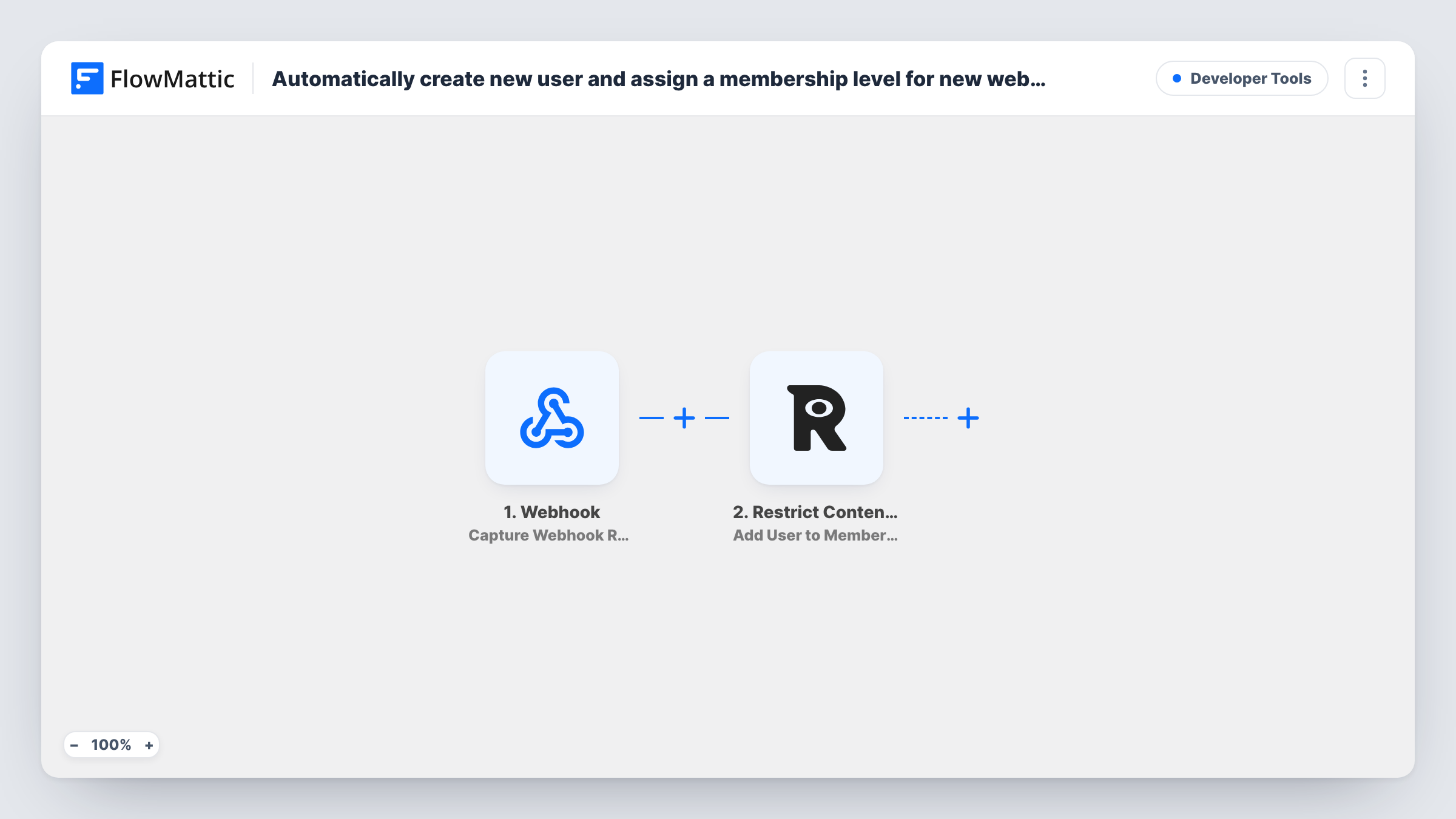
 Webhook Capture Webhook Response
Starts a run whenever a request reaches the webhook URL. Send one test request after import so FlowMattic captures the fields the sender includes, such as email, username and name.
- WordPress New User
Turns the posted details into a WordPress account. Map the email and username and set the role and password options. If the email already has an account, the existing user's ID is returned.
- Restrict Content Pro Add User to Membership Level
Adds the user to a Restrict Content Pro membership level. Map the user ID from the New User step and choose the level; the template leaves both for you.
What you need
- FlowMatticCore
- Restrict Content Pro PluginPlugin
After importing, map your own data. To keep the template universal, not every step is pre-filled. Open each step in the builder and connect your accounts and fields (channels, lists, sheets, recipients) before you switch the workflow on.
Make it yours
Changes worth making after you import it.
- Turn on authentication in the Webhook trigger and share the key only with the system that sends members, so nobody else can create accounts.
- If different requests should get different levels, add a Router between the New User step and the Restrict Content Pro step, with one route per level value from the payload and conditions that can't both match, and give each route its own copy of the membership step.
- Send a username in the payload, or map the email into the username field, so each request has a unique login.
Questions about this workflow
What must the webhook request include to create a Restrict Content Pro member?
At least an email and a username for the New User step. The membership level is chosen in the Restrict Content Pro step, unless you route by a level value you send.
What if the webhook sends an email that already has an account?
FlowMattic's New User step looks up the email first and returns the existing user's ID. That account is then added to the membership level, without a second user being created.
Can I remove access later from the same sender?
Not with this workflow. Restrict Content Pro has a Remove User from Membership Level action in FlowMattic that you can use in a second webhook workflow.
More Developer Tools workflows
Other ready-to-import templates from the same category.




Import this workflow into your WordPress site
Download the JSON, import it from the Workflows screen and connect your accounts. Every run stays on your server, with no per-task fees.
30-day money-back guarantee Unlimited workflows and runs Self-hosted