

Update a WordPress post when API Polling detects a change in the API response
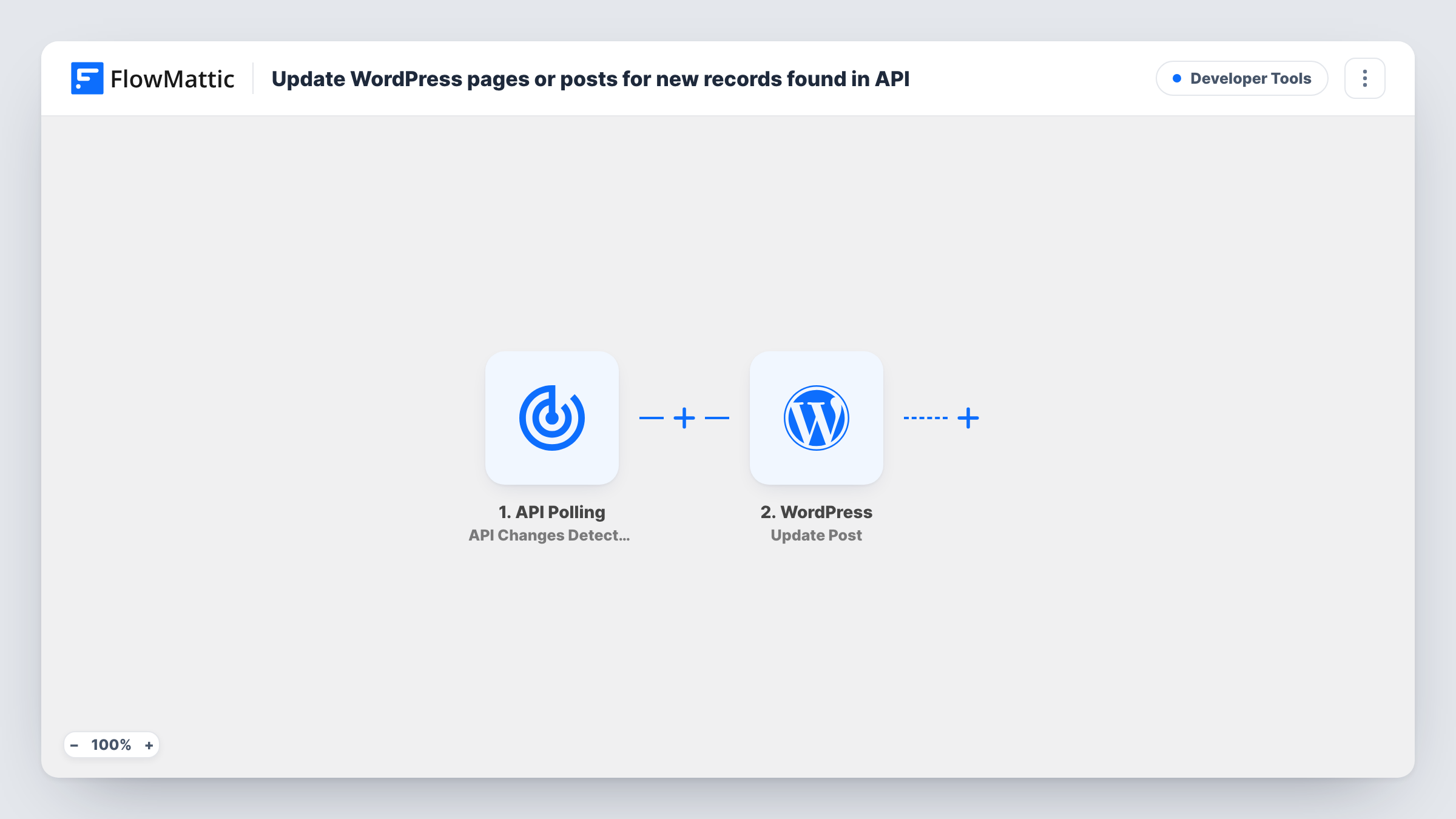
FlowMattic’s API Polling trigger watches an API endpoint you choose, and when its response changes, the workflow updates an existing WordPress post with the new data.
 API Polling
 WordPress
2 steps Setup ~5 min Used on 1.5k sites Free to import
What this workflow does
Some pages on your site depend on data that lives somewhere else: a price list, a service status, an event schedule or a product feed. When that data changes, someone has to edit the post. This workflow watches the source API for you and updates the WordPress post when the response changes.
The API Polling trigger is FlowMattic's own module for watching an API. You enter the endpoint, the request method and any authentication, and FlowMattic checks it regularly. When it detects a change in the response, a run starts and the response data is passed on.
The WordPress Update Post step then changes an existing post of any post type, including custom fields. It ships unmapped. WordPress needs to know which post to update, so either enter a fixed post ID, for a single page that always shows this data, or map a post ID that your API returns. Then map the fields you want to change, such as the content or a custom field.
Because the API is yours to choose, test with a known post before you turn the workflow on. Task History shows what the API returned and how WordPress responded.
Live status page
A hosting company polls its status API and updates a WordPress status post whenever the response changes, so customers see current information.
Price list from an internal system
A wholesaler's ERP exposes current prices through an API, and a change updates the price table stored in a custom field on the price list page.
Event schedule kept in sync
A venue polls its booking system's API and refreshes the upcoming events post each time the schedule in the response changes.
How this workflow runs
What happens at each step once the workflow is on, and what you need before you import it.
 API Polling API Changes Detected
Checks the API endpoint you configure on a regular schedule and starts a run when the response changes. The response data becomes available to map into the WordPress post.
- WordPress Update Post
Updates an existing WordPress post of any post type, including custom fields. The step ships unmapped: enter a fixed post ID or map one from the API data, then map the content or fields to change.
What you need
- FlowMatticCore
After importing, map your own data. To keep the template universal, not every step is pre-filled. Open each step in the builder and connect your accounts and fields (channels, lists, sheets, recipients) before you switch the workflow on.
Make it yours
Changes worth making after you import it.
- If your API returns many records, check whether each has its own WordPress post ID. Without one, point the Update Post step at a single fixed post instead.
- Store the raw API values in a custom field and let your theme format them, which keeps the post content itself stable between updates.
- Start with a draft post as the target, run a test, and check the result in the editor before you point the step at the live page.
Questions about this workflow
How does FlowMattic know which WordPress post to update?
From the post ID you set in the Update Post step. Enter a fixed ID for one page, or map an ID from the API response if your API returns the matching post's ID.
What counts as a change for the API Polling trigger?
FlowMattic describes it as triggering when it detects changes in the API response. If the response is the same as last time, no run starts.
Can the API Polling trigger reach an API that needs a key?
Yes. The trigger lets you choose a connection for authentication when you set up the endpoint. Pick or create the one your API needs.
Will this create new WordPress posts for new API records?
No. Update Post only changes posts that already exist. To create posts, use the WordPress New Post action instead of, or alongside, the update step.
More Developer Tools workflows
Other ready-to-import templates from the same category.



Import this workflow into your WordPress site
Download the JSON, import it from the Workflows screen and connect your accounts. Every run stays on your server, with no per-task fees.
30-day money-back guarantee Unlimited workflows and runs Self-hosted