

Log every completed MyOperator call in a Google Sheets spreadsheet
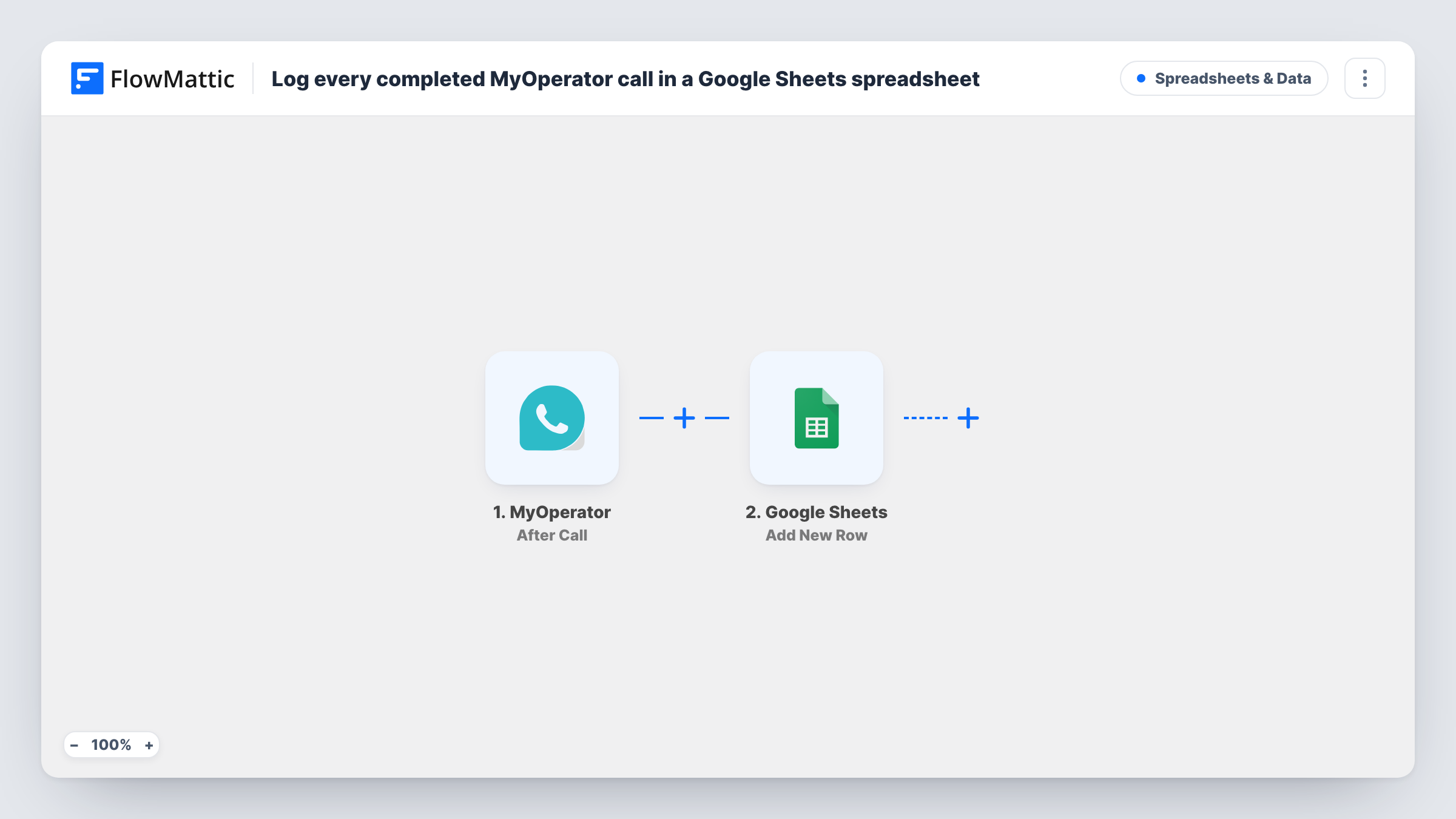
When a MyOperator call ends, this workflow writes the call details MyOperator sends into a new Google Sheets row, building a running call log your team can sort, filter and report on.
 MyOperator
 Google Sheets
2 steps Setup ~5 min Used on 1.8k sites Free to import
What this workflow does
Call records inside a phone system are hard to share with people who don't use it, and harder to combine with other numbers. A spreadsheet log fixes that. This template adds one Google Sheets row per call, without anyone copying details out of MyOperator.
The MyOperator trigger is After Call. MyOperator delivers information about the call once it ends, and FlowMattic turns each value in that payload into something you can map. The second step adds a row to the Google Sheets file you connect, with each column filled from the call data you mapped, such as caller number or call time if MyOperator includes them.
Every call that MyOperator reports as ended starts a run, and there is no Filter, so the sheet gets a row for each one. If you only want answered calls, add a Filter on a field from the call data. Task History lists each run with the values received, which is the quickest way to see what MyOperator sends.
Weekly call volume report
A manager builds a pivot table on the call log sheet to count calls per day and per agent, without needing a MyOperator login.
Callback list for missed opportunities
Sales staff scan the sheet each morning for yesterday's calls and phone back numbers that didn't turn into a booking.
Sharing call data with a client
An agency answering calls for a client shares the Google Sheet, so the client sees each call as it is logged.
How this workflow runs
What happens at each step once the workflow is on, and what you need before you import it.
 MyOperator After Call
Fires after a MyOperator call ends and receives the call information MyOperator delivers. Each value in that data is available to map into your sheet's columns.
- Google Sheets Add New Row
Writes one new line per finished call to your call-log spreadsheet in Google Sheets. Map each column to a value from the call data, and link your Google account during import.
What you need
- FlowMatticCore
- MyOperator AccountAccount
- Google Sheets AccountAccount
After importing, map your own data. To keep the template universal, not every step is pre-filled. Open each step in the builder and connect your accounts and fields (channels, lists, sheets, recipients) before you switch the workflow on.
Make it yours
Changes worth making after you import it.
- Make a test call after import so FlowMattic captures a real After Call payload. You can then see exactly which call values exist before mapping the sheet columns.
- Put column headers in the first row of the sheet before mapping, matching the call values you plan to keep, so each logged call lines up under the right heading.
- Need a log of answered calls only? Insert a Filter between the two steps that checks a status value from the MyOperator data, using whatever value your test call shows for an answered call.
Questions about this workflow
Does every MyOperator call get a row, including missed ones?
The trigger fires for each call MyOperator reports once it ends, and the template has no Filter, so each of those gets a row. Check a missed test call in Task History to see what MyOperator sends for it, then add a Filter if you want to leave some out.
Which call details can go into the Google Sheet?
Any value MyOperator includes in its After Call data. The fields depend on your MyOperator setup, so make a test call and look at the captured data before you map columns.
Are calls from before I import the workflow added?
No. MyOperator sends call details as calls end, so the log starts with the first call after the workflow is switched on.
Do I need anything set up in MyOperator?
You need a MyOperator account and a Google account with edit access to the spreadsheet. Follow the trigger's setup in FlowMattic to have MyOperator send After Call data.
More Spreadsheets & Data workflows
Other ready-to-import templates from the same category.





Import this workflow into your WordPress site
Download the JSON, import it from the Workflows screen and connect your accounts. Every run stays on your server, with no per-task fees.
30-day money-back guarantee Unlimited workflows and runs Self-hosted