

Log every FareHarbor booking notification in a Google Sheets spreadsheet
Each booking notification FareHarbor sends adds a row to your Google Sheets spreadsheet with the booking details you map, giving your tour or activity business one log of booking events to sort, filter and share.
 Fareharbor
 Google Sheets
2 steps Setup ~5 min Used on 1.3k sites Free to import
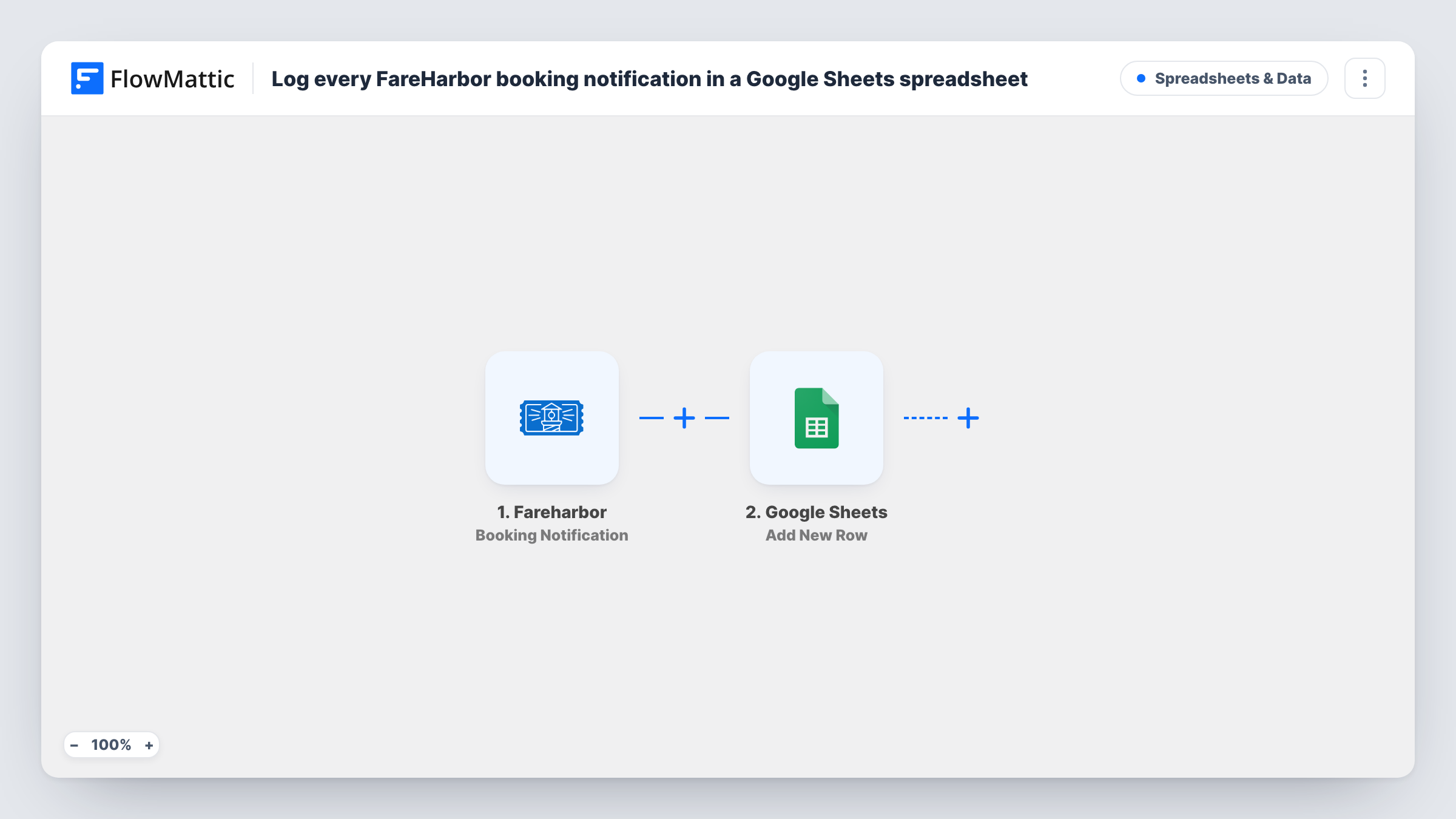
What this workflow does
Tour and activity operators often need booking data outside FareHarbor: for a guide's daily list, an accountant, or a quick count by tour. This workflow copies each booking notification into Google Sheets so that data is already in a sheet.
The trigger is FareHarbor's Booking Notification, a booking-related event. When FareHarbor sends one, its details become data you can map, such as the customer, the tour and the date, where the notification includes them. Then each notification becomes one fresh row in the Google Sheets file you pick.
The trigger covers booking-related events in general, not only brand-new bookings. If FareHarbor sends more than one notification for a booking, for example after a change, each one adds its own row. That makes the sheet a log of booking events. If you want only some events, add a Filter, as the tips explain. You can review each notification's run in Task History.
A shared booking log for the office
Staff without FareHarbor logins read the spreadsheet to see recent bookings and the tours they are for.
Daily lists for guides
Sort or filter the sheet by date and tour to give each guide a list of who to expect on their trip.
Simple reporting by tour
Build a pivot table on the sheet to count booking events by tour or by month, without exporting from FareHarbor.
How this workflow runs
What happens at each step once the workflow is on, and what you need before you import it.
 Fareharbor Booking Notification
Fires when FareHarbor sends a booking notification, a booking-related event. Its details are passed on, ready to map into the spreadsheet.
- Google Sheets Add New Row
Adds a row to your chosen Google Sheets spreadsheet for each booking notification. Map the booking details to columns and connect your Google account.
What you need
- FlowMatticCore
- FareHarbor AccountAccount
- Google Sheets AccountAccount
After importing, map your own data. To keep the template universal, not every step is pre-filled. Open each step in the builder and connect your accounts and fields (channels, lists, sheets, recipients) before you switch the workflow on.
Make it yours
Changes worth making after you import it.
- Add a Filter after the FareHarbor trigger if you only want certain booking events in the sheet, using a value in the notification such as a status, if it carries one.
- Include a column for the booking's ID or reference if the notification has one, so you can spot several rows that belong to the same booking.
- Make a test booking after import so FlowMattic captures a real notification, then map its values to your sheet's columns.
Questions about this workflow
Does a changed FareHarbor booking add a second row?
If FareHarbor sends another booking notification for the change, yes. The workflow adds a row per notification and does not update earlier rows.
Are bookings made before I import this added to the sheet?
No. Only booking notifications sent after the workflow is on start a run.
What booking details can I put in Google Sheets?
Whatever the FareHarbor notification carries. Make a test booking and look at the captured data in FlowMattic to see the values you can map.
Do I need FareHarbor and Google accounts for the booking log?
Yes. You connect your FareHarbor account and a Google account that can edit the spreadsheet when you import the workflow.
More Spreadsheets & Data workflows
Other ready-to-import templates from the same category.



Import this workflow into your WordPress site
Download the JSON, import it from the Workflows screen and connect your accounts. Every run stays on your server, with no per-task fees.
30-day money-back guarantee Unlimited workflows and runs Self-hosted