

Parse CSV files received in Webhooks and add Google Sheet rows for each data item
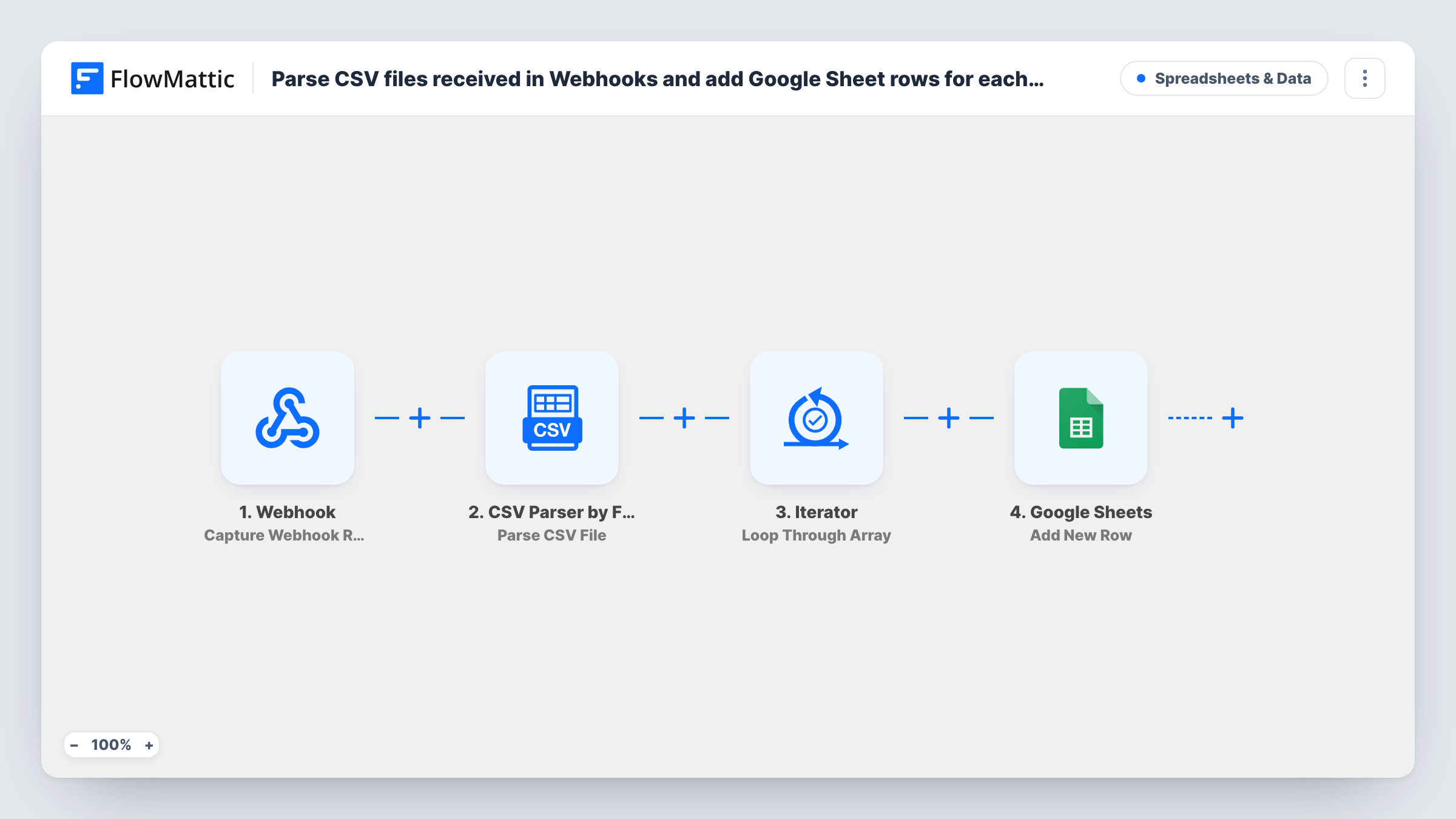
Post the address of a CSV file to a FlowMattic webhook, and this workflow reads the file, steps through every record and writes each one to its own Google Sheets row, turning CSV exports into spreadsheet data without uploads.
 Webhook
 CSV Parser by FlowMattic
 Iterator
 Google Sheets
4 steps Setup ~8 min Used on 2.2k sites Free to import
What this workflow does
CSV exports pile up when a tool can produce them but cannot write to Google Sheets directly. Opening each file and pasting it into the right sheet is slow and easy to get wrong. This workflow accepts a CSV file link at a webhook and copies the records into Google Sheets one row at a time.
A Webhook trigger receives the request, which should include where the CSV file can be read. Next, the CSV Parser by FlowMattic opens that file and returns its records as JSON. The Iterator then works through the records one by one, and on each pass the Google Sheets step adds a new row from the values you mapped.
Every record becomes a row, and nothing checks the sheet for data that is already there, so posting the same file twice doubles it. A caller holding the URL can start runs unless you enable authentication on the trigger. Task History lists each run and every pass of the loop.
Weekly sales exports from a POS system
Your point-of-sale tool exports a CSV each week, and a script posts its link so each sale lands as a Google Sheets row for the bookkeeper.
Bulk lead lists from a partner
A partner shares a CSV of event leads by URL, and the records fill a sheet your team divides up for calls.
Inventory counts from a warehouse tool
Stock counts exported as CSV are posted to the webhook, giving you one row per product in a sheet you can compare week to week.
How this workflow runs
What happens at each step once the workflow is on, and what you need before you import it.
 Webhook Capture Webhook Response
Receives a request at your FlowMattic webhook URL that names the CSV file to read. Enable the trigger's authentication so only callers you trust can start it.
- CSV Parser by FlowMattic Parse CSV File
Reads the CSV file from the URL passed in by the webhook and returns its records as JSON data for the loop that follows.
- Iterator Loop Through Array
Steps through the records from the parsed CSV, running the Google Sheets step once for every record it finds.
- Google Sheets Add New Row
Writes the current CSV record into a new row of the spreadsheet you choose. Connect your Google account and map each sheet column to a value from the record.
What you need
- FlowMatticCore
- Google Sheets AccountAccount
After importing, map your own data. To keep the template universal, not every step is pre-filled. Open each step in the builder and connect your accounts and fields (channels, lists, sheets, recipients) before you switch the workflow on.
Make it yours
Changes worth making after you import it.
- Switch on Require authentication on incoming requests in the Webhook trigger and give the key only to the system that posts your CSV links.
- Match your Google Sheet's header row to the CSV's columns before mapping, so each record's values fall under the right heading.
- Run a three-record CSV through the webhook first, review the rows and the loop in Task History, then point your real export at the URL.
Questions about this workflow
What should the webhook request contain for the CSV Parser?
The location of the CSV file. The parser reads a CSV from a URL, either remote or on your WordPress site, so include that URL in the request and map it into the parser step.
Will posting a CSV again duplicate rows in Google Sheets?
Yes. The Google Sheets step adds a row for every record each time, and no step compares the file with rows already in the sheet.
Why is there an Iterator between the CSV Parser and Google Sheets?
The parser returns all records together. The Iterator runs the next step once per record, which is what gives you one row for each line of data.
More Spreadsheets & Data workflows
Other ready-to-import templates from the same category.



Import this workflow into your WordPress site
Download the JSON, import it from the Workflows screen and connect your accounts. Every run stays on your server, with no per-task fees.
30-day money-back guarantee Unlimited workflows and runs Self-hosted