

Log every Instabug NPS response in a Google Sheets spreadsheet
Every NPS response your app users submit through Instabug is added as a new row in Google Sheets, giving you a running log of scores and comments you can sort, chart and share.
 Instabug
 Google Sheets
2 steps Setup ~5 min Used on 771 sites Free to import
What this workflow does
Instabug collects Net Promoter Score answers inside your mobile app. Product and support teams often want those scores next to other data, in a format they can chart, filter or share with people who don't use Instabug. Copying them out by hand falls behind quickly. This workflow keeps a spreadsheet log as responses arrive.
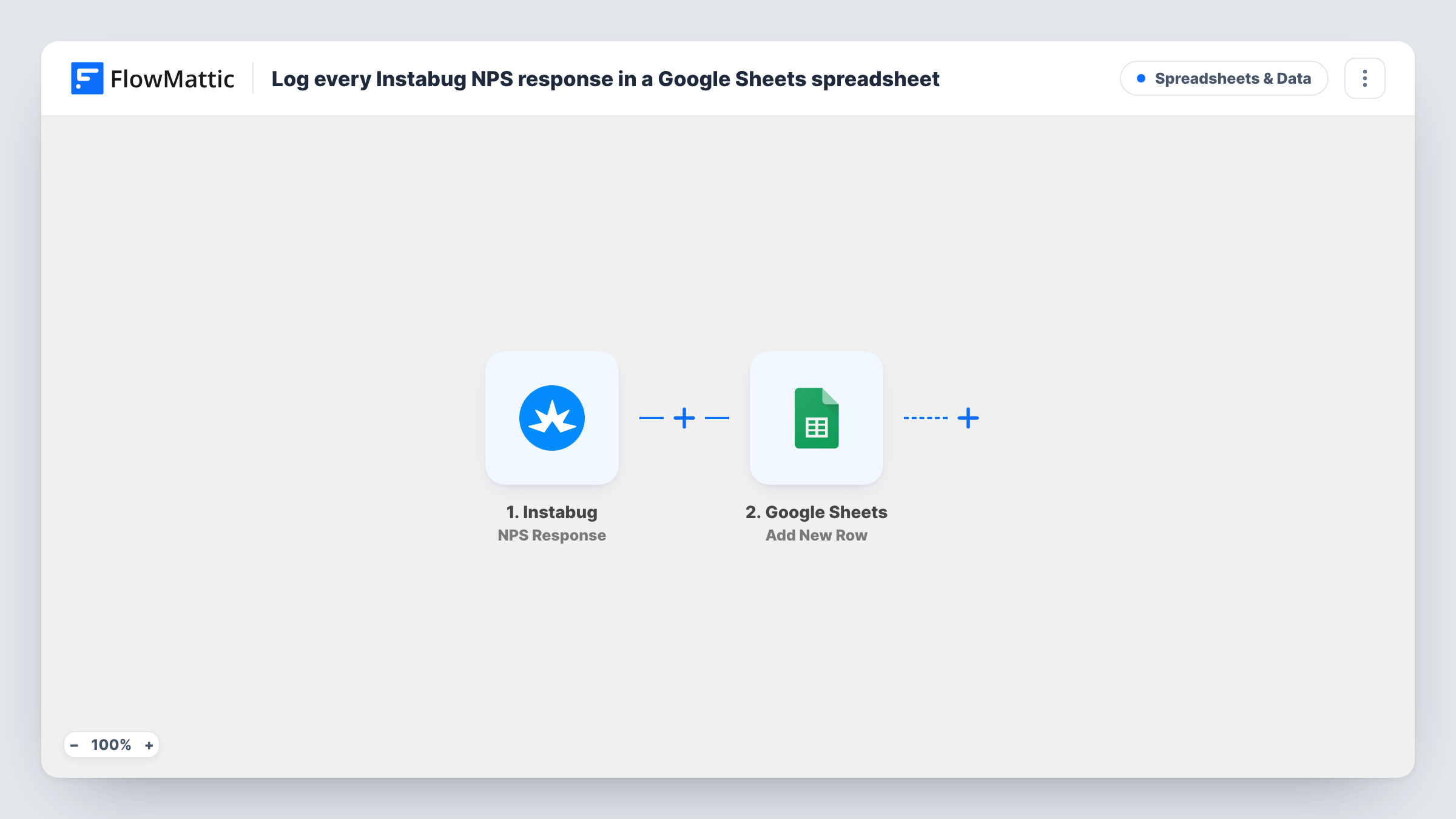
The Instabug trigger, NPS Response, fires when a new NPS response is received. FlowMattic takes the response data, such as the score and any comment the user left, and passes it to Google Sheets. The Add New Row step writes those values into the columns you map in the spreadsheet you pick.
Each response gets its own row, so the sheet grows into a full history. Formulas or charts you add in other tabs can read from it. If a row ever looks wrong, Task History shows what each run sent to the sheet.
Weekly NPS chart for the product team
A chart tab in the same spreadsheet reads the log and plots the average score by week, without anyone exporting data from Instabug.
Follow-up list for detractors
Support sorts the sheet by score and works through low ratings with comments, noting the outcome in an extra column.
Release comparisons
If the response carries an app version, map it into a column and compare scores before and after each release.
How this workflow runs
What happens at each step once the workflow is on, and what you need before you import it.
 Instabug NPS Response
Fires when Instabug receives a new NPS response from your app. The score and the other response details become data you can map into the sheet.
- Google Sheets Add New Row
Adds a row to the Google Sheets spreadsheet you choose for each response. Map the score, comment and any other fields to columns and connect your Google account on import.
What you need
- FlowMatticCore
- Instabug AccountAccount
- Google Sheets AccountAccount
After importing, map your own data. To keep the template universal, not every step is pre-filled. Open each step in the builder and connect your accounts and fields (channels, lists, sheets, recipients) before you switch the workflow on.
Make it yours
Changes worth making after you import it.
- Add a timestamp column and map the response date into it, so you can group scores by week or month in the sheet.
- Map the user's email or ID into a column if the NPS response carries one, so support knows who to contact about a low score. Check a test run to see whether Instabug sends it.
- Trigger a test NPS response after import so FlowMattic captures the fields Instabug sends, then map them to columns before you turn the workflow on.
Questions about this workflow
Which Instabug NPS fields reach Google Sheets?
Whatever the NPS response carries, such as the score and comment, can be mapped. Run a test response to see the exact fields Instabug sends.
Are past Instabug NPS responses added to the sheet?
No. Only responses received after you turn the workflow on are logged. Export older ones from Instabug if you want them in the same sheet.
Does the workflow calculate my NPS?
No. It logs each response as a row. Add a formula in the sheet to calculate the score from the rows.
Can I log Instabug custom survey answers too?
Yes, by importing or building a separate workflow. Instabug also has a Custom Survey trigger in FlowMattic that you can pair with another Add New Row step.
More Spreadsheets & Data workflows
Other ready-to-import templates from the same category.



Import this workflow into your WordPress site
Download the JSON, import it from the Workflows screen and connect your accounts. Every run stays on your server, with no per-task fees.
30-day money-back guarantee Unlimited workflows and runs Self-hosted