

Log every new Carrot quest message to a Google Sheets spreadsheet
Each time a message or a template is created in Carrot quest, FlowMattic adds a row to a Google Sheets spreadsheet, giving you a running log of chat activity outside Carrot quest.
 Carrot quest
 Google Sheets
2 steps Setup ~5 min Used on 3.1k sites Free to import
What this workflow does
Conversations in Carrot quest stay inside Carrot quest. When you want to count them, review wording, or share them with someone who has no seat in the app, a spreadsheet is easier to work with. This workflow keeps that spreadsheet filled as new messages appear.
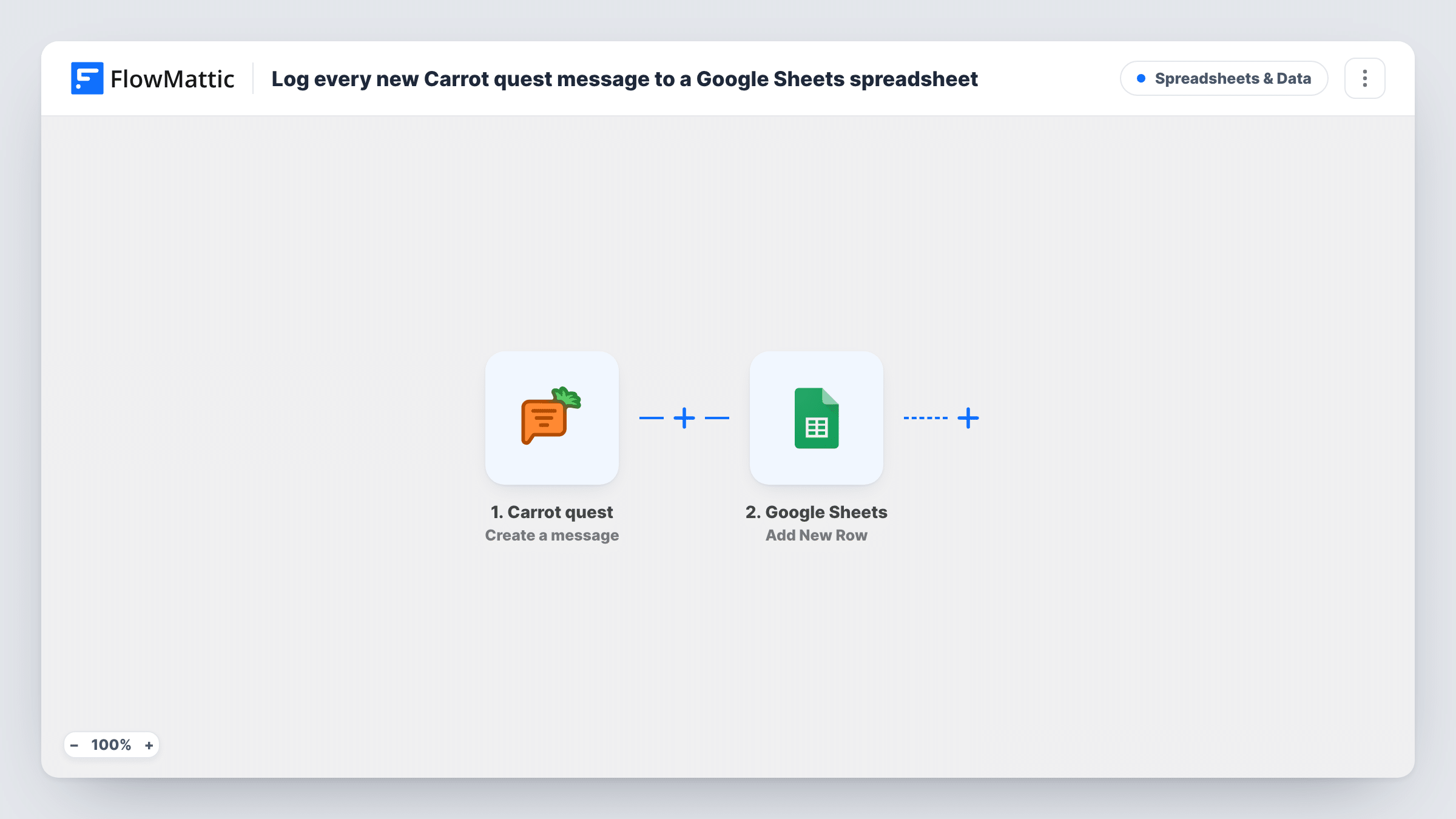
The Carrot quest trigger, Create a message, fires when a message or a template is created in your account. FlowMattic passes the data from that event to Google Sheets, which adds a new row to the sheet you pick. You decide which values land in which columns when you map the step.
Because the trigger also fires for new templates, those appear in the log alongside messages. Every event becomes its own row, and nothing is merged or overwritten. Send a test message after import to see which fields Carrot quest provides before you set up your columns.
Weekly support review
A support lead sorts the sheet by date each Friday to read through the week's Carrot quest messages and spot questions that keep coming up.
Sharing chats with a product team
Product managers without Carrot quest access read customer messages in a shared Google Sheet and add their own notes in extra columns.
Keeping a record of new templates
When teammates create templates, the sheet shows when each one appeared, which helps you keep track of canned replies as they grow.
How this workflow runs
What happens at each step once the workflow is on, and what you need before you import it.
 Carrot quest Create a message
Fires when a message or a template is created in your Carrot quest account. The data from that event is passed to the Google Sheets step for mapping.
- Google Sheets Add New Row
Adds a new row to the Google Sheets spreadsheet and tab you choose. Map the Carrot quest values to your columns and connect your Google account on import.
What you need
- FlowMatticCore
- Carrot quest AccountAccount
- Google Sheets AccountAccount
After importing, map your own data. To keep the template universal, not every step is pre-filled. Open each step in the builder and connect your accounts and fields (channels, lists, sheets, recipients) before you switch the workflow on.
Make it yours
Changes worth making after you import it.
- If you only want messages in the sheet, run a test with a message and a template, compare the data each one sends, then add a Filter after the trigger on the value that tells them apart.
- Add extra columns to the sheet for your own notes, such as a follow-up flag, and leave them out of the mapping so the workflow never overwrites them.
- Use a separate tab for this log rather than a sheet people edit by hand, so new rows never land in the middle of someone's work.
Questions about this workflow
Does every Carrot quest message become a row?
Every event the Create a message trigger sends becomes a row. That trigger fires when a message or a template is created, so new templates are logged too unless you add a Filter.
Are older Carrot quest conversations copied over?
No. The workflow reacts to new events, so only messages and templates created after you turn it on reach the sheet.
Can I choose which Carrot quest fields go into Google Sheets?
Yes. You map each column in the Google Sheets step yourself. Send a test message first so FlowMattic captures the fields Carrot quest provides.
More Spreadsheets & Data workflows
Other ready-to-import templates from the same category.




Import this workflow into your WordPress site
Download the JSON, import it from the Workflows screen and connect your accounts. Every run stays on your server, with no per-task fees.
30-day money-back guarantee Unlimited workflows and runs Self-hosted