

Log every KnowledgeOwl article update in a Google Sheets changelog
Each time an article is updated in KnowledgeOwl, this workflow adds a row to a Google Sheets changelog with the article details you map, giving you a running record of edits to your knowledge base.
 Knowledgeowl
 Google Sheets
2 steps Setup ~5 min Used on 1.3k sites Free to import
What this workflow does
Knowledge base articles change all the time: a new screenshot, a corrected step, a rewritten answer. When a support lead asks what changed last month, it helps to have one list of every edit. This workflow builds that list in Google Sheets as articles are updated.
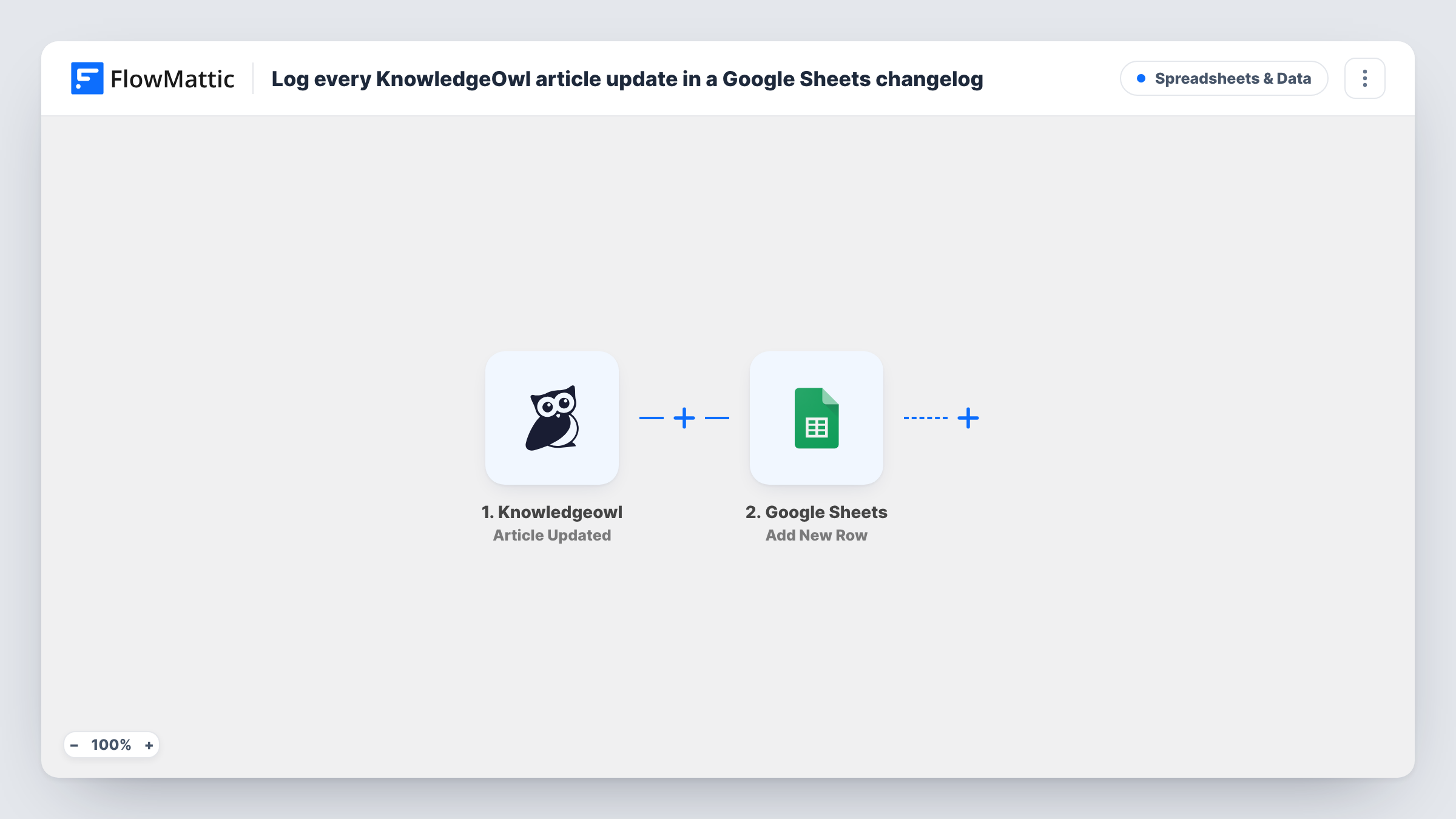
The KnowledgeOwl trigger, Article Updated, fires when an article is updated. FlowMattic passes the article data to Google Sheets, where Add New Row writes it to your changelog sheet. You choose the columns, such as the article title, its ID, who edited it and when, based on what the event carries.
Every update adds a new row, so an article edited five times appears five times. That is what a changelog should do. Rows only hold the fields the event provides; the sheet won't show the edited text itself unless KnowledgeOwl sends it.
Monthly content reviews
A documentation lead filters the sheet by month to see which KnowledgeOwl articles changed and checks them against product releases.
Audit trail for regulated content
A team that must show when help content changed keeps the sheet as a dated list of every article update.
Spotting stale articles
Sort the changelog by article and look for help pages that haven't appeared in months, then add them to a review list.
How this workflow runs
What happens at each step once the workflow is on, and what you need before you import it.
 Knowledgeowl Article Updated
Fires when an article is updated in KnowledgeOwl. The article's data is passed on so you can log it in the spreadsheet.
- Google Sheets Add New Row
Adds a changelog row to the Google Sheets spreadsheet you choose. Map the article title, ID and any editor or date fields a test run shows.
What you need
- FlowMatticCore
- Knowledgeowl AccountAccount
- Google Sheets AccountAccount
After importing, map your own data. To keep the template universal, not every step is pre-filled. Open each step in the builder and connect your accounts and fields (channels, lists, sheets, recipients) before you switch the workflow on.
Make it yours
Changes worth making after you import it.
- Update one test article after import and look at the data FlowMattic received. It shows whether KnowledgeOwl sends an editor name and timestamp you can log.
- Add a Filter after the trigger on a category or title field if the changelog should cover only part of your knowledge base.
- Make a second workflow with KnowledgeOwl's Article Created trigger that writes to the same sheet, so new articles show up in the changelog too.
Questions about this workflow
Does every KnowledgeOwl article edit add a row?
Yes. Each Article Updated event runs the workflow once and adds a new row. Nothing merges repeat edits of the same article.
Does the sheet show what changed in the article?
Only if KnowledgeOwl includes that in the event. The workflow logs the fields it receives, so check a test run to see what is available.
Are new KnowledgeOwl articles logged as well?
Not by this trigger, which fires on updates. Add a second workflow with the Article Created trigger if you want new articles in the same sheet.
Will past edits be added to the changelog?
No. Only updates made after the workflow is switched on are logged. Earlier history stays in KnowledgeOwl.
More Spreadsheets & Data workflows
Other ready-to-import templates from the same category.



Import this workflow into your WordPress site
Download the JSON, import it from the Workflows screen and connect your accounts. Every run stays on your server, with no per-task fees.
30-day money-back guarantee Unlimited workflows and runs Self-hosted