

Log every new Basin submission in a Google Sheets spreadsheet
Every new submission to your Basin form becomes a row in Google Sheets, so the responses from your static site or landing page sit in one spreadsheet you can sort, filter and share.
 Basin
 Google Sheets
2 steps Setup ~5 min Used on 2.2k sites Free to import
What this workflow does
Basin is a form backend: you point an HTML form at it and it receives the submissions. That suits static sites and landing pages, but the responses still need a home your team can work from. This workflow copies each new Basin submission into Google Sheets.
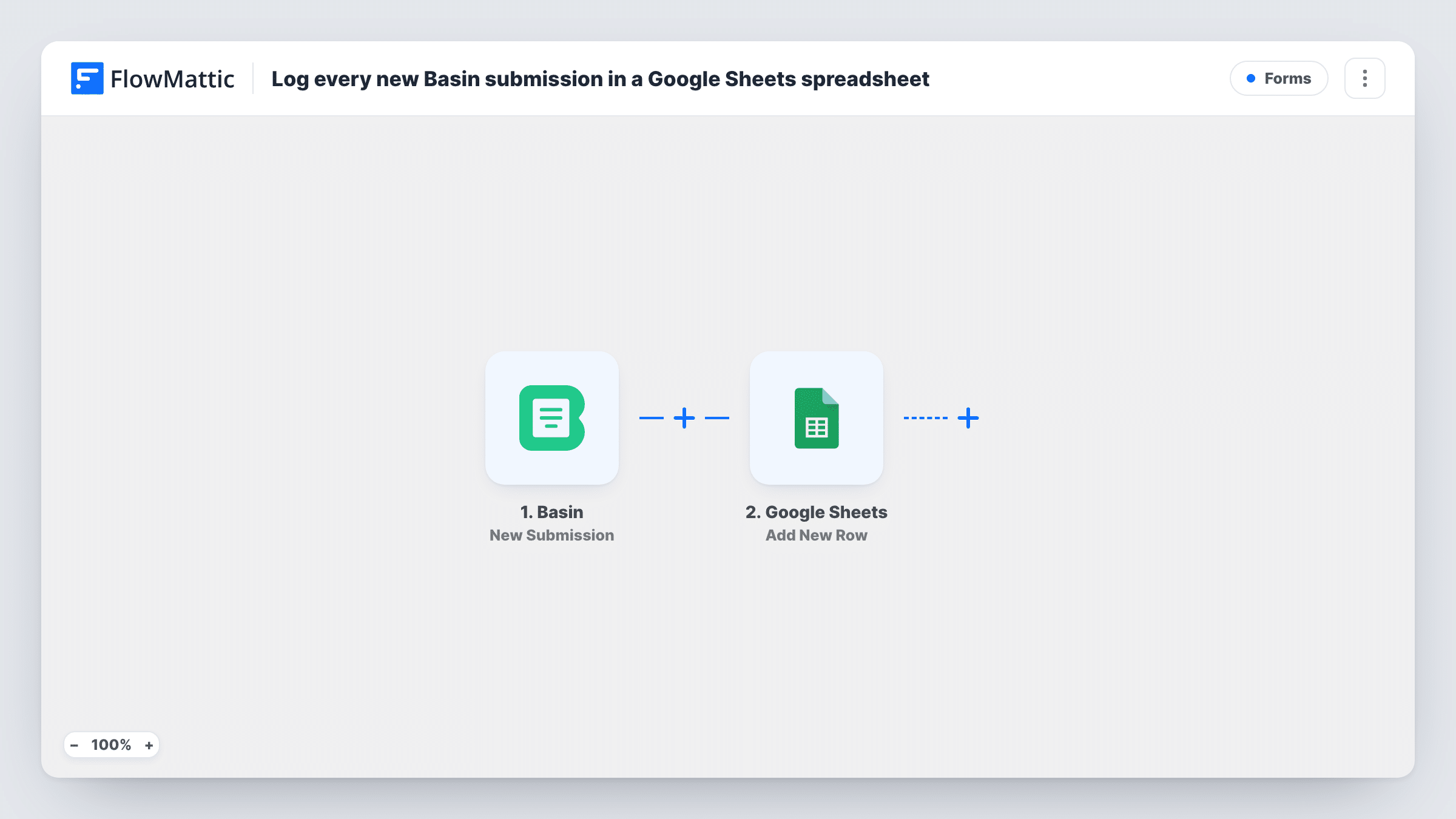
The Basin trigger, New Submission, fires when a form receives a new submission. Every field from the form becomes a value you can map. The Google Sheets step then adds a row to the spreadsheet you pick, with each form field in the column you assign.
One submission gives one row, and the sheet fills in the order responses come in. If you add a new field to the HTML form later, capture a fresh test submission and map it to a new column. Task History records each run, so you can check what Basin sent if a row looks wrong.
Contact form on a static website
A site built with a static generator posts its contact form to Basin, and every message lands in a sheet the owner checks each morning.
Waitlist for a product launch
A landing page collects names and emails through Basin, and the sheet becomes the launch waitlist you can export later.
Event feedback forms
Attendees fill in a short Basin form after a workshop, and the organiser reviews all answers side by side in Google Sheets.
How this workflow runs
What happens at each step once the workflow is on, and what you need before you import it.
 Basin New Submission
Fires when your Basin form receives a new submission. Each field from that form is passed to the Google Sheets step for mapping.
- Google Sheets Add New Row
Adds a row to the Google Sheets spreadsheet you select for each Basin submission. Connect Google and map every form field to the matching column.
What you need
- FlowMatticCore
- Basin AccountAccount
- Google Sheets AccountAccount
After importing, map your own data. To keep the template universal, not every step is pre-filled. Open each step in the builder and connect your accounts and fields (channels, lists, sheets, recipients) before you switch the workflow on.
Make it yours
Changes worth making after you import it.
- Set up the sheet's header row before mapping, with one column per form field plus a column for the submission date.
- Add a Filter after the trigger to keep test entries out of the sheet, for example by continuing only when the email field doesn't contain your own domain.
- Add a Gmail or Email step after Google Sheets if you want a reply sent to each person who fills in the Basin form.
Questions about this workflow
Does Basin still store the submission?
Yes. The workflow only reads the new submission and writes a row. Basin keeps its own copy as usual.
Are older Basin submissions added to the sheet?
No. Only submissions received after the workflow is on start a run. Export older ones from Basin if you need them in the same sheet.
Can I log several Basin forms in one workflow?
Check the trigger after import to see how it picks the form. If it covers one form, import the template again for each form and point each copy at its own sheet or tab.
What if the Google Sheets step fails for a Basin entry?
Task History shows the error on that step for the run, along with the submission data, so you can add the row by hand.
More Forms workflows
Other ready-to-import templates from the same category.






Import this workflow into your WordPress site
Download the JSON, import it from the Workflows screen and connect your accounts. Every run stays on your server, with no per-task fees.
30-day money-back guarantee Unlimited workflows and runs Self-hosted