

Log every new Consolto lead in a Google Sheets spreadsheet
Each lead that Consolto collects is written to a new row in your Google Sheets spreadsheet, so you have one running list of Consolto leads that anyone on your team can open, sort and share.
 Consolto
 Google Sheets
2 steps Setup ~5 min Used on 816 sites Free to import
What this workflow does
Consolto collects leads from visitors who reach out through its widget on your site. Keeping those leads only inside Consolto makes it harder to share them, sort them or combine them with leads from other places. This workflow copies each one into a spreadsheet you control.
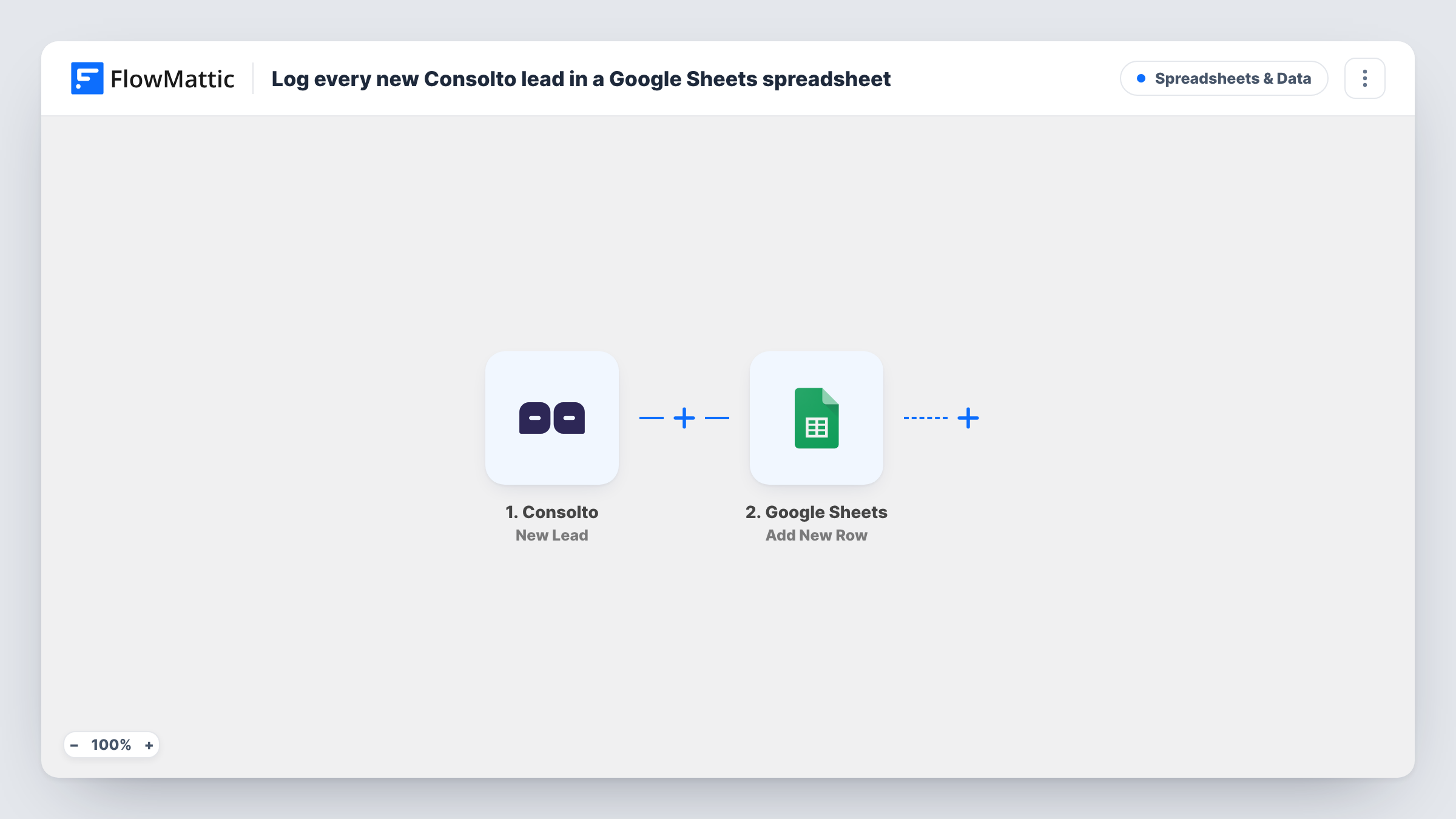
When Consolto collects a new lead, the trigger passes its details to FlowMattic. The Google Sheets step then adds a row to the sheet you pick, with each lead detail mapped to a column you choose.
The sheet becomes a log with one row per lead, in the order they came in. Nothing is checked or removed along the way, so every lead Consolto reports reaches the sheet. Each run appears in Task History, where you can confirm what was written for a given lead.
Shared lead list for a sales team
Sales reps who don't log into Consolto work from the spreadsheet, adding notes in their own columns next to each lead.
Weekly lead counts
A manager counts the rows added each week to see how many leads the Consolto widget brought in, without exporting anything.
Combining leads from several sources
Point this workflow and your other lead workflows at the same sheet, so Consolto leads sit beside leads from forms and ads.
How this workflow runs
What happens at each step once the workflow is on, and what you need before you import it.
 Consolto New Lead
Runs when Consolto collects a new lead. The lead's details are passed on, so you can map them into the spreadsheet row.
- Google Sheets Add New Row
Adds a row to the Google Sheets spreadsheet you select, with the Consolto lead details in the columns you map. Connect your Google account and pick the sheet on import.
What you need
- FlowMatticCore
- Consolto AccountAccount
- Google Sheets AccountAccount
After importing, map your own data. To keep the template universal, not every step is pre-filled. Open each step in the builder and connect your accounts and fields (channels, lists, sheets, recipients) before you switch the workflow on.
Make it yours
Changes worth making after you import it.
- Leave a blank column at the end of the sheet for a status, such as contacted or booked, that your team fills in by hand.
- Put header names in the first row of the sheet before mapping, so each column is easy to pick in the Google Sheets step.
- Add a second action after the sheet, such as a Slack or email notification, so someone hears about the lead as well as seeing it logged.
- Collect a test lead through your Consolto widget after import so FlowMattic captures the lead fields to map.
Questions about this workflow
Which Consolto lead details can I put in the sheet?
Whatever the New Lead event includes. Collect a test lead after import and the fields appear in FlowMattic, ready to map to your columns.
Will Consolto leads collected before importing be added?
No. The trigger fires for new leads only, so earlier leads stay in Consolto and are not copied.
Does a returning Consolto visitor get a second row?
Each New Lead event adds its own row. The Google Sheets step does not look for an existing row first.
Can the Consolto leads go into a sheet shared with my team?
Yes. Choose any spreadsheet your connected Google account can edit, then share it with your team in Google Sheets as usual.
More Spreadsheets & Data workflows
Other ready-to-import templates from the same category.




Import this workflow into your WordPress site
Download the JSON, import it from the Workflows screen and connect your accounts. Every run stays on your server, with no per-task fees.
30-day money-back guarantee Unlimited workflows and runs Self-hosted