

Log every new Grassrootz donation in a Google Sheets spreadsheet
Every new Grassrootz donation is added as a row in a Google Sheets spreadsheet, giving your fundraising team one running log of gifts it can sort, total and share.
 Grassrootz
 Google Sheets
2 steps Setup ~5 min Used on 393 sites Free to import
What this workflow does
Fundraising teams often need donations somewhere they can work with them freely: totals for a board report, a list for thank-you calls, a filter by campaign. Exporting from your platform each week gets old fast. This workflow keeps a spreadsheet up to date as donations come in.
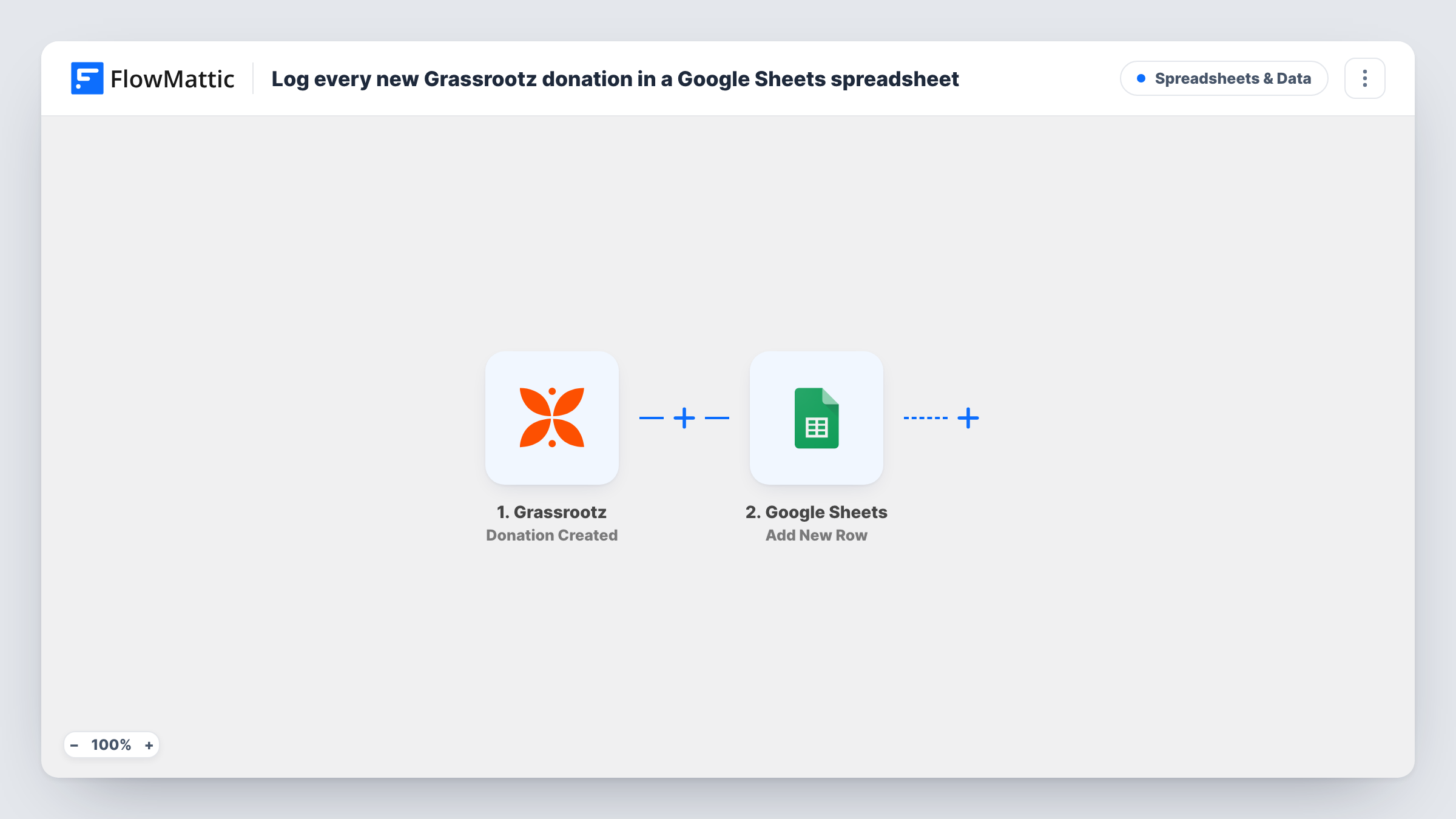
The Grassrootz trigger runs when a donation is created on your account. FlowMattic takes the donation details Grassrootz sends and passes them to Google Sheets, which adds them as a new row in the spreadsheet and sheet you pick. You decide which detail goes in which column when you map the step.
Every donation gets its own row, in the order they arrive. The sheet is yours to extend with formulas, pivot tables or charts alongside the logged columns. Each run also shows in Task History, so you can check what reached the sheet for any donation.
Weekly totals for a board report
Your treasurer opens the sheet, adds a SUM or a pivot by date, and has the week's Grassrootz donations ready for the report without asking anyone for an export.
Thank-you call list for volunteers
Volunteers work down the sheet adding a Called column next to each Grassrootz donation, so no donor is phoned twice and none is missed.
Shared view for a partner charity
Share the spreadsheet with a partner organisation that has no Grassrootz login, so they can follow donations to a joint campaign as rows appear.
How this workflow runs
What happens at each step once the workflow is on, and what you need before you import it.
 Grassrootz Donation Created
Runs when a new donation is created in your Grassrootz account. The donation details it receives become data you can map in the Google Sheets step.
- Google Sheets Add New Row
Adds a new row to the Google Sheets spreadsheet and sheet you choose. Put headers in the first row, connect your Google account, then map each column to a Grassrootz donation detail.
What you need
- FlowMatticCore
- Grassrootz AccountAccount
- Google Sheets AccountAccount
After importing, map your own data. To keep the template universal, not every step is pre-filled. Open each step in the builder and connect your accounts and fields (channels, lists, sheets, recipients) before you switch the workflow on.
Make it yours
Changes worth making after you import it.
- Make a test donation, or wait for a real one, before mapping. FlowMattic then shows the exact details Grassrootz sends, so you can match each one to a column header.
- Add a Router after the trigger with a condition on a campaign detail, and give each route its own Google Sheets step, to log different campaigns on separate tabs.
- Add a Slack or email step after the sheet if your team also wants a message for each gift, so one workflow covers both the log and the alert.
Questions about this workflow
Will donations made before I turn this on appear in the sheet?
No. The trigger reacts to donations created after the workflow is active. Add older Grassrootz donations to the sheet yourself, for example from an export, if you want a full history.
What if the same donor gives twice through Grassrootz?
Each donation is a separate event, so the sheet gets a separate row for each one. The workflow does not merge or update rows for a returning donor.
Can the Grassrootz donations go to an existing spreadsheet?
Yes. Pick that spreadsheet and sheet in the Google Sheets step. Rows are added below the existing data, and the columns you map decide where each detail lands.
Which Grassrootz details can I log?
Whatever the Donation Created event returns. Run the trigger once after import and FlowMattic lists every detail it received, which you can then map to columns.
More Spreadsheets & Data workflows
Other ready-to-import templates from the same category.



Import this workflow into your WordPress site
Download the JSON, import it from the Workflows screen and connect your accounts. Every run stays on your server, with no per-task fees.
30-day money-back guarantee Unlimited workflows and runs Self-hosted