

Log every new Picreel lead in a Google Sheets spreadsheet
Every new lead captured by Picreel is added as a row in the Google Sheets spreadsheet you choose, so your marketing team has a running list of popup and exit-intent leads to sort, share and work from.
 Picreel
 Google Sheets
2 steps Setup ~5 min Used on 2.1k sites Free to import
What this workflow does
Picreel captures leads from popups and exit-intent offers, but leads that sit in its dashboard are easy to forget. A spreadsheet is something your whole team can open, filter and pass on. This workflow adds each new Picreel lead to Google Sheets as it comes in.
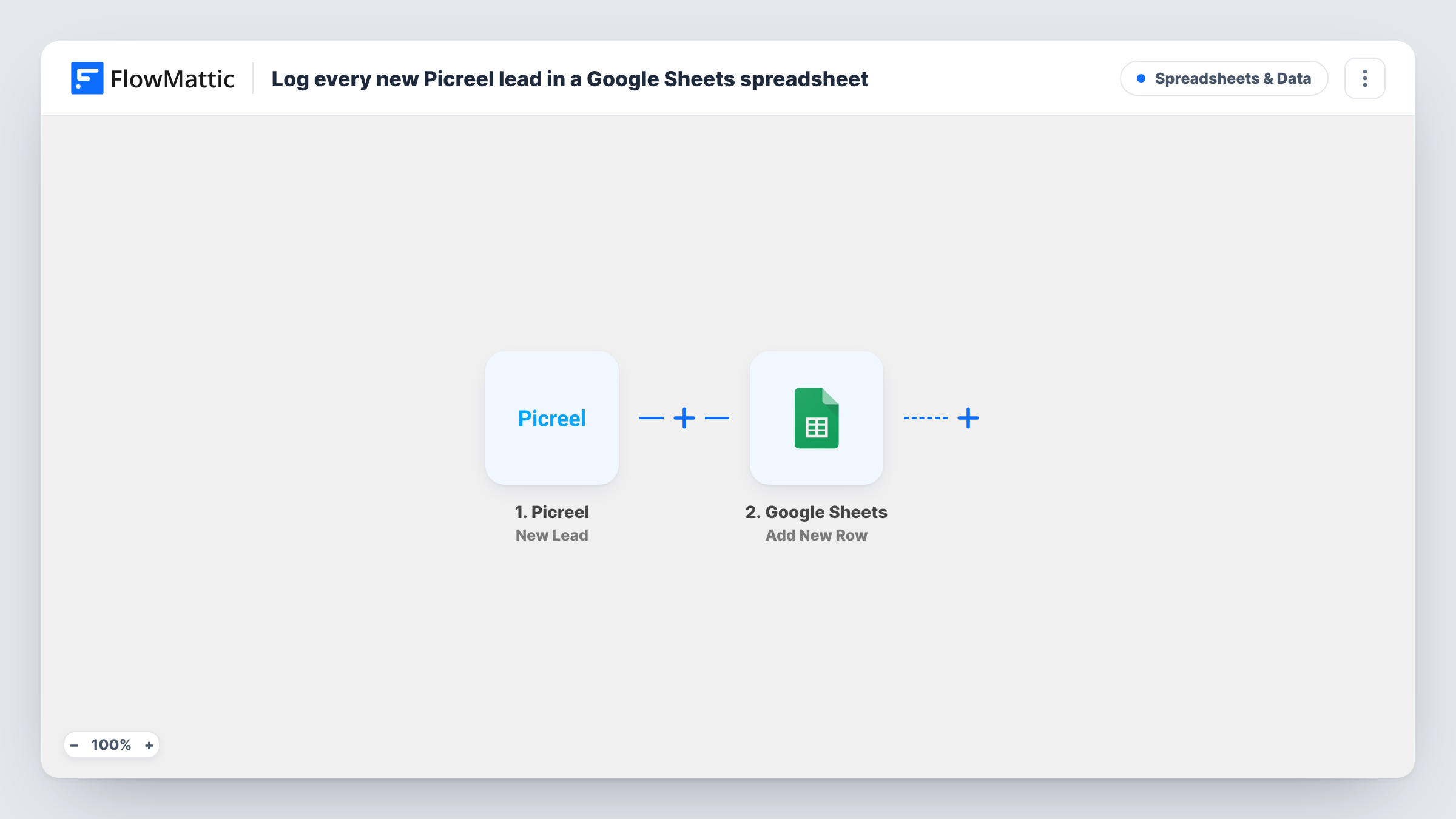
The Picreel trigger fires when a new lead is created, and FlowMattic captures the lead data. The Google Sheets step runs Add New Row with the data you map, writing the lead into the spreadsheet and sheet you pick.
One lead becomes one row. The step always appends, so a person who fills in two popups appears twice. Task History keeps the run for each lead, which helps if a row looks wrong.
Discount popup sign-ups for a store
Shoppers who give their email for a discount code are listed in a sheet you use to check how many sign-ups each offer brings in.
Handing leads to a sales assistant
A sales assistant without a Picreel login works from the shared Google Sheet, marking each lead as contacted in an extra column.
Comparing campaigns
Map a field from Picreel that names the campaign into a column, if the trigger provides one, and compare lead counts per campaign in the sheet.
How this workflow runs
What happens at each step once the workflow is on, and what you need before you import it.
 Picreel New Lead
Fires when Picreel creates a new lead. The lead's details are captured so you can map them into spreadsheet columns.
- Google Sheets Add New Row
Appends a row for the lead to the spreadsheet and sheet you choose. Connect your Google account and map each column to a Picreel lead field.
What you need
- FlowMatticCore
- Picreel AccountAccount
- Google Sheets AccountAccount
After importing, map your own data. To keep the template universal, not every step is pre-filled. Open each step in the builder and connect your accounts and fields (channels, lists, sheets, recipients) before you switch the workflow on.
Make it yours
Changes worth making after you import it.
- Set up the header row in your sheet before import, then capture a test lead from Picreel so you can map each column to the right field.
- If the captured Picreel data includes a date, add a column for it and map it in, so you can sort leads by when they arrived.
- Want the leads in your email tool too? Add a Mailchimp or FluentCRM step after Google Sheets that adds the same person to your list.
Questions about this workflow
Will duplicate Picreel leads create duplicate rows?
Yes. Add New Row always appends, so a person captured twice gets two rows. Google Sheets' own remove-duplicates tool can tidy the list afterwards.
Are Picreel leads from before the import added to the sheet?
No. Only leads created after the workflow is active are written. Export older leads from Picreel if you need them.
Does the spreadsheet need column headers for Picreel leads?
It helps. The Add New Row step maps data to the columns in the sheet you pick, so create the header row first and map each column after import.
Can the Picreel leads go to a shared Google Sheet?
Yes, as long as the Google account you connect can edit that spreadsheet.
More Spreadsheets & Data workflows
Other ready-to-import templates from the same category.




Import this workflow into your WordPress site
Download the JSON, import it from the Workflows screen and connect your accounts. Every run stays on your server, with no per-task fees.
30-day money-back guarantee Unlimited workflows and runs Self-hosted