

Log every new Social Intents answered chat in a Google Sheets spreadsheet
Every live chat your team answers and completes in Social Intents becomes a new row in Google Sheets, giving you one running log of handled conversations to sort, share and review.
 Social Intents
 Google Sheets
2 steps Setup ~5 min Used on 3.4k sites Free to import
What this workflow does
Live chats are quick to answer and quick to forget. Once a conversation closes, looking back at it means digging through the chat tool. A spreadsheet log keeps each handled chat in one place where anyone on the team can scan it.
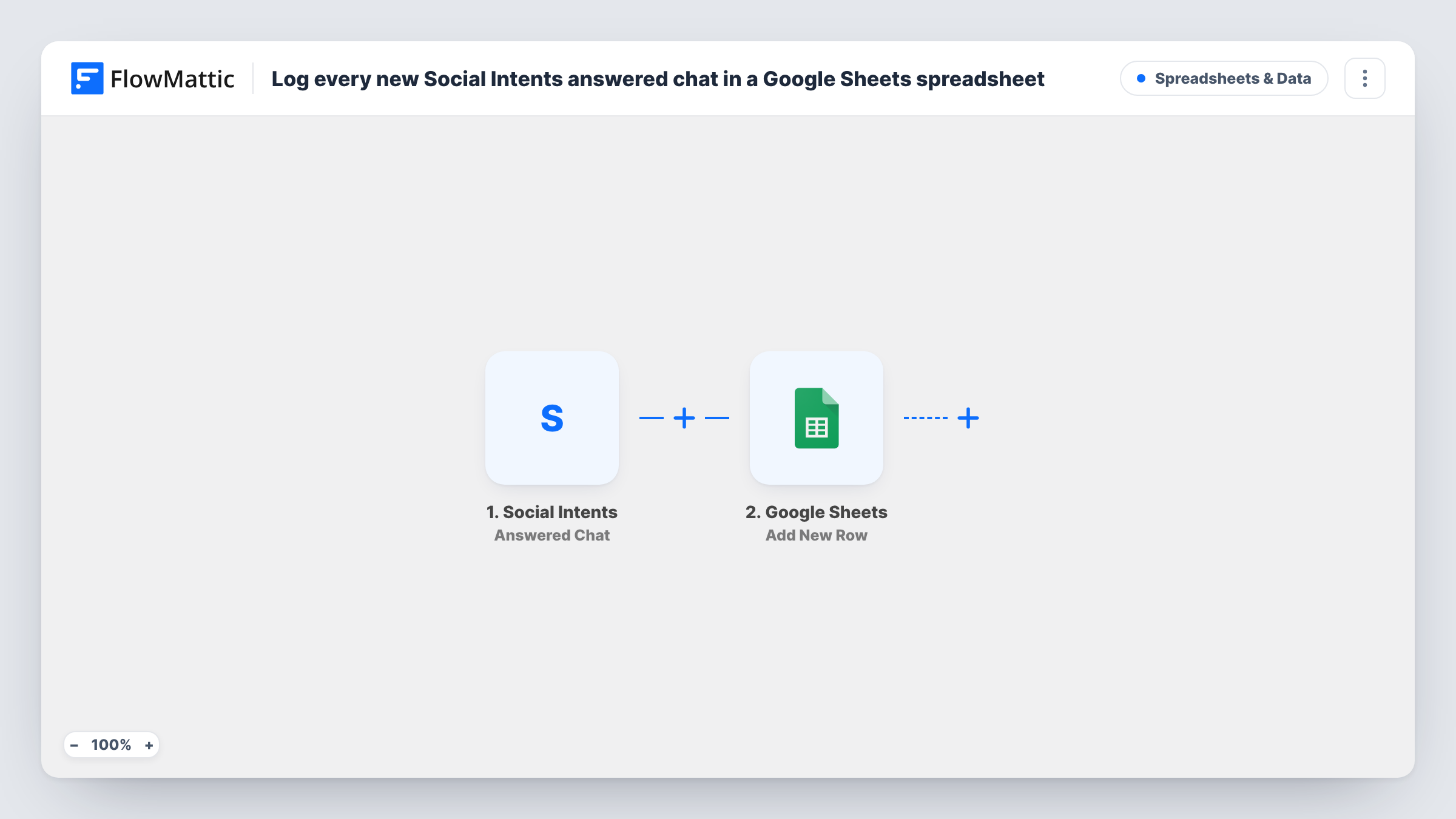
The Social Intents trigger picks up each conversation once an agent has answered it and the chat has ended. FlowMattic receives the chat data and hands it to Google Sheets, where the Add New Row action writes it to the spreadsheet you connect. You choose which chat values land in which column.
There is no filter in the template, so every answered chat adds exactly one row. Missed chats and offline messages have their own Social Intents triggers and are not logged here. Task History records each run, so you can see when a row was written and spot a failed one.
Weekly review of support chats
A team lead opens the sheet each Friday, sorts it, and goes through the week's answered chats with the team in one sitting.
Counting chat volume by day
Each completed chat adds one dated row once you map a date into it, so a simple count per day shows when your team is busiest on chat.
Sharing chat activity with a manager
Someone without a Social Intents login can still follow how many chats the team handled by reading the shared Google Sheet.
How this workflow runs
What happens at each step once the workflow is on, and what you need before you import it.
 Social Intents Answered Chat
Starts a run each time one of your agents answers a Social Intents chat and that chat is completed. The chat's data is passed on for mapping into the spreadsheet.
- Google Sheets Add New Row
Adds one new row to the Google Sheets spreadsheet you connect for each answered chat. Map the Social Intents values to your columns after connecting your Google account.
What you need
- FlowMatticCore
- Social Intents AccountAccount
- Google Sheets AccountAccount
After importing, map your own data. To keep the template universal, not every step is pre-filled. Open each step in the builder and connect your accounts and fields (channels, lists, sheets, recipients) before you switch the workflow on.
Make it yours
Changes worth making after you import it.
- Set up the column headers in your sheet before mapping, then complete a test chat in Social Intents so FlowMattic captures real values to map.
- Want missed chats too? Build a second workflow on the Social Intents Missed Chat trigger that writes to a separate tab, so you can see which visitors got no reply.
- Add a Filter after the trigger if you only want certain chats in the log, using any value the chat data carries.
Questions about this workflow
Which Social Intents chats get logged in Google Sheets?
Chats that are answered and completed. That is what the Answered Chat trigger fires on, so chats nobody picked up are not added.
Are past Social Intents chats added to the sheet?
No. Only chats completed after you turn the workflow on create rows. Older conversations stay in Social Intents.
What chat details can I put in the spreadsheet?
Whatever the Answered Chat trigger passes to FlowMattic. Complete one test chat after import, then look at the captured data in the Google Sheets step to see what you can map.
Does the workflow ever update an existing row?
No. The Google Sheets step only adds rows, so each answered chat gets its own new line at the bottom of the sheet.
More Spreadsheets & Data workflows
Other ready-to-import templates from the same category.




Import this workflow into your WordPress site
Download the JSON, import it from the Workflows screen and connect your accounts. Every run stays on your server, with no per-task fees.
30-day money-back guarantee Unlimited workflows and runs Self-hosted