

Create an Airtable record from every MetaSurvey completion
Each completed MetaSurvey becomes a new record in the Airtable table you pick, with every answer mapped to its own field, so you can sort, filter and report on responses in Airtable.
 MetaSurvey
 Airtable
2 steps Setup ~5 min Used on 634 sites Free to import
What this workflow does
Survey tools are good at collecting answers, but you may want them next to your other data, with your own views, linked records and reports. Airtable does that well, provided the responses actually get there. This workflow creates the record as each survey is completed.
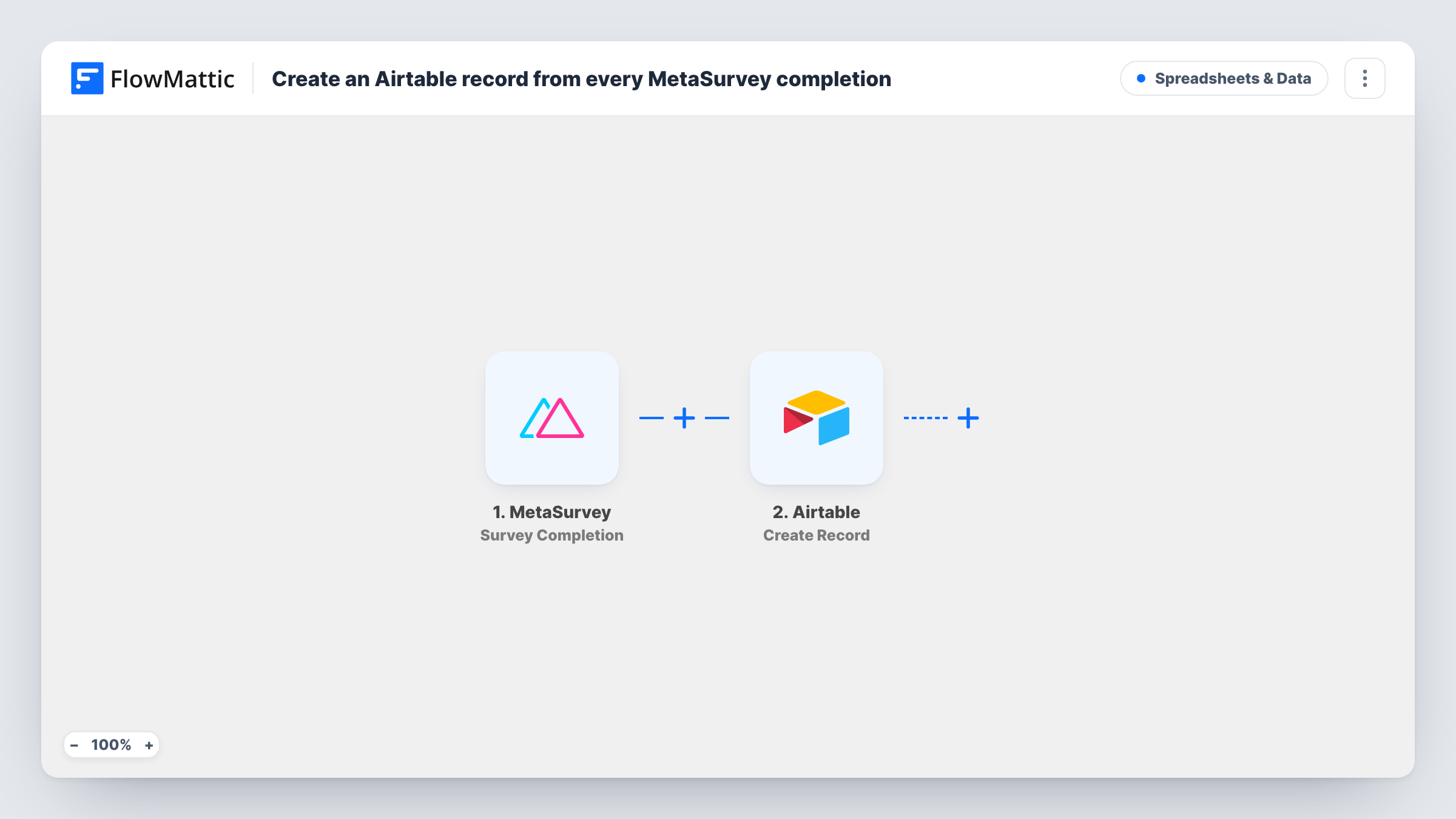
The MetaSurvey trigger fires for survey results, giving one run per completed survey. FlowMattic then calls Airtable with Create Record, which adds a new record to the base and table you choose. You map each MetaSurvey answer to the matching Airtable field.
Every completion is stored as its own record, including repeat responses from the same person. The template doesn't look for an existing record first. Task History shows each run and what was sent to Airtable.
Product feedback database
Responses to a feature survey land in Airtable, where the product team groups them by feature in a kanban view.
Customer research panel
Each screener survey response becomes a record you link to participants and use to schedule interviews.
Course evaluations
A trainer collects end-of-course surveys in an Airtable table with one view per course.
How this workflow runs
What happens at each step once the workflow is on, and what you need before you import it.
 MetaSurvey Survey Completion
Fires for MetaSurvey results, so each completed survey starts a run and its answers can be mapped to Airtable fields.
- Airtable Create Record
Saves the survey as a new row-style record in the Airtable table you point it at. Connect Airtable and map each survey answer to a field in that table.
What you need
- FlowMatticCore
- MetaSurvey AccountAccount
- Airtable AccountAccount
After importing, map your own data. To keep the template universal, not every step is pre-filled. Open each step in the builder and connect your accounts and fields (channels, lists, sheets, recipients) before you switch the workflow on.
Make it yours
Changes worth making after you import it.
- Create the Airtable fields before you map, with field types that suit each answer, such as a number field for scores.
- Add a Filter after the trigger if only part of the responses belong in this table, for example responses that picked a certain option in one question.
- Fill in one survey yourself after import so FlowMattic has a real result to map from.
Questions about this workflow
Does a repeat MetaSurvey response update the old Airtable record?
No. Create Record always adds a new record, so each completion is stored separately.
Can I send MetaSurvey responses to more than one Airtable table?
Yes. Add a second Airtable Create Record step after the first one and point it at the other table.
What happens if an Airtable field type doesn't match the answer?
Airtable may reject the value, and Task History shows the error on the Airtable step. Match field types to your answers to avoid it.
More Spreadsheets & Data workflows
Other ready-to-import templates from the same category.




Import this workflow into your WordPress site
Download the JSON, import it from the Workflows screen and connect your accounts. Every run stays on your server, with no per-task fees.
30-day money-back guarantee Unlimited workflows and runs Self-hosted