

Log every new Upnify client in a Google Sheets spreadsheet
Each time a client is created in Upnify, this workflow adds a row to a Google Sheets spreadsheet with the client details you map, so you keep a running list of new accounts outside the CRM.
 Upnify
 Google Sheets
2 steps Setup ~5 min Used on 3.4k sites Free to import
What this workflow does
Upnify holds your clients, but not everyone who needs the list has a seat in the CRM. A sheet is easy to share with an accountant, a manager or a partner, and easy to sort and chart. This workflow keeps that sheet filled for you as clients are added.
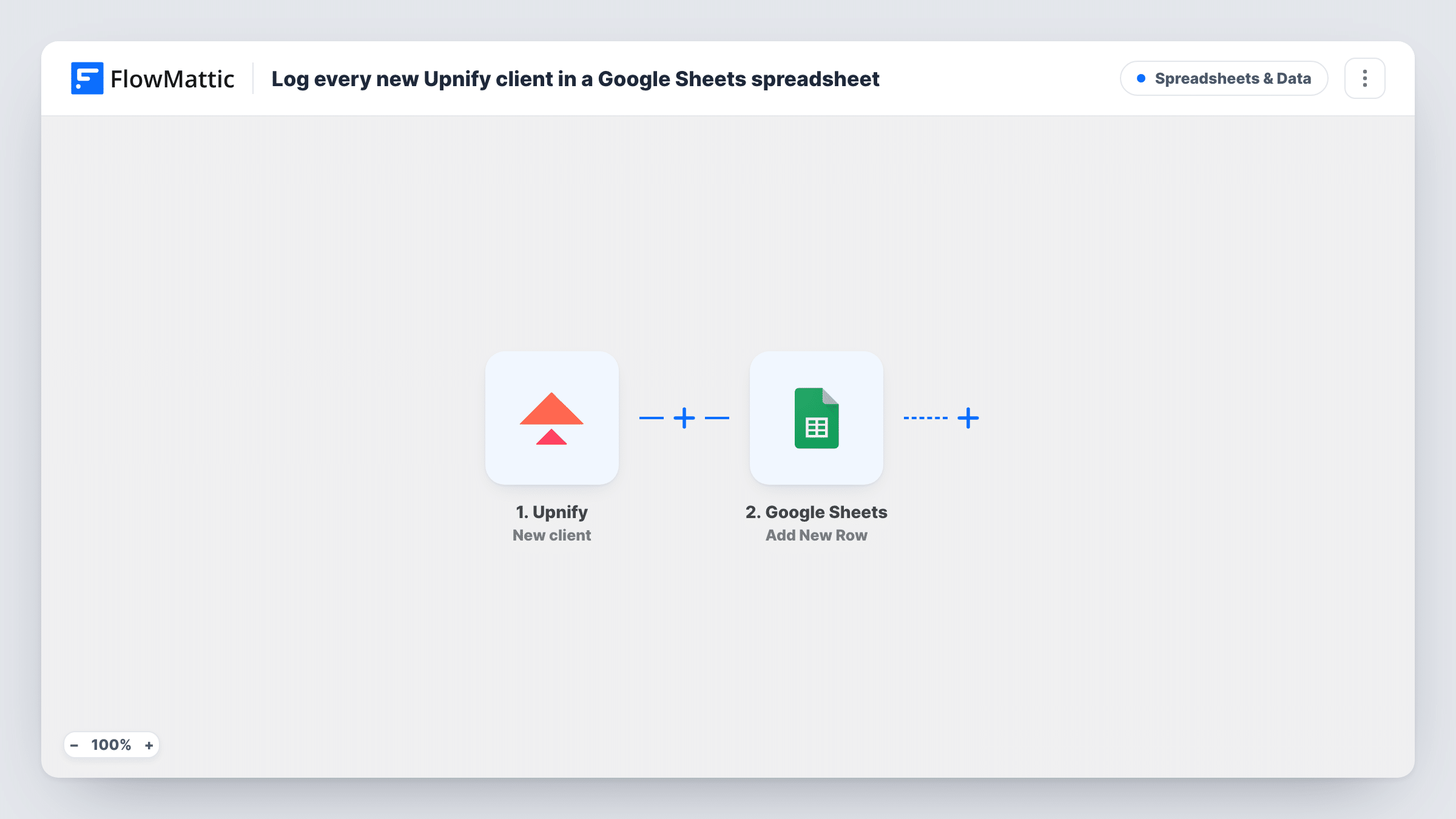
The Upnify trigger is New client, which fires when a new client is created. FlowMattic takes the client data Upnify sends and passes it to Google Sheets, where Add New Row writes one row with the columns you map, such as the client name, contact person, email and phone.
Each new Upnify client means one new row. Changes you make to a client later don't fire the trigger, so the sheet keeps the details as they were when the client was created. Task History lists every run if you need to check what Upnify sent.
Weekly new-client report for a sales manager
The manager opens the sheet on Monday and counts the clients your reps added in Upnify last week, without needing a CRM login.
Handover list for onboarding staff
The onboarding team works from a shared sheet. Each client a salesperson creates in Upnify shows up there so they know who to welcome.
Backup record of Upnify clients
You keep a plain copy of every client as it was first entered, which helps when a CRM record is later changed or removed by mistake.
How this workflow runs
What happens at each step once the workflow is on, and what you need before you import it.
 Upnify New client
Fires when a new client is created in Upnify. The client data Upnify sends becomes available to map into the Google Sheets row.
- Google Sheets Add New Row
Adds one row per new Upnify client to the spreadsheet you pick. Map each column to a client field from the trigger and connect your Google account on import.
What you need
- FlowMatticCore
- Upnify AccountAccount
- Google Sheets AccountAccount
After importing, map your own data. To keep the template universal, not every step is pre-filled. Open each step in the builder and connect your accounts and fields (channels, lists, sheets, recipients) before you switch the workflow on.
Make it yours
Changes worth making after you import it.
- Create a test client in Upnify after import so FlowMattic captures the fields the trigger sends, then map them to your sheet's columns.
- Add a column for the date the row was written. Map a date field from the Upnify data if it has one, or add a step that produces the current date.
- If only clients of one type or owner belong in the sheet, add a Filter after the trigger that checks that field before the row is added.
Questions about this workflow
Does the sheet update when I edit an Upnify client?
No. The New client trigger fires when a client is created. Later edits in Upnify don't change the row that was already added.
Will my existing Upnify clients be copied to Google Sheets?
No. Only clients created after you turn the workflow on reach the sheet. Export older clients from Upnify separately if you need them in the same file.
Which Upnify client fields can go into the sheet?
Any field that arrives with the New client trigger. Run a test with a sample client to see the full list, then map the ones you want.
More Spreadsheets & Data workflows
Other ready-to-import templates from the same category.




Import this workflow into your WordPress site
Download the JSON, import it from the Workflows screen and connect your accounts. Every run stays on your server, with no per-task fees.
30-day money-back guarantee Unlimited workflows and runs Self-hosted