

Log every paid Chip purchase in a Google Sheets spreadsheet
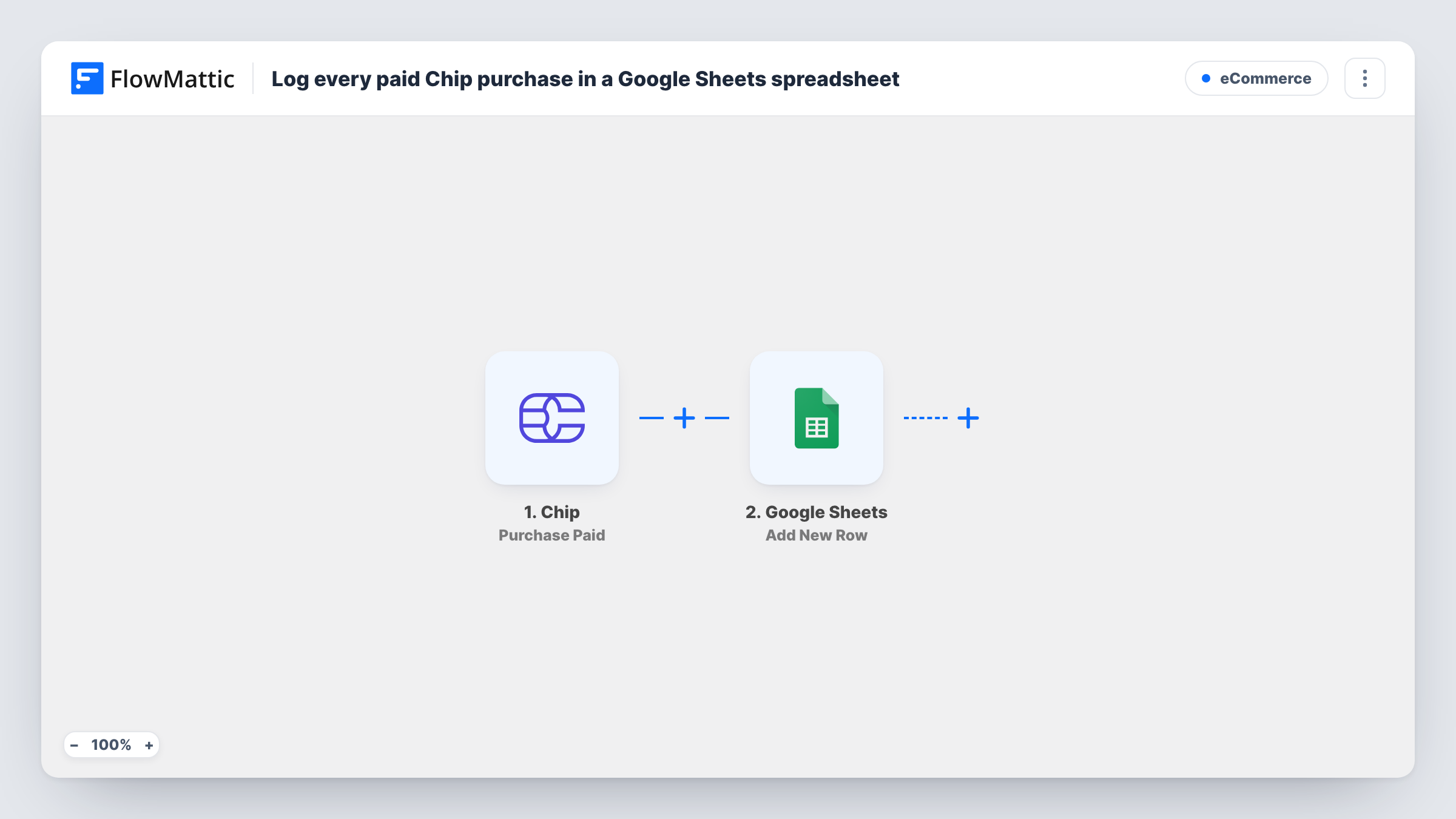
Each time a purchase is paid through Chip, this workflow adds a row to a Google Sheets spreadsheet, building a running payment log you can share, sort and reconcile outside Chip.
 Chip
 Google Sheets
2 steps Setup ~5 min Used on 3.1k sites Free to import
What this workflow does
Chip records your payments, but your bookkeeping or reporting may live in a spreadsheet. Downloading payment data and pasting it in takes time and is easy to skip for a week. This workflow writes each paid purchase into Google Sheets as it happens.
The Chip trigger is Purchase Paid, which fires when a purchase is paid. Purchases that are only created, on hold or pending don't start it. FlowMattic takes the payment data and passes it to Google Sheets, where Add New Row writes one row to the spreadsheet you choose, with the values you map to each column.
Rows are never changed afterwards. If a paid purchase is later refunded, its row stays, because this workflow doesn't watch refunds. Chip has a Payment Refunded trigger you can use in a second workflow to log those on another tab.
Small online shop doing monthly books
Your accountant works from a shared sheet of every paid Chip purchase, instead of asking you for exports each month.
Event organiser tracking ticket payments
Each paid ticket purchase adds a row, so you can count paid attendees and their amounts from the spreadsheet.
Service business matching payments to jobs
A column you fill in by hand next to each logged payment records which job it covered, building a simple ledger.
How this workflow runs
What happens at each step once the workflow is on, and what you need before you import it.
 Chip Purchase Paid
Fires when a purchase is paid in Chip. The purchase and payment data become available to map into the spreadsheet.
- Google Sheets Add New Row
Adds one row per paid purchase to the Google Sheets spreadsheet you select. Connect your Google account, choose the sheet and map Chip's purchase values to its columns.
What you need
- FlowMatticCore
- Chip AccountAccount
- Google Sheets AccountAccount
After importing, map your own data. To keep the template universal, not every step is pre-filled. Open each step in the builder and connect your accounts and fields (channels, lists, sheets, recipients) before you switch the workflow on.
Make it yours
Changes worth making after you import it.
- Create the header row in your sheet first, with columns such as date, customer and amount, so each one can be matched to a Chip value when you map the step.
- Add a second workflow on Chip Payment Refunded that writes to another tab, so refunds sit next to your payment log.
- Make a small test payment after import so FlowMattic captures Chip's data before you map the columns.
Questions about this workflow
Do unpaid or failed Chip purchases get a row?
No. The trigger is Purchase Paid, so only purchases that are paid start a run. Created, pending or failed purchases have their own Chip triggers.
What happens to the Google Sheets row if the Chip payment is refunded?
Nothing. The workflow only adds rows for paid purchases and never edits them. Log refunds with a separate workflow on the Payment Refunded trigger.
Are Chip payments from before import added to the sheet?
No. Only purchases paid after you turn the workflow on are logged. Copy earlier payments in by hand if you need them.
More E-Commerce workflows
Other ready-to-import templates from the same category.





Import this workflow into your WordPress site
Download the JSON, import it from the Workflows screen and connect your accounts. Every run stays on your server, with no per-task fees.
30-day money-back guarantee Unlimited workflows and runs Self-hosted