

Log every succeeded Givebutter transaction in a Google Sheets spreadsheet
Whenever a Givebutter transaction succeeds, this workflow writes it to a new row in a Google Sheets spreadsheet, giving your nonprofit a running ledger of completed gifts that staff and volunteers can open without a Givebutter login.
 Givebutter
 Google Sheets
2 steps Setup ~5 min Used on 2.3k sites Free to import
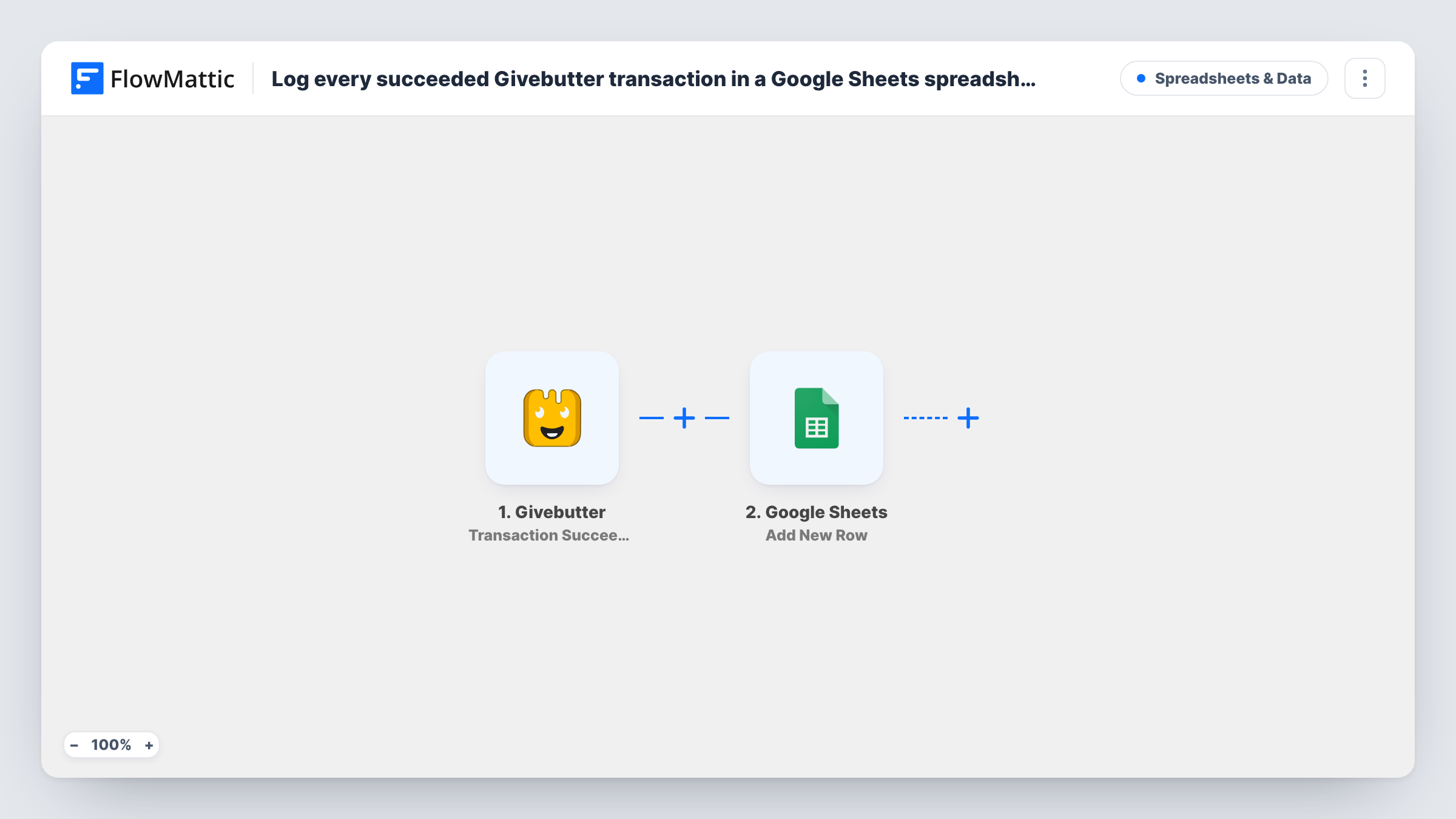
What this workflow does
Givebutter campaigns can bring in donations, ticket sales and other payments, and the people who reconcile or report on them often work in spreadsheets. Pulling an export after every event leaves the sheet behind between exports. This workflow adds each successful transaction to Google Sheets as it happens.
The Givebutter trigger, Transaction Succeeded, fires when a transaction is successful. Only completed transactions reach the workflow; the trigger itself does the selecting. FlowMattic then sends the transaction data to Google Sheets, where Add New Row appends it to the spreadsheet and sheet you choose.
Each successful transaction adds one row, and earlier rows are never changed. After import, run a small test transaction to see what Givebutter sends, add matching column headings, and map them. If a Givebutter row ever looks wrong, open that run in Task History to see the data it received.
Reconciling gifts with bank deposits
Your treasurer compares the sheet's amount column with Givebutter payouts each month, without asking a staff member to run an export.
Gala ticket and donation tracking
During a fundraising event the development team watches the sheet fill with each successful ticket purchase and donation, and totals it at the end of the night.
Donor thank-you list for volunteers
Volunteers work through new rows to write thank-you cards, marking a column when each card is sent.
How this workflow runs
What happens at each step once the workflow is on, and what you need before you import it.
 Givebutter Transaction Succeeded
Fires when a Givebutter transaction is successful. Connect your Givebutter account. The completed transaction's details become available to map into the spreadsheet.
- Google Sheets Add New Row
Appends the transaction to the spreadsheet you pick as one new row. Add column headings first, such as amount, name, email and campaign, then map the Givebutter values that a test run shows.
What you need
- FlowMatticCore
- Givebutter AccountAccount
- Google Sheets AccountAccount
After importing, map your own data. To keep the template universal, not every step is pre-filled. Open each step in the builder and connect your accounts and fields (channels, lists, sheets, recipients) before you switch the workflow on.
Make it yours
Changes worth making after you import it.
- Add a Filter after the trigger on a campaign value, if the test run shows one, so each sheet holds transactions from a single campaign.
- Leave a spare column for staff notes, such as a thank-you status. The workflow writes only the columns you map.
- Add a Slack step after Google Sheets to tell your fundraising channel about each completed gift as it is logged.
Questions about this workflow
Are failed or pending Givebutter payments logged?
No. The trigger is Transaction Succeeded, so only transactions Givebutter reports as successful start the workflow and reach the sheet.
Will past Givebutter transactions be added?
No. The sheet only receives transactions that succeed after you turn the workflow on. Export older ones from Givebutter if you need them.
Does a refund remove the row from Google Sheets?
No. This workflow only adds rows for successful transactions and never edits or deletes them. Record refunds by hand or with a separate workflow.
Can I send Givebutter transactions to more than one sheet?
Yes. Add another Google Sheets step after the first, or use a Router with distinct conditions to send each transaction to the sheet it belongs in.
More Spreadsheets & Data workflows
Other ready-to-import templates from the same category.




Import this workflow into your WordPress site
Download the JSON, import it from the Workflows screen and connect your accounts. Every run stays on your server, with no per-task fees.
30-day money-back guarantee Unlimited workflows and runs Self-hosted