

Log new ANGI Leads in a Google Sheets spreadsheet
Each lead that ANGI assigns to your account is added as a new row in Google Sheets, giving you a running list of ANGI prospects you can sort, share and work through.
 ANGI Leads
 Google Sheets
2 steps Setup ~5 min Used on 1.7k sites Free to import
What this workflow does
If you get home service leads from ANGI, they live in your ANGI account, and sharing them with an office manager or comparing them in one list takes extra work. This workflow writes every ANGI lead into a Google Sheet, so you have one place to track who came in and whether you called them back.
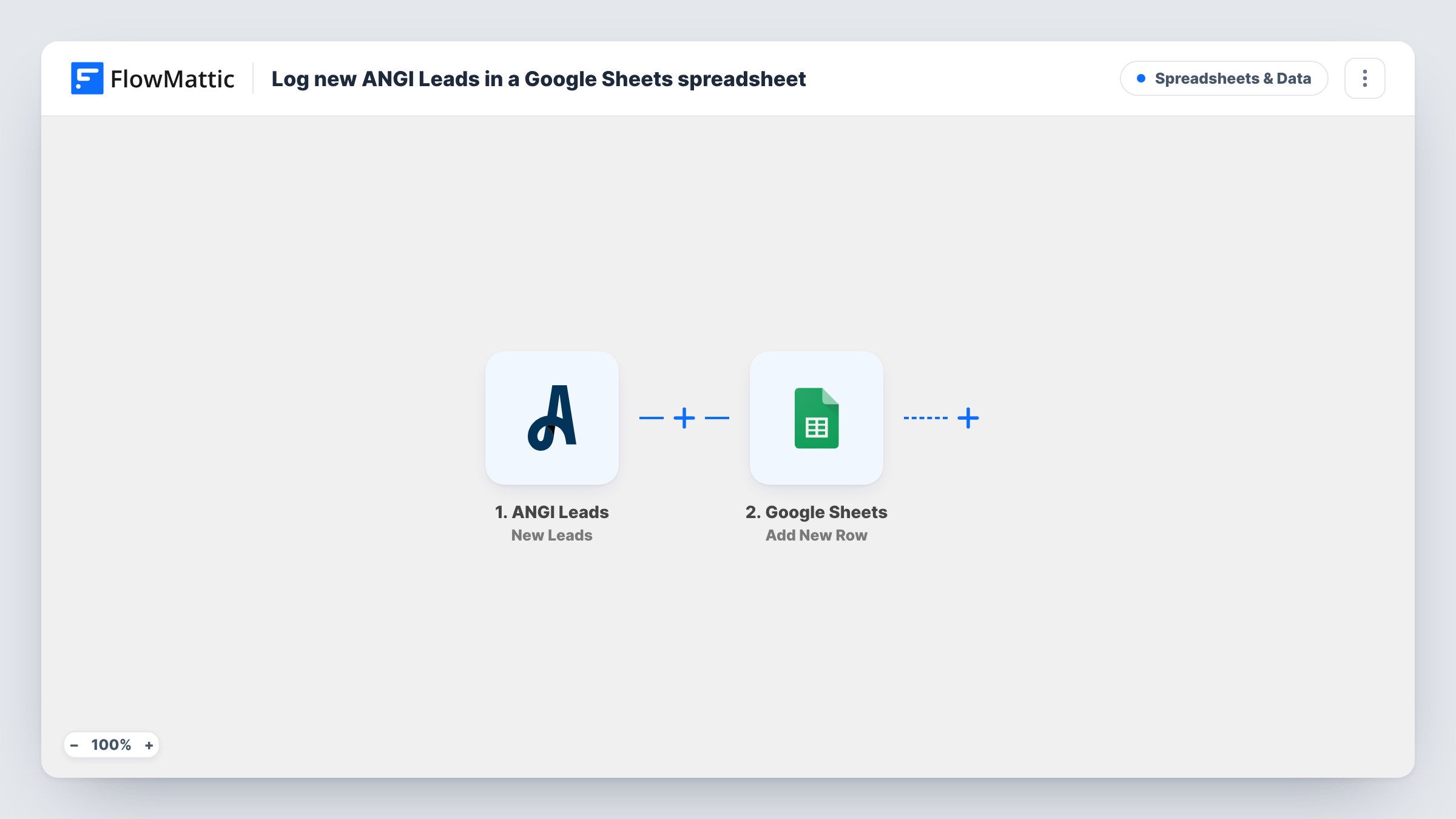
The ANGI Leads trigger fires when a lead is assigned to your account. FlowMattic takes the lead's details and adds them as a new row in Google Sheets, with each column mapped to a value from the lead.
One lead means one row. The sheet is a log, so edits you make to the lead in ANGI afterwards don't change it. You can add your own columns for status or notes and fill them in as you work the list. Task History shows each run and the data written to the sheet.
Contractor with an office manager
A roofer's office manager works the lead list from a shared Google Sheet and marks each one as called, quoted or booked.
Tracking lead volume by service
A handyman business logs every ANGI lead, then sorts or counts the sheet by service type to see which jobs the leads are for.
Splitting leads between crews
A cleaning company with two crews uses the sheet to assign each new ANGI lead to a crew by area.
How this workflow runs
What happens at each step once the workflow is on, and what you need before you import it.
 ANGI Leads New Leads
Fires each time ANGI assigns a lead to your account. The lead's details become available to map into the spreadsheet row.
- Google Sheets Add New Row
Writes the ANGI lead into a new row of the sheet you choose. Connect your Google account and map each column to a lead value, for example the name, contact details and the job requested.
What you need
- FlowMatticCore
- ANGI Leads AccountAccount
- Google Sheets AccountAccount
After importing, map your own data. To keep the template universal, not every step is pre-filled. Open each step in the builder and connect your accounts and fields (channels, lists, sheets, recipients) before you switch the workflow on.
Make it yours
Changes worth making after you import it.
- Add columns such as Status and Notes to the right of the mapped ones. The workflow leaves them blank, so your team can fill them in as they follow up.
- Want a faster heads-up as well? Add a Slack or SMS step after the Google Sheets step so someone is told about each new ANGI lead.
- Leave the Google Sheets step unmapped until the first ANGI lead arrives after import. FlowMattic then has real lead data you can map to each column.
Questions about this workflow
Which ANGI leads start the workflow?
Each lead ANGI assigns to your account. There is no filter in the template, so every assigned lead becomes a row.
Will leads I already received from ANGI be added?
No. Only leads assigned after you turn the workflow on are written to the sheet.
Does the sheet update if the ANGI lead changes later?
No. The workflow adds one row when the lead is assigned and doesn't go back to it. Update the row yourself if details change.
More Spreadsheets & Data workflows
Other ready-to-import templates from the same category.




Import this workflow into your WordPress site
Download the JSON, import it from the Workflows screen and connect your accounts. Every run stays on your server, with no per-task fees.
30-day money-back guarantee Unlimited workflows and runs Self-hosted