

Create an Airtable record from each new Liferay submission
When Liferay sends a new submission to this workflow’s webhook, FlowMattic creates a record in the Airtable table you choose, so entries from your Liferay portal sit in a base your team can sort, filter and share.
 Liferay
 Airtable
2 steps Setup ~5 min Used on 1.1k sites Free to import
What this workflow does
Liferay portals collect data from customers, members and staff, but not everyone who needs those entries has a Liferay login or wants to work inside the portal. Airtable gives them a table they can sort, filter and comment on. This workflow copies each new submission into that table.
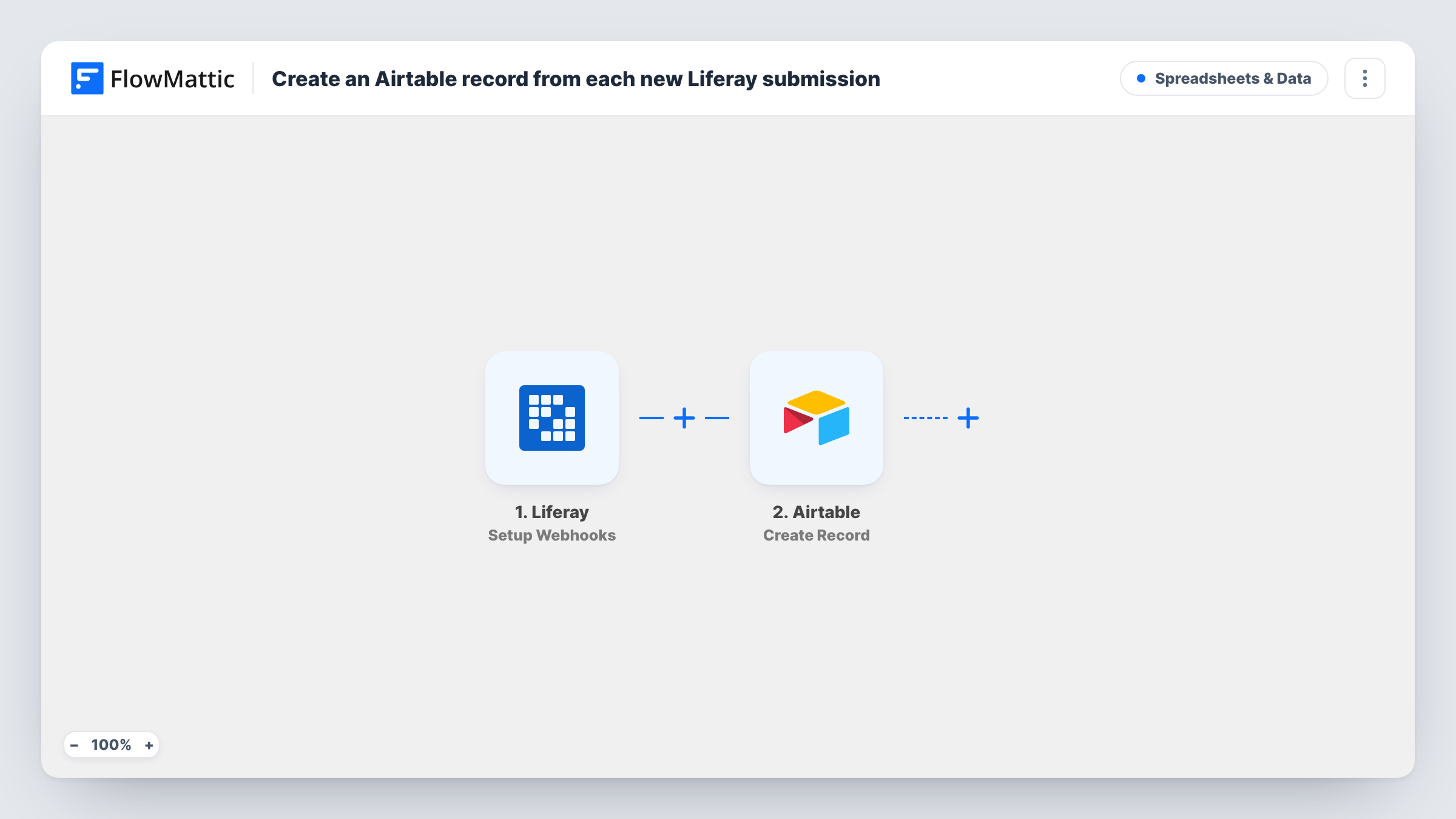
The Liferay trigger, Setup Webhooks, fires for the events you set Liferay to send to this workflow's URL. For this template, that should be the event for a new submission. FlowMattic passes the submission data to Airtable, where Create Record adds a row to the base and table you pick, with each Liferay value mapped to the field you choose.
The Airtable step always creates a record and never looks for an existing one. If Liferay also sends update events to the same URL, every edit to an entry adds another record. Send only the new-submission event, or add a Filter on the event type after the trigger. Task History records every run and the response Airtable gives back.
Partner portal applications
Companies apply to join your partner programme through a Liferay form. The partnerships team reviews each application as a record in Airtable, with a status field they update.
Customer support requests
Customers submit service requests in your Liferay portal. The requests land in an Airtable base the support lead uses to assign and track them.
Event sign-ups on an intranet
Staff register for training sessions on the company's Liferay intranet. The organiser works from an Airtable table of registrations without needing portal admin rights.
How this workflow runs
What happens at each step once the workflow is on, and what you need before you import it.
 Liferay Setup Webhooks
Fires for the Liferay events you send to this workflow's webhook URL. Send only the event for a new submission, then submit a test entry so FlowMattic captures its fields.
- Airtable Create Record
Turns each Liferay submission into a fresh row in your chosen Airtable table. Connect your Airtable account and map each Liferay value to the matching field in the table.
What you need
- FlowMatticCore
- Liferay AccountAccount
- Airtable AccountAccount
After importing, map your own data. To keep the template universal, not every step is pre-filled. Open each step in the builder and connect your accounts and fields (channels, lists, sheets, recipients) before you switch the workflow on.
Make it yours
Changes worth making after you import it.
- If you can't separate events in Liferay, add a Filter after the trigger that continues only when the event type in the data is the one for a new entry.
- Add a single-select Status field in Airtable that you fill in by hand, so reviewers can track each submission without changing the copied data.
- Pass the Liferay entry ID into its own Airtable field. Later workflows can then find the matching record when you want to act on it.
Questions about this workflow
Will editing a Liferay entry create a second Airtable record?
Only if Liferay sends update events to this webhook. Create Record makes a new record each run, so send only new-submission events, or filter on the event type.
Which Liferay data can I put in Airtable?
Whatever Liferay includes in the webhook it sends. Submit a test entry after import, then map the captured values to your Airtable fields.
Do my Airtable fields need to exist before I import?
Yes, create the table and its fields first. The Create Record step fills fields that already exist; it doesn't add new columns.
Are older Liferay submissions copied to Airtable?
No. Only events Liferay sends after you set up the webhook start a run. Export older entries from Liferay and import them into Airtable separately.
More Spreadsheets & Data workflows
Other ready-to-import templates from the same category.




Import this workflow into your WordPress site
Download the JSON, import it from the Workflows screen and connect your accounts. Every run stays on your server, with no per-task fees.
30-day money-back guarantee Unlimited workflows and runs Self-hosted