

Log new CalendarFix booking confirmations in a Google Sheets spreadsheet
When a booking is confirmed in CalendarFix, this workflow writes its details to a new row in a Google Sheets spreadsheet, so you build a running list of confirmed appointments you can sort and share.
 CalendarFix
 Google Sheets
2 steps Setup ~5 min Used on 2.3k sites Free to import
What this workflow does
A booking tool shows today's calendar well, but questions like how many sessions you held last month, or which service people book most, are easier to answer from a spreadsheet. This workflow keeps that spreadsheet filled for you as bookings are confirmed.
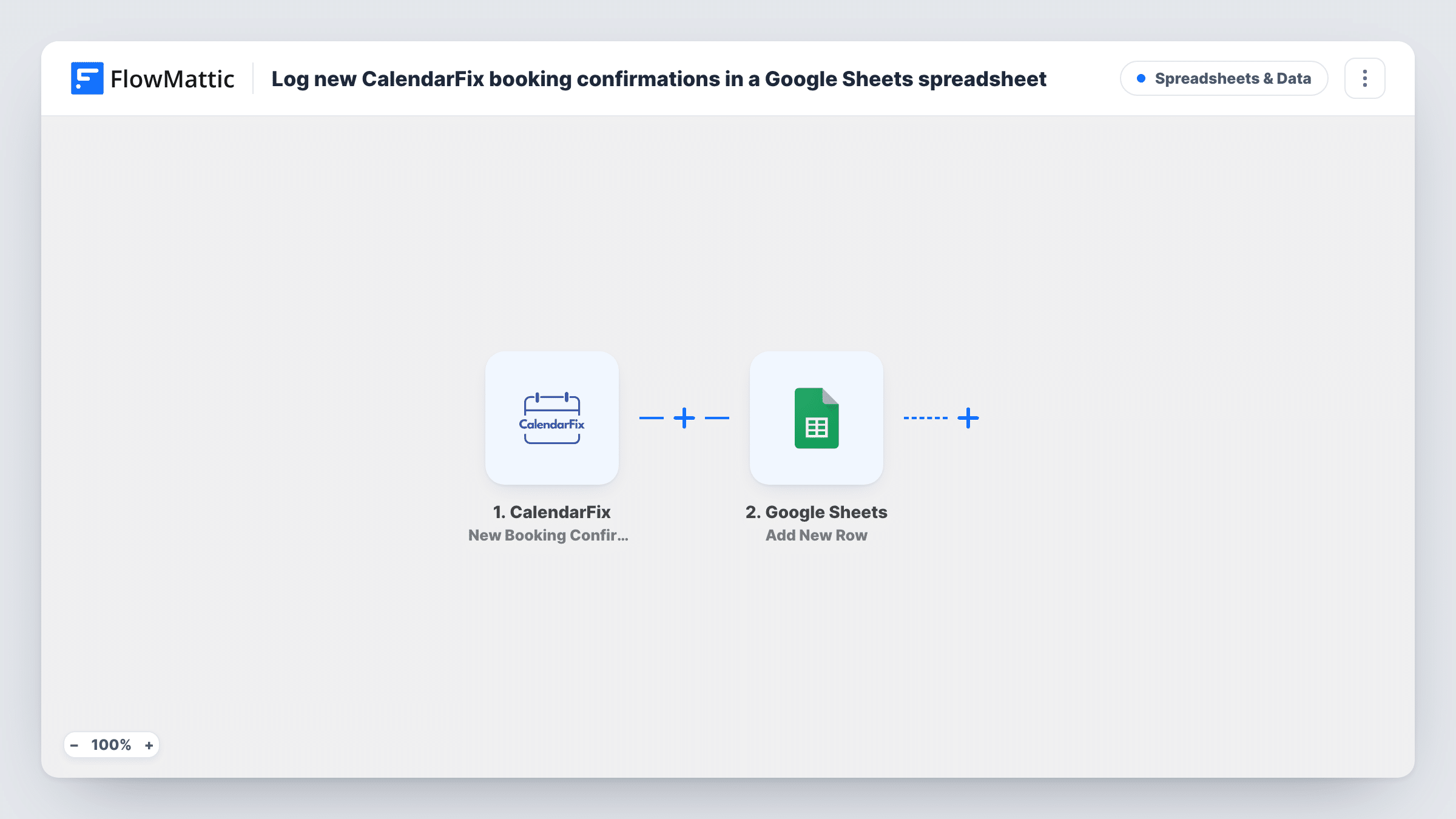
The CalendarFix trigger, New Booking Confirmation, fires when a new booking is confirmed. Bookings that are never confirmed don't start a run. FlowMattic passes the booking data to the Google Sheets step, which writes it into a new row in the spreadsheet you pick, using the columns you map.
Each confirmed booking is logged once. If a booking is later cancelled or moved, the row stays as recorded, because the template has no step that edits rows. Confirm a test booking after import to see the fields CalendarFix sends, such as the client and the appointment time.
Monthly session counts for a therapist
Each confirmed appointment adds a row, and at month end you count sessions or total them by client straight from the sheet.
Salon owner comparing services
With the service name in its own column, the sheet shows which treatments clients confirm most often.
Consultant sharing a bookings list
A virtual assistant who prepares meeting notes reads the shared sheet instead of logging into the booking tool.
How this workflow runs
What happens at each step once the workflow is on, and what you need before you import it.
 CalendarFix New Booking Confirmation
Runs when a new booking is confirmed in CalendarFix. The booking details are passed on so you can map them into spreadsheet columns.
- Google Sheets Add New Row
Writes a new row to the Google Sheets spreadsheet you pick, holding the CalendarFix booking values you map. Add header columns first, then link your Google account during import.
What you need
- FlowMatticCore
- CalendarFix AccountAccount
- Google Sheets AccountAccount
After importing, map your own data. To keep the template universal, not every step is pre-filled. Open each step in the builder and connect your accounts and fields (channels, lists, sheets, recipients) before you switch the workflow on.
Make it yours
Changes worth making after you import it.
- Add a formula column next to the mapped data, such as a month taken from the appointment date, so you can group bookings in a pivot table.
- Map the booking's own ID into a column. It helps you match rows later if a booking changes in CalendarFix.
- Add a Slack step after the sheet if your team wants a message for each confirmed booking as well.
Questions about this workflow
Are unconfirmed CalendarFix bookings logged?
No. The trigger fires on confirmation, so bookings that are still pending or never confirmed don't create rows.
What happens to the row if a CalendarFix booking is cancelled?
Nothing. The row keeps the details from confirmation. Mark cancellations in the sheet by hand, since the template doesn't update rows.
Can I log bookings to different tabs by service?
Not as imported; every row goes to one sheet. Add a Router with one route per service value, each with its own Google Sheets step pointing at a different tab.
More Spreadsheets & Data workflows
Other ready-to-import templates from the same category.



Import this workflow into your WordPress site
Download the JSON, import it from the Workflows screen and connect your accounts. Every run stays on your server, with no per-task fees.
30-day money-back guarantee Unlimited workflows and runs Self-hosted