

Log Contentful entry events to a Google Sheets spreadsheet
Every Contentful entry event, from creation and saves to publishing, archiving and deletion, adds a row to your Google Sheets spreadsheet, giving you a running activity log.
 Contentful
 Google Sheets
2 steps Setup ~5 min Used on 1.1k sites Free to import
What this workflow does
When several editors work in Contentful, it can be hard to answer simple questions later: who published that entry, when was it archived, how often was it changed? This workflow writes each entry event into a Google Sheet, so you have a log you can sort, filter and share outside Contentful.
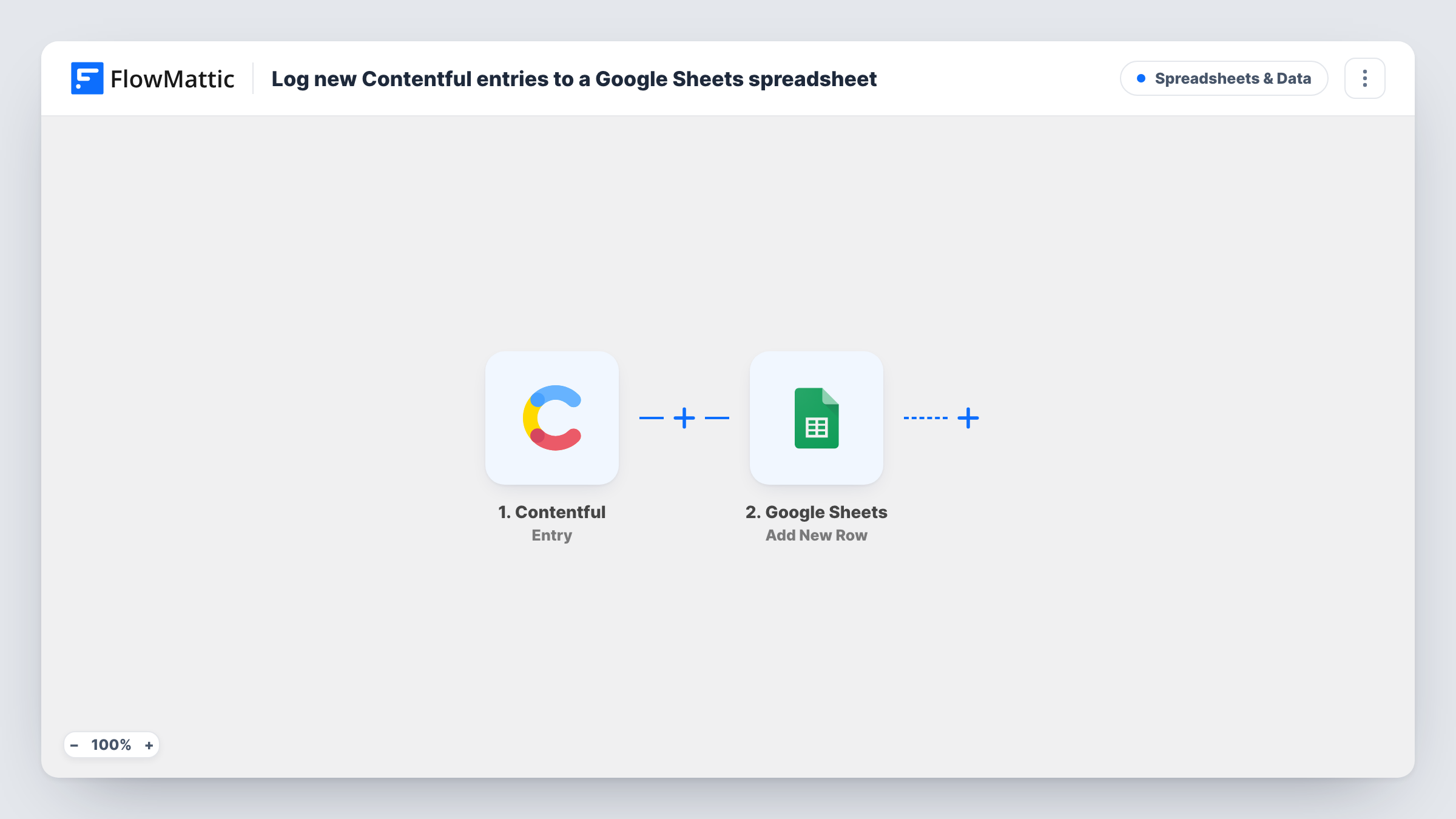
The Contentful Entry trigger fires when an entry is created, saved, autosaved, archived, published, unpublished or deleted. Each of those events starts its own run. Autosaves happen while editors type, so an active editing session can add many rows. The entry's data from Contentful is passed on; a test event shows which fields arrive.
The Google Sheets Add New Row step then adds one row per event. It ships unmapped: after import you connect Google, pick the spreadsheet and sheet, and map the entry details into your columns. Columns for the entry ID, content type, the event and the time make the log easy to read.
Nothing in this template edits or removes an earlier row, so the Contentful log grows with every event. Each event's run, with the Google Sheets response, is listed in Task History.
Editorial audit trail
A publishing team keeps a Google Sheet of every Contentful entry event, so the managing editor can see when each article was published or unpublished.
Spotting heavy editing
A product content team counts rows per entry in Sheets to see which product pages get changed most often in Contentful.
Deletion record for compliance
An agency managing a client's Contentful space keeps a sheet showing when entries were archived or deleted, ready to share in monthly reports.
How this workflow runs
What happens at each step once the workflow is on, and what you need before you import it.
 Contentful Entry
Fires when a Contentful entry is created, saved, autosaved, archived, published, unpublished or deleted. Each event starts its own run, and the entry's data becomes available to map.
- Google Sheets Add New Row
Adds one row to your Google Sheet for each entry event. The step ships unmapped: connect Google, pick the spreadsheet and sheet, and map entry details such as the ID, content type and event into your columns.
What you need
- FlowMatticCore
- Contentful AccountAccount
- Google Sheets AccountAccount
After importing, map your own data. To keep the template universal, not every step is pre-filled. Open each step in the builder and connect your accounts and fields (channels, lists, sheets, recipients) before you switch the workflow on.
Make it yours
Changes worth making after you import it.
- To log only some events, such as publish and unpublish, put a Filter between the Contentful trigger and the Google Sheets step on the event field from a test run. The field and values are examples for you to set.
- Map the event time into its own column so you can sort the log by date and see each entry's history in order.
- Freeze the header row and turn on a filter view in Google Sheets, so editors can narrow the log to one entry or content type.
Questions about this workflow
Will autosaves in Contentful fill my Google Sheet with rows?
They can. The Entry trigger fires on autosaves as well as saves, so an editor working on a long entry may add many rows. A Filter on the event between the two steps keeps autosaves out.
Which entry details end up in the Google Sheets log?
Just the Contentful fields you choose to map into your sheet's columns. Send a test event from Contentful, look at the data in Task History, and match it to your column headers.
Does deleting a Contentful entry remove its rows from the sheet?
No. A deletion is logged as a new row like any other event. Earlier rows for that entry stay in the sheet.
Are Contentful assets logged too?
No. This workflow uses the Entry trigger only. Assets have their own Contentful trigger, which you can add in a separate workflow.
More Spreadsheets & Data workflows
Other ready-to-import templates from the same category.



Import this workflow into your WordPress site
Download the JSON, import it from the Workflows screen and connect your accounts. Every run stays on your server, with no per-task fees.
30-day money-back guarantee Unlimited workflows and runs Self-hosted