

Log new G2 Crowd leads in a Google Sheets spreadsheet
Each time G2 Crowd captures a new lead for your product, this workflow adds that lead’s details to a new row in the Google Sheets spreadsheet your sales or marketing team works from.
 G2 Crowd
 Google Sheets
2 steps Setup ~5 min Used on 2.2k sites Free to import
What this workflow does
Leads from your G2 Crowd profile are buyers who were researching your category, and you want them somewhere your whole team can see. Logging into G2 to check is easy to forget. This workflow writes each one into a Google Sheet the moment G2 reports it.
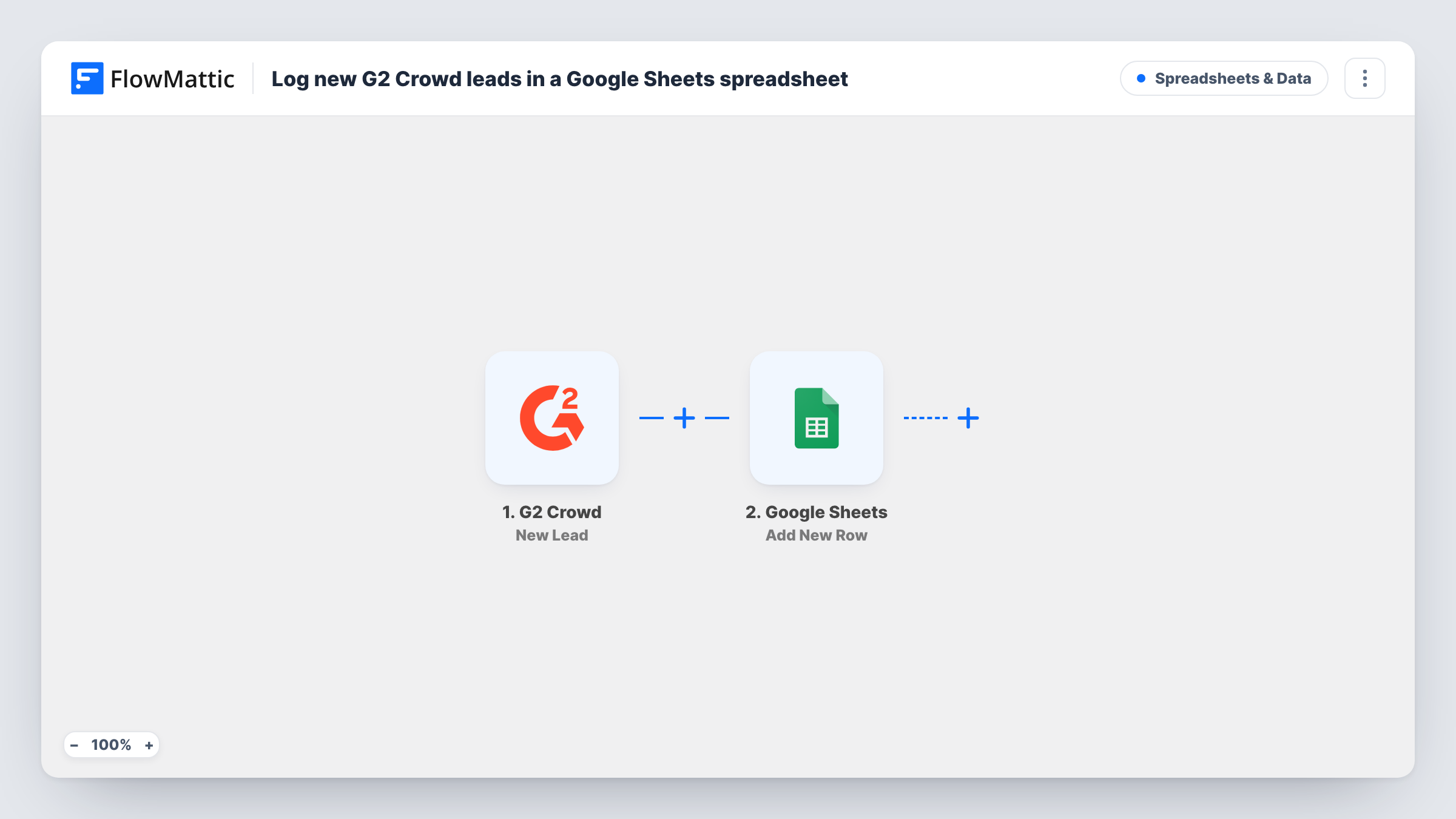
The G2 Crowd trigger fires when a new lead is captured on the G2 platform for your account. FlowMattic receives the lead's details and the Google Sheets Add New Row step writes them into the spreadsheet you pick, one lead per row, in the columns you map.
The sheet becomes a running list you can sort, assign or share with people outside your G2 account. The template does not deduplicate, so a lead G2 sends twice appears twice. Task History records each run with the data that went to the sheet.
Shared lead list for a small sales team
Reps who don't have G2 access see every new G2 Crowd lead in a shared sheet and add their name in an owner column to claim it.
Tracking review-site lead volume
Marketing keeps a dated log of G2 leads in Google Sheets to compare with leads from other channels each month.
Staging leads before a CRM import
Leads collect in a sheet that someone checks and cleans before importing them into the CRM in batches.
How this workflow runs
What happens at each step once the workflow is on, and what you need before you import it.
 G2 Crowd New Lead
Runs when a new lead is captured for your account on the G2 Crowd platform. The lead's details are passed on so you can map them into the sheet.
- Google Sheets Add New Row
Adds one row per G2 lead to the spreadsheet you choose. Match the sheet's columns to the lead details and connect your Google account on import.
What you need
- FlowMatticCore
- G2 Crowd AccountAccount
- Google Sheets AccountAccount
After importing, map your own data. To keep the template universal, not every step is pre-filled. Open each step in the builder and connect your accounts and fields (channels, lists, sheets, recipients) before you switch the workflow on.
Make it yours
Changes worth making after you import it.
- Add a date column and map a date value from the trigger into it, if G2 sends one, so the sheet shows when each lead came in.
- Add a Slack step after the sheet if your team also wants a message for each lead, so the row and the alert come from the same run.
- Once a real lead has come through, open the run in Task History to see the exact fields G2 sends, then add columns for any you missed.
Questions about this workflow
Which G2 Crowd leads reach Google Sheets?
Every new lead the G2 Crowd trigger receives for your account. There is no Filter, so each one becomes a row. To keep certain G2 leads out of the sheet, place a Filter right after the trigger.
Do I need a G2 Crowd account to use this template?
Yes. The trigger relies on your G2 Crowd account sending new leads to FlowMattic, so connect that account along with a Google account for the sheet.
Can I send G2 leads to a CRM as well as the sheet?
Yes. Add a CRM step after the Google Sheets step and map the same lead details into it, so each lead lands in both places.
Will G2 leads from before I set this up appear in the sheet?
No. The trigger reacts to leads captured after the workflow is turned on. Older leads stay in G2 Crowd.
More Spreadsheets & Data workflows
Other ready-to-import templates from the same category.





Import this workflow into your WordPress site
Download the JSON, import it from the Workflows screen and connect your accounts. Every run stays on your server, with no per-task fees.
30-day money-back guarantee Unlimited workflows and runs Self-hosted